
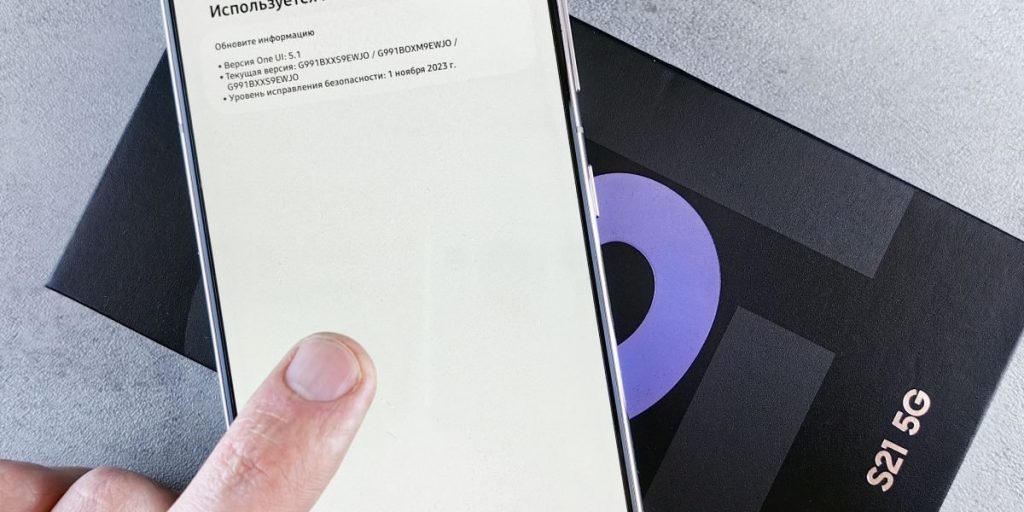
Why Samsung firmware matters (and what this guide will help you do)
Have you ever wondered what makes your Samsung phone work so smoothly? Think of your Samsung phone as a tiny computer. It has two main kinds of brains: software and firmware. Software is like the apps you use every day, like your games, web browser, or camera app. Firmware is a deeper, more basic set of instructions. It tells the phone’s parts how to talk to each other. It’s like the nervous system of your phone.
Keeping your Samsung firmware up to date is super important.

When you update your Samsung firmware, it’s like giving your phone a tune-up. These updates make your phone run better, fix problems, and even add new cool features. They also help keep your phone safe from online dangers, just like how updates for your computer protect it. Think of how important Over-the-Air Updates For IoT Devices are for security and better functions in other smart devices.
Sometimes, you might want to update your Samsung firmware to get the latest new camera features or a fresher look for your phone. Other times, you might need to fix a big problem. Maybe your phone is stuck on the Samsung logo, or you see a white spot on screen android. In these cases, installing new Samsung firmware can bring your phone back to life. It’s also a key step if you want to do a performance test to check how fast your phone is, or if you plan to att unlock my device so you can use it with a different phone company.
This guide will walk you through everything you need to know about Samsung firmware. We’ll show you how to update it safely, how to fix problems, and how to get your device ready for special uses. Staying informed about these updates helps you keep your phone working its best in 2026.
To stay on top of all the latest changes in tech, including big updates about AI, make sure you check out The AI Newsletter Worth Reading.

Now that you know how important your Samsung phone’s firmware is, let’s look closer at what it actually is. Think of Samsung firmware as not just one thing, but a collection of very important small programs. Each program has a special job to do to make your phone run. These parts all work together with your Android operating system to power your device.
Here are the main parts of Samsung firmware:
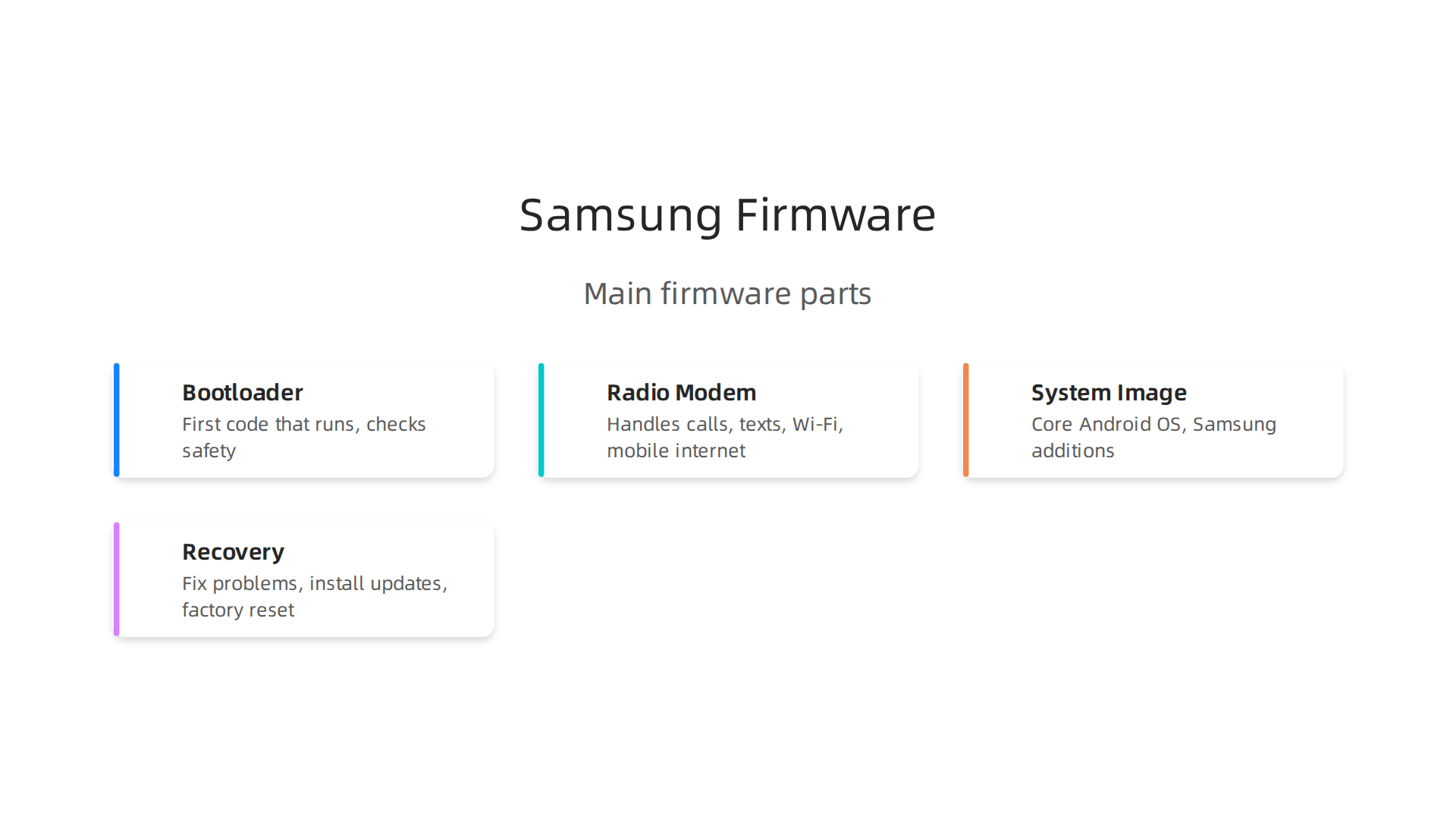
- Bootloader: This is like the phone’s security guard and first starter. When you turn on your Samsung phone, the bootloader is the very first bit of code that runs. It checks if all other parts of the firmware are real and safe before letting the phone start up. A secure boot process helps protect your phone from harmful software, much like the design of secure boot processes for reconfigurable devices ensures safety in other kinds of smart tech.
- Radio/Modem Firmware: This part handles all your phone’s connections. It lets your phone make calls, send texts, and connect to Wi-Fi and mobile internet. Without it, your phone wouldn’t be able to talk to the outside world.
- System Image: This is the biggest part and includes the core Android operating system and all of Samsung’s special additions. It’s what makes your Samsung phone look and feel different from other Android phones.
- Recovery: This is a special, separate environment on your phone. If something goes wrong with the main system, you can use recovery mode to fix problems, install updates, or do a factory reset.
Beyond these components, there are some terms you might hear about Samsung firmware:
- Stock ROM: This simply means the official software and firmware that Samsung or your phone company puts on your phone. It’s the standard, untouched version.
- Custom ROM: This is firmware that has been changed by someone outside of Samsung. People use custom ROMs to get new features, change how their phone looks, or try out different versions of Android. However, using these can sometimes make your phone less secure or stable. It’s always a good idea to secure your phone and find digital balance before making big changes.
- Odin: This is a special computer program that people use to install Samsung firmware on their phones. It’s a tool that lets you flash (install) different parts of the firmware directly to your device.
- Binary Versions: Samsung firmware often has a version number, and sometimes a "binary version" which is a deeper security layer. This makes it hard or impossible to go back to older, less secure firmware versions once you’ve updated. This is a safety measure to protect your phone.
- CSC/Region Tags: These are codes in the firmware that tell your phone which country or phone company it belongs to. This helps your phone get the right updates and settings for your specific region.
Understanding these parts and terms will help you feel more confident when you need to manage your Samsung firmware in 2026.

Knowing what Samsung firmware is made of helps a lot. Now, let’s learn how to check your phone’s specific firmware version and the safest ways to keep it updated in 2026. Keeping your Samsung firmware up-to-date is very important for your phone’s safety and how well it works.
How to Find Your Samsung Firmware Details
It’s easy to find the important information about your phone’s software. Knowing these details helps you make sure you download the correct updates.
- Open Settings: Go to your phone’s main "Settings" app.
- Go to "About phone": Scroll down and tap on "About phone."
- Tap "Software information": Here you will see important details.
Look for these key pieces of information:
- Build number: This is like your software’s unique ID. It shows the exact version of the samsung firmware on your device. When you’re looking for updates or trying to fix a problem, this number tells you exactly what software you have. Knowing this can help you check if an update affects certain features or even helps with issues like a white spot on screen Android that might be software-related.
- Model number: This tells you the specific type of Samsung phone you have (like a Galaxy S26 or A57). Firmware is made for exact phone models, so using the right one is super important. Mixing them up can cause big problems.
- CSC/Region code: This code shows which country or phone company your device is set up for. This makes sure your phone gets the correct updates and settings for your area.
Safe Ways to Update Your Samsung Firmware
Keeping your samsung firmware updated is key for getting new features, fixing bugs, and improving your phone’s security. There are a few main ways to do this safely.
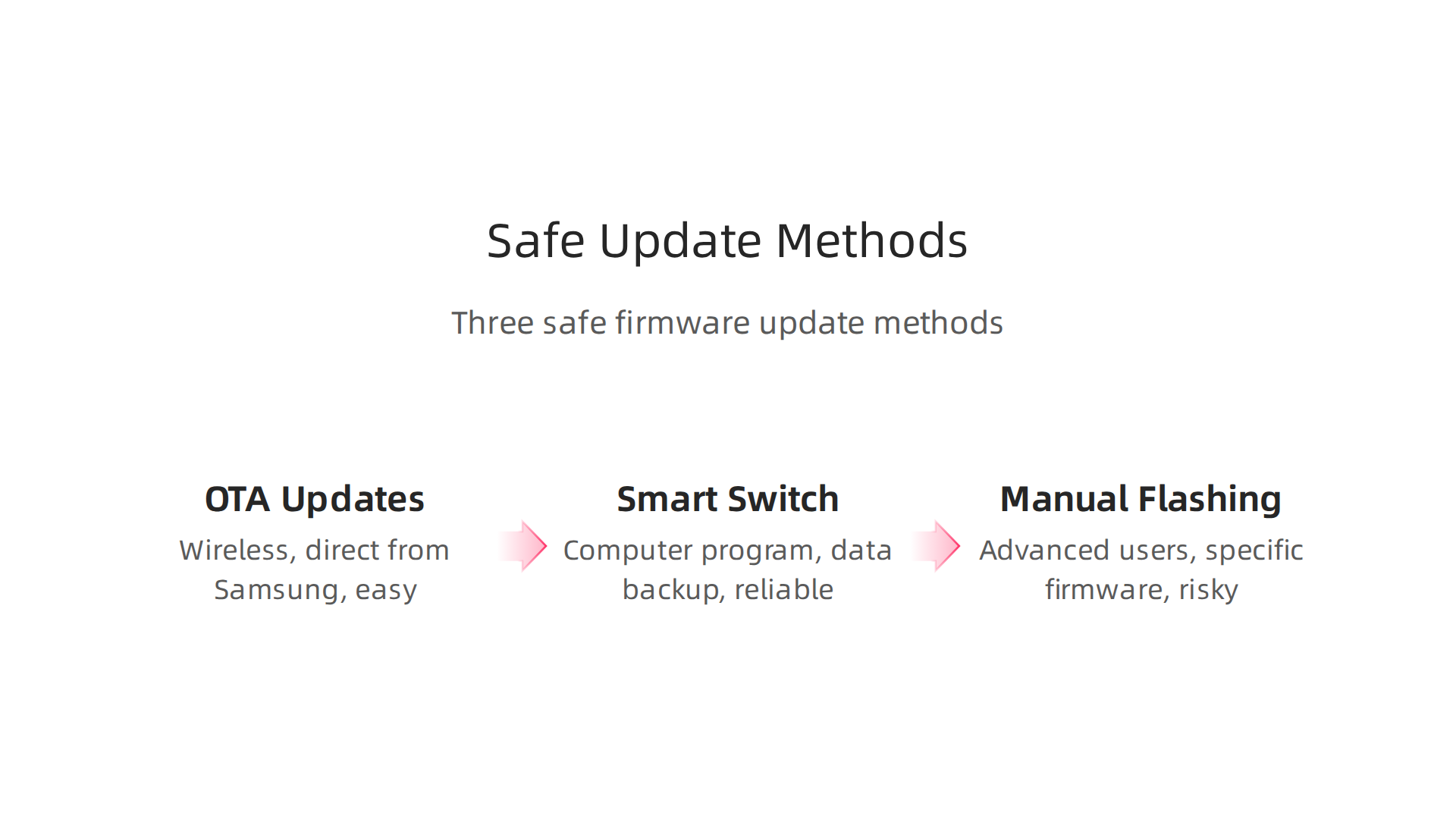
1. Over-The-Air (OTA) Updates
This is the easiest and most common way to update your phone.
- How it works: Your phone gets new software wirelessly, directly from Samsung. These "over-the-air" updates improve how your device works, fix problems, and make it more secure without you having to do much work [1]. Many updates today are sent this way, making it simple to keep your phone fresh [2].
- To check: Go to Settings > Software update > Download and install. Your phone will look for new updates.
- Safety tips: Always make sure your phone is fully charged or plugged in, and connected to a strong Wi-Fi network. Do not turn off your phone during the update process.
2. Samsung Smart Switch
Samsung Smart Switch is a computer program that lets you manage your phone’s data and updates from your PC or Mac.
- How it works: You connect your Samsung phone to your computer with a USB cable. Smart Switch can then back up all your important data and check for available firmware updates. It can install the update for you. This is a very reliable way to update, especially if you have trouble with OTA updates.
- Why it’s good: It’s also great for making a full backup of your phone before any major update, which is a smart practice [3]. It’s recommended to back up all your data before a firmware update to prevent loss [4]. You can also use Smart Switch to help organize apps on your Galaxy phone after an update.
- Get it: You can download Samsung Smart Switch from Samsung’s official website.
3. Manual Flashing (Advanced Users Only)
This method involves using a special program like Odin to install samsung firmware files directly onto your phone.
- When to use it: Manual flashing is usually for advanced users who want to install a very specific firmware version not available through OTA or Smart Switch. Sometimes, it’s used to fix major software problems if other methods don’t work.
- Important warning: This method carries risks. If you use the wrong firmware or make a mistake during the process, you could damage your phone and make it unusable. Always get firmware files from very trusted sources. And remember, always, always back up your data before trying anything like this [5]. It’s one of the best practices for firmware updates to prevent problems [6].
No matter how you update your firmware, remember to prepare your device by backing up your data and ensuring it has enough power. This keeps your phone safe and running smoothly.
Want to stay ahead of the curve in all things tech, including how new software and AI might change your devices?
The AI Newsletter Worth Reading
[1] OTA (Over-The-Air) Updates For IoT Devices
[2] A Proposal of Secure and Automated Over-the-Air Firmware Update …
[3] How to take a backup and install software updates using Smart Switch.
[4] Firmware Update Utility Manual
[5] How to Backup Data Before Flashing a Custom ROM
[6] Firmware Update Best Practices for IT Teams
Even when you carefully update your samsung firmware, sometimes problems can still pop up. It’s like when a new update for your computer or an app on your phone causes a small glitch. Knowing what to do when things go wrong can save you a lot of worry. Here are some common issues you might face with Samsung phone software and simple steps to try and fix them.
Common Samsung Firmware Issues
After an update, or sometimes just over time, your Samsung phone might start acting a little strange. These are some of the frequent problems people see:
- Bootloop or Stuck on Samsung Logo: This is when your phone keeps restarting over and over, or it gets stuck on the Samsung logo and won’t fully turn on. It’s a very frustrating issue, but often it can be fixed How to Fix Samsung Phone Stuck on Boot Loop.
- Random Reboots: Your phone might restart itself without warning, even when you are actively using it. This can interrupt what you’re doing and is a sign that something is not right with the software or hardware.
- Wi-Fi or Bluetooth Problems: After a software update, you might find that your phone has trouble connecting to Wi-Fi networks or Bluetooth devices. Sometimes the connections drop often, or they don’t work at all.
- Battery Drain After Update: Many people notice their phone battery dies much faster after a new firmware update. This happens because the new software might not be working efficiently with your phone’s parts, making them use more power.
First-Line Troubleshooting for Your Samsung Phone
When you hit a snag, try these easy steps first. They can often solve common software problems without needing bigger fixes.
1. Start Your Phone in Safe Mode
Safe Mode is like a special way to start your phone where it only uses the most basic software. This helps you figure out if an app you downloaded is causing the problem.
- How to do it:
- Turn off your Samsung phone completely.
- Press and hold the Power button until the Samsung logo appears.
- Once you see the Samsung logo, let go of the Power button and immediately press and hold the Volume Down button.
- Keep holding the Volume Down button until your phone fully starts up and you see "Safe Mode" at the bottom left of the screen.
- What to check: If your phone works fine in Safe Mode, it means one of your downloaded apps is likely causing the issue. You can then restart your phone normally and try removing recently installed apps one by one to find the faulty one.
2. Wipe Cache Partition
This sounds a bit technical, but it’s really just clearing out temporary files that your phone uses. Sometimes these files get mixed up and cause problems. Wiping the cache partition does not erase your personal data like photos or contacts.
- How to do it:
- Turn off your Samsung phone.
- Press and hold the Volume Up button and the Power button at the same time.
- When you see the Samsung logo, let go of both buttons. Your phone will enter Recovery Mode. If your phone is stuck in a boot loop, this might be a necessary step to try and fix it according to some users Bootloop after Update? Here’s how I fixed it..
- In Recovery Mode, use the Volume Down button to move to "Wipe cache partition."
- Press the Power button to select it.
- Use Volume Down to pick "Yes" and Power to confirm.
- Once it’s done, select "Reboot system now" using the Power button.
3. Factory Reset (Use with Caution)
If all else fails, a factory reset returns your phone to how it was when it was new. This will erase all your data, including apps, photos, and settings. Make sure you have backed up everything important before you do this. If your phone is stuck in a boot loop and you can’t access it normally, a factory reset from Recovery Mode might be one of the Boot Loop/Boot Stuck/Bricked Phone Fixing methods to try.
- How to do it (from settings):
- Go to Settings > General management > Reset > Factory data reset.
- Follow the on-screen steps.
- How to do it (from Recovery Mode, if your phone won’t boot):
- Follow steps 1-3 for "Wipe Cache Partition" to get into Recovery Mode.
- Use the Volume Down button to highlight "Wipe data/factory reset."
- Press the Power button to select it.
- Use Volume Down to pick "Yes" (or "Factory data reset") and Power to confirm.
- Once it’s done, select "Reboot system now."
4. Re-flash Firmware (Advanced and Risky)
If your phone is totally unusable or "bricked," meaning it won’t turn on past the logo, you might need to re-flash the samsung firmware manually. This is what was mentioned as "Manual Flashing" in the previous section. This usually involves using a computer program like Odin to install the firmware files again. This is a complex step and should only be done if you are very comfortable with technical steps, as mistakes can cause further damage. If you’re looking for solutions for a completely stuck phone, you might find guides like FIX any Bricked, Boot looping or stuck SAMSUNG phone helpful, but always proceed with great care. It’s often best to seek professional help for bricked devices.
By trying these steps, you can often solve common problems with your Samsung phone’s software and get it running smoothly again in 2026. Remember, keeping your devices secure is important for your digital health.
While basic troubleshooting steps often fix common software glitches, some serious problems, like a phone that won’t turn on at all, might need an advanced fix called "re-flashing firmware." This is what we mentioned as an "Advanced and Risky" step earlier. It means completely reinstalling the main software of your phone. For Samsung phones, people often use a special computer program called Odin for this task. It’s a powerful tool, but it needs to be used with great care.
Flashing firmware with Odin: step-by-step, risks, and mitigations
Flashing firmware with Odin is like giving your Samsung phone a brand-new brain. It replaces the entire operating system and all its parts. This can fix a bricked phone or update it when normal updates don’t work. But it’s not a step to take lightly.

What You Need Before You Start
Before you even open Odin, make sure you have these things ready:
- Backup Your Data: This is super important. Flashing firmware can erase everything on your phone, just like a factory reset. Make sure all your photos, contacts, and important files are saved somewhere else.
- A Computer: You’ll need a Windows computer to run the Odin program.
- Samsung USB Drivers: Your computer needs these drivers to "talk" to your Samsung phone. Install them before you connect your phone.
- Odin Software: Download the latest version of Odin from a trusted source.
- The Correct Samsung Firmware Files: This is the most crucial part. You need the exact firmware package for your specific phone model and region. Getting the wrong one can cause big problems. Firmware packages usually contain several files:
- AP (Application Processor): This is the main part of the operating system.
- BL (Bootloader): This is the very first software that runs when your phone starts.
- CP (Modem/Phone): This handles your phone’s network connections, like calls and mobile data.
- CSC (Consumer Software Customization): This file has region-specific settings and can reset your data. There’s also
HOME_CSC, which tries to keep your data safe. Always pickHOME_CSCif you want to avoid losing data, but know thatCSCwill give you a cleaner install, wiping everything How to SAFELY flash a Samsung with ODIN without losing data. Step by Step Tutorial.
- A Good USB Cable: Use the original cable if you can, or a high-quality one to ensure a stable connection.
- Fully Charged Phone: Your phone should be charged to at least 50%, but 100% is always better to avoid interruptions.
The Odin Flashing Workflow
Once you have everything ready, here are the general steps to flash your samsung firmware with Odin:
- Extract the Files: Unzip both the Odin program and your downloaded firmware package. You’ll find the AP, BL, CP, and CSC files inside the firmware folder.
- Open Odin: Run the Odin program as an administrator on your computer.
- Enter Download Mode on Your Phone: Turn off your Samsung phone completely. Then, press and hold specific buttons at the same time. For newer phones, this is often Volume Down + Bixby + Power. For older phones, it might be Volume Down + Home + Power. You’ll see a warning screen, then press Volume Up to enter Download Mode How to Update Samsung Galaxy Firmware Using Odin (2025 Guide).
- Connect Your Phone: Plug your phone into your computer using the USB cable. In Odin, you should see a message like "Added!!" and a blue or green box, meaning your computer recognizes your phone.
- Load the Firmware Files: Click on the buttons in Odin that match the firmware files you downloaded:
- Click BL and select the file starting with "BL_…".
- Click AP and select the file starting with "AP_…". (This one can take a little longer to load.)
- Click CP and select the file starting with "CP_…".
- Click CSC and select the file starting with "HOME_CSC_…" if you want to keep your data, or "CSC_…" if you want to wipe everything How to Use Odin to Flash Samsung Galaxy Stock Firmware.
- Check Options (Usually Leave as Default): In Odin, go to the "Options" tab. Make sure "Auto Reboot" and "F. Reset Time" are checked. Do not check "Re-Partition" unless you know exactly what you’re doing.
- Start the Flash: Click the "Start" button in Odin. The process will begin, and you’ll see a progress bar on both Odin and your phone. Do not touch your phone or computer during this time.
- Wait for Success: Once completed, Odin will show a "PASS!" message in a green box, and your phone will automatically restart. The first boot after flashing can take longer than usual.
Risks and How to Reduce Them
Flashing samsung firmware comes with risks, but you can reduce them:
- Device Bricking: The biggest risk is turning your phone into a useless "brick" if something goes wrong during the flash.
- Mitigation: Always use the correct firmware for your exact model. Double-check the model number (like SM-G998U for a specific S21 Ultra model) and the regional code (CSC). Only download firmware from reputable sources. Ensure a stable power supply for your computer and a good USB connection.
- Warranty Void: Flashing unofficial firmware or using Odin might void your phone’s warranty.
- Mitigation: Stick to official Samsung firmware whenever possible. If you’re flashing to fix a problem, contact Samsung support first to see if they can help without voiding the warranty.
- Mismatched Bootloader Incompatibilities: Using firmware with an older bootloader version than what’s already on your phone can cause a hard brick.
- Mitigation: Always flash firmware that has the same or newer bootloader version as your current one. Be very careful if you’re trying to downgrade your phone’s software.
- Regional Issues: Using firmware from a different region can lead to problems like not getting future updates, issues with network features, or unexpected app behaviors. For example, if you have an att unlock my device request, using generic firmware might interfere with it.
- Mitigation: Match the firmware’s CSC code to your phone’s original region. You can usually find your phone’s CSC code in your phone’s "About phone" settings.
By following these steps and understanding the risks, you can attempt to flash samsung firmware yourself. But remember, if you’re unsure or uncomfortable, it’s always best to seek help from a professional. Keeping up with the latest tech news can help you understand these complex topics better.
Stay informed about the fast-changing world of AI and other tech with The AI Newsletter Worth Reading.
Unlocking your phone goes beyond just flashing new samsung firmware with Odin. There are other ways to change how your phone works, like unlocking its bootloader or removing carrier locks. These steps give you more control, but they also come with their own set of rules and risks. It’s important to know the difference between these terms and what they mean for your phone’s safety and future updates.

What Is a Bootloader and Why Unlock It?
Think of your phone’s bootloader as a tiny program that runs first when you turn on your device. Its main job is to tell your phone how to start up the main operating system. Most phones come with a "locked" bootloader. This means you can only use the official software (the samsung firmware) that came with your phone.
Unlocking the bootloader lets you install other kinds of software, like custom versions of Android, often called "custom ROMs." People do this to get new features, change how their phone looks, or even improve its performance test results. However, unlocking the bootloader usually voids your phone’s warranty and can make your phone less secure. It also means you might not get official updates from Samsung anymore.
Understanding Carrier Unlocking
Carrier unlocking is a different thing entirely. It means freeing your phone from being tied to just one mobile network provider, like AT&T or Verizon. If you want to switch to a different carrier, or if you’re traveling and want to use a local SIM card, you’ll need an unlocked phone. For example, if you have an att unlock my device request, it means you want to use your AT&T phone on another network.
This process is usually legal, especially once your contract with the carrier is over or if you’ve paid off your phone. Most carriers have a process to unlock your device for free once you meet their conditions. Unlike bootloader unlocking, carrier unlocking doesn’t mess with your phone’s software in a way that would void the warranty or affect security. It simply allows you to choose your network.
What About Rooting?
Rooting is another advanced step that often comes after unlocking the bootloader. If unlocking the bootloader is like opening the front door to your phone’s software, rooting is like getting the "master key" to everything inside. It gives you "superuser" rights, meaning you can change almost any file or setting on your phone.
With rooting, you can:
- Remove unwanted apps that came with the phone (bloatware).
- Change deep system settings.
- Run special apps that need more control over the phone.
But like bootloader unlocking, rooting also comes with big risks. It makes your phone less secure because malicious apps can also gain that "master key" access. It can stop some apps from working (like banking apps or streaming services), and it almost always voids your warranty. If something goes wrong, you could "brick" your phone, turning it into a useless piece of hardware.
Legal, Security, and Warranty Considerations
Modifying your phone’s software through bootloader unlocking or rooting usually has these consequences:
- Warranty: It almost certainly voids your warranty, meaning the manufacturer won’t fix your phone for free if something breaks.
- Security: Your phone can become less secure, making it easier for viruses or hackers to access your personal information. Keeping your phone secure is crucial for your digital well-being, as discussed in secure your phone and find digital balance for mobile tech wellness.
- Updates: You might not get official software updates from Samsung or your carrier, which include important security fixes and new features.
- Legality: While carrier unlocking is generally legal, messing with your phone’s core software is usually legal for personal use, but it can get complicated if you use it for illegal activities.
When is it okay to unlock or root your phone? It’s generally best for tech experts or hobbyists who fully understand the risks and how to fix problems if they arise. For the average person, it’s usually not worth the trouble and potential dangers. If you have a hardware issue, like a white spot on screen android, you should seek professional repair or warranty service before attempting these kinds of software modifications, as they likely won’t fix hardware problems and could make things worse.
When you dive into changing your phone’s software, like with new samsung firmware, there’s always a chance something might go wrong. This can lead to your phone getting "bricked." A bricked phone means it won’t work normally, and sometimes not at all. But don’t worry, there are ways to fix it, and even better ways to stop it from happening in the first place.
Soft Bricks vs. Hard Bricks: What’s the Difference?
First, let’s understand what "bricked" truly means for your phone:
- Soft Brick: This is like your phone getting really sick, but there’s still hope. Your phone might get stuck in a "boot loop," where it keeps showing the Samsung logo and restarting without fully turning on. Or it might get stuck in recovery mode or download mode. This usually happens because of a bad software flash or a failed update. Luckily, soft bricks can often be fixed at home. Many issues, like a Samsung phone stuck on boot loop, can be resolved with careful steps How to Fix Samsung Phone Stuck on Boot Loop.
- Hard Brick: This is much more serious. A hard-bricked phone won’t turn on at all. It shows no signs of life, no logo, no vibrations, nothing. It might feel like a dead piece of plastic. This often means there’s a problem with the phone’s main computer chip (motherboard), which is very hard to fix without special tools or a professional repair shop.
How to Recover a Soft-Bricked Phone
If your phone is soft-bricked, here are some common ways to try and fix it:
- Force Restart: Sometimes, just holding down the power and volume down buttons for a while can make your phone restart normally.
- Recovery Mode: You can try booting into recovery mode. From here, you might be able to wipe the cache partition (which clears temporary files) or perform a factory reset. Be careful with a factory reset, as it will erase all your personal data. You can find methods for fixing boot loops using recovery mode Boot Loop/Boot Stuck/Bricked Phone Fixing methods.
- Odin Restore: This is often the best way to fix a soft brick, especially if you flashed new
samsung firmwareand something went wrong. You’ll need a computer and a tool called Odin. Odin lets you flash official Samsung firmware back onto your phone, effectively reinstalling the operating system. This can fix boot loops and bring your phone back to life. There are guides that show how to unbrick a Samsung Galaxy phone and return to its original firmware using Odin How to Unbrick the Galaxy S21 & Return to Stock Firmware. - ADB (Android Debug Bridge): For more advanced users, ADB tools on a computer can sometimes push commands to a semi-responsive phone, helping to flash files or restart it.
Remember, trying to fix a bricked device can be tricky. Make sure you follow guides for your specific phone model very carefully.
Backup Strategies Before Any Firmware Changes
The best way to deal with a bricked phone is to prevent data loss in the first place. Before you ever think about changing your phone’s samsung firmware, unlocking the bootloader, or rooting, you must back up your phone.
Here are the key backup strategies:
- Full User Data Backups: This means saving all your photos, videos, contacts, messages, and app data.
- Samsung Smart Switch: For Samsung phones, Smart Switch is the easiest and most recommended tool. It helps you back up almost everything on your phone to your computer or an external storage device. Many experts recommend using Smart Switch before any firmware update Best Practices before during and after a software/firmware update for Samsung Galaxy S5. For more tips on managing your phone’s content, you can learn how to samsung organize apps on your galaxy phone with one ui 7 and smart switch.
- Cloud Backups: Use services like Samsung Cloud or Google Drive to automatically save your important data. You can usually set this up in your phone’s settings under "Accounts and backup" Prepare your Samsung Galaxy phone for Android 14 One.
- Nandroid/Partition Images: This is for advanced users, especially those flashing custom ROMs. A Nandroid backup creates a complete snapshot of your phone’s software, including the operating system, apps, and data. It’s like taking a photo of your entire phone’s software. This usually requires a custom recovery like TWRP.
- Manual Backups: Copy important files like photos and videos directly to your computer.
Always double-check that your backup worked before making any big changes to your phone’s software. It’s a small step that can save you a lot of headache if things go wrong.
Staying on top of consumer tech news can help you understand these complex topics better. For daily, clear updates on AI and technology, consider subscribing to The AI Newsletter Worth Reading.
After taking care of your valuable data with a solid backup plan, it is also important to think about what happens after you update your samsung firmware. Keeping your phone’s software up to date is not just about getting new features. It’s mostly about keeping your device safe and running smoothly.

How Firmware Updates Keep You Safe
Every time Samsung releases a new firmware update, it usually includes many "security patches." Think of these patches as tiny fixes for small holes or weaknesses in your phone’s software. These weaknesses are often called CVEs, which stands for Common Vulnerabilities and Exposures. Each CVE is like a known flaw that hackers could use to get into your phone, steal your information, or even take control of your device.
By installing the latest samsung firmware, you are essentially patching these holes, making it much harder for bad actors to harm your phone. For example, Samsung regularly rolls out monthly security patches. In July 2026, Samsung’s update fixed 57 security problems, including 16 specific to Samsung devices and 41 from Android itself Samsung monthly updates: July 2026 security patch gets detailed.
Earlier in the year, the April 2026 security patch tackled 47 vulnerabilities across Google’s Android platform and Samsung’s own software Samsung April 2026 Security Patch — 47 Fixes You Can’t Ignore.
Some of these vulnerabilities can be very serious. For instance, CVE-2026-20980 was a high-risk flaw that could let someone take over your phone with physical access CVE-2026-20980: Samsung Android RCE Vulnerability. Another, CVE-2026-21022, could have allowed local attackers to see your private information CVE-2026-21022: Samsung Android Information Disclosure Vulnerability. Keeping your samsung firmware updated means these types of threats are fixed before they can cause trouble.
Your Ongoing Phone Maintenance Checklist
Keeping your Samsung phone safe and in good working order requires a bit of ongoing effort. Here’s a simple checklist to follow:
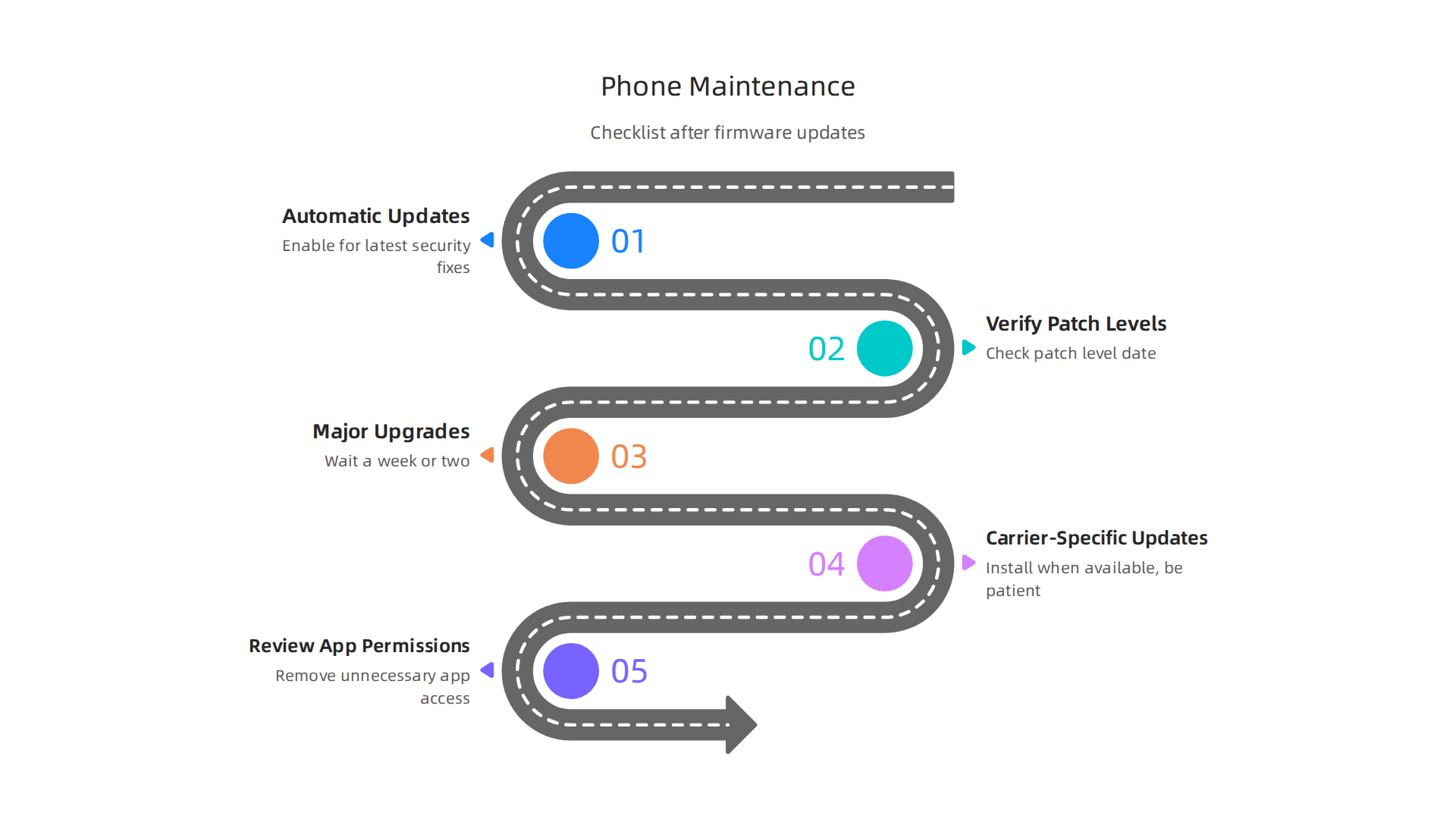
- Set Up Automatic Updates: The easiest way to stay safe is to let your phone update itself. Most Samsung phones allow you to set up automatic downloads for software updates. This makes sure you get the latest security fixes without even thinking about it. You can often find this option in your phone’s Settings under "Software update."
- Verify Patch Levels: It’s good practice to check your phone’s current security patch level. Go to Settings > About phone > Software information. Look for "Android security patch level." This date tells you how current your phone’s defenses are. Aim to have a patch level from the last month or two.
- Be Smart About Major Upgrades: While security updates are a must, major Android version upgrades or new One UI versions can be different. Sometimes, right after a big upgrade, there might be small bugs or issues that can affect your phone’s
performance testresults or cause awhite spot on screen android. It can be wise to wait a week or two after a major update is released. This lets others find and report any bugs, and Samsung often quickly releases follow-up patches to fix them. - Check for Carrier-Specific Updates: If your phone is tied to a specific carrier, like if you want to
att unlock my device, your updates might come a little later. Carriers sometimes add their own changes. Be patient and make sure you install these carrier-specificsamsung firmwareupdates when they become available. - Regularly Review App Permissions: Beyond the firmware, your apps can also be a security risk. Periodically check what permissions your apps have (e.g., access to your camera, microphone, or location). Remove permissions that don’t seem necessary for the app to work. Keeping your phone secure means looking at all parts of its software, not just the main operating system. To manage your phone’s security better, consider learning to secure your phone and find digital balance for mobile tech wellness.
By following these simple steps, you can help ensure your Samsung phone remains secure and performs well throughout 2026 and beyond.
Summary
This guide explains what Samsung firmware is, why it matters, and how to manage it safely in 2026. It breaks firmware into its main parts — bootloader, radio/modem, system image and recovery — and defines common terms like stock ROM, custom ROMs, Odin, and CSC codes. You’ll learn simple checks to find your build number, model, and region code, and the safest ways to update: OTA, Samsung Smart Switch, or manual flashing for advanced users. The article walks through first-line troubleshooting (safe mode, wipe cache, factory reset), how to recover soft-bricked devices, and a detailed Odin workflow with required files and precautions. It also covers the risks of unlocking or rooting, how firmware updates deliver security patches, and a practical maintenance checklist to keep your device secure and performing well. After reading, you’ll know when to update, how to prepare backups, and what steps to take if an update causes problems.