

Why Mobile Tech Wellness and Security Matter Now
Our mobile phones are always with us. They help us stay in touch, get work done, and even relax with games or videos. But as we rely more on these devices in 2026, two big challenges have grown: keeping our digital lives safe and making sure our screen time doesn’t hurt our well-being.

This is all about what we call tech wellness.
On one hand, mobile phones are big targets for bad actors. In fact, new reports show that mobile malware has gone up by 47% in the first half of 2026 alone, with about a third of that malware aiming for your money data. This means that mobile security is more important than ever. From phishing scams that try to trick you into giving away your details to apps with hidden dangers, your phone holds a lot of personal information that needs protecting. Finding ways to secure your device, like using tools to help you find my Android phone if it gets lost or stolen, is a key part of this.
On the other hand, all that time looking at screens can take a toll. Many of us worry about spending too much time on our phones. It’s easy to get lost in social media, endless scrolling, or even just checking email too often. Finding a good balance means using technology in a smart way that adds to your life, instead of taking away from it. This includes simple things like learning how to Samsung organize apps on your phone to reduce clutter, or managing notifications better.
This guide will give you simple, proven ways to handle both these challenges. We’ll look at practical steps to keep your mobile devices secure, protect your privacy, and help you find a healthier balance with your screen time. It’s about using your tech to make your life better without feeling overwhelmed or unsafe.
There’s a lot of tech news out there, and it can be hard to keep up. Get clear daily AI updates from The AI Newsletter Worth Reading.
Understanding mobile threat vectors and personal risk
To really use your tech without feeling overwhelmed or unsafe, it helps to know what dangers are out there. Think of these dangers as "threat vectors" or ways bad actors can get into your phone. Mobile phones face different kinds of risks than desktop computers. This is because phones are always on, always connected, and have many apps that ask for special permissions.
Here are the main ways your mobile device can be at risk:
Malicious Apps and Downloads
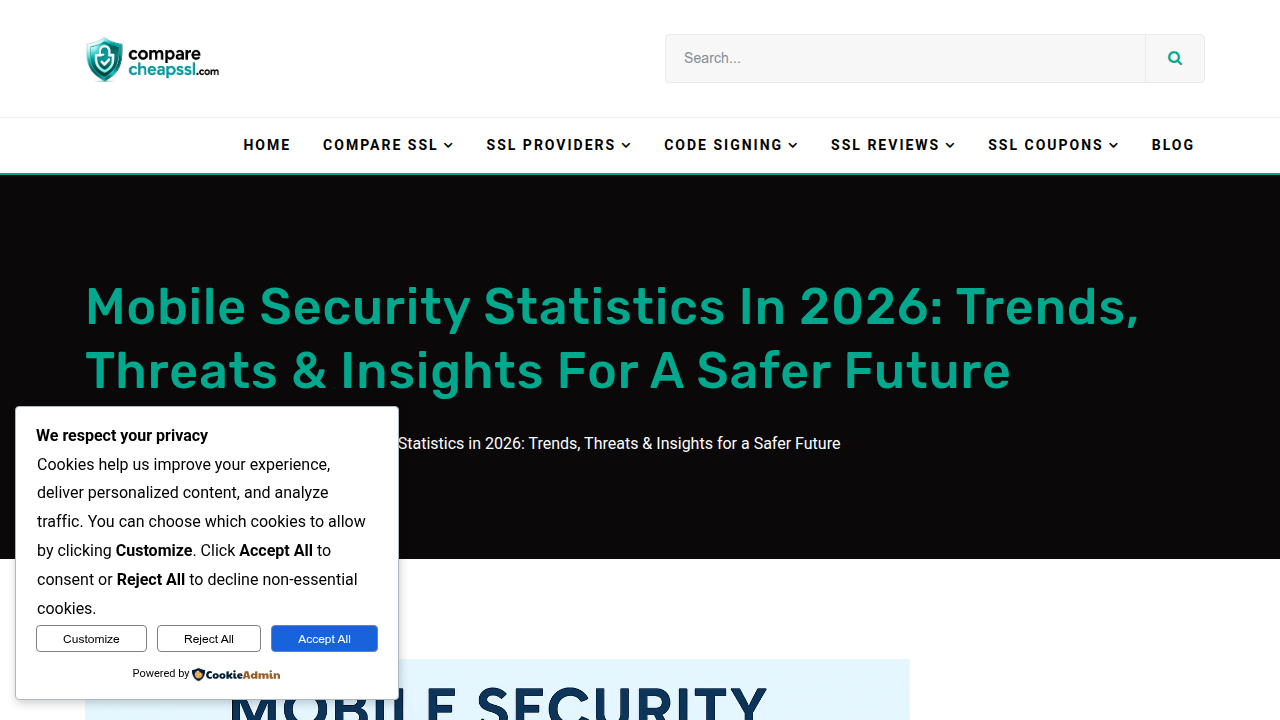
The biggest threat often comes from apps. Not all apps are safe. Some look real but are made to steal your information or harm your phone. These are called malicious apps or malware. Reports in 2026 show that mobile malware has jumped by 41% year over year, with about one-third of it trying to get your financial details like bank logins or credit card numbers. This means mobile devices are now a prime target for these kinds of attacks, more than ever before 100+ Mobile Security Statistics 2026: Threats, Trends & Insights.
Downloading apps from places other than official app stores (like Google Play Store or Apple App Store) makes this risk even higher.
Phishing and Network Attacks
Another common danger is phishing. This is when tricky messages try to fool you into giving away personal details. On mobile, this often happens through text messages (called smishing) or emails that look like they’re from a trusted company or person. These messages might ask you to click a link or log into a fake website. Eighty percent of companies reported that their workers faced mobile phishing attempts in 2025 alone Telecom Cybersecurity Statistics 2026: DDoS & 5G.
Your phone can also be at risk when you connect to public Wi-Fi networks. These networks are sometimes not safe. Bad actors can use them to watch what you do online or steal your information in what’s known as a "man-in-the-middle" attack Quarterly Cybersecurity Threat Report.
How Your Choices Affect Risk
Your own actions play a big part in how safe your phone is.
- App Permissions: When you download an app, it often asks for permissions to access things like your camera, microphone, contacts, or even your Samsung Notes. Giving too many permissions to apps that don’t need them can open doors for trouble.
- Updates: Not updating your phone’s software or apps leaves them open to known problems that bad actors can use.
- Careless Browsing: Clicking on strange links or visiting risky websites can also expose your device to malware.
- No Screen Lock: If your phone isn’t locked, anyone who picks it up can access your information.
Understanding these mobile threat vectors helps you make better choices to protect your tech wellness. Being aware of what you download, what links you click, and how you use public networks are key steps to staying safe. To get more ideas on how to set up your phone for better security and use, check out tips for how to transform your Samsung phone smart layout ideas for productivity and security.
Practical privacy hygiene for everyday mobile use
Knowing the dangers is the first step. Now, let’s talk about what you can actually do to keep your mobile phone safe and support your overall tech wellness. Taking charge of your privacy settings and app habits is a big part of protecting your personal information in 2026.
Here are some easy steps to make your phone more secure:
Check Your App Permissions
Every app you download asks for certain permissions. These can be for your camera, microphone, contacts, location, or files. Giving an app permission lets it use that part of your phone. For example, a map app needs your location to work, but a simple calculator app probably does not need access to your camera.
It is a good idea to check what permissions your apps have.
- For iPhones: Go to Settings, then Privacy & Security. You’ll see a list of permission types (like Photos, Camera, Microphone). Tap on each one to see which apps have access.
- For Android phones: Go to Settings, then Apps, then Permissions or Permission manager. Here, you can see what each app is allowed to do Mobile Privacy in 2026: What You Need to Know Now.
You should remove any permission an app doesn’t truly need to do its job. Why would a game need to see your text messages, for example? App permissions are the operating system’s way to control what an app can reach, like your Samsung Notes or photos App Permissions in 2026: The Privacy-First Playbook – Fora Soft.
Regularly Review Your Apps
Beyond permissions, make it a habit to look through your apps once every few months.
- Delete old apps: If you haven’t used an app in a long time, delete it. Less apps mean less chance for problems.
- Check apps you rarely use: Even if you keep an app, check its permissions again if you only use it now and then.
- Beware of "find my android phone" type apps: While helpful for security if your phone is lost, make sure these kinds of apps are from trusted sources and have only the necessary permissions.
Reviewing your apps helps reduce the amount of data that could be at risk. This is a key part of maintaining good tech wellness.
Understand Privacy Settings and Trade-offs
Your phone’s privacy settings let you decide how much information your device shares. This is where you balance how easy things are with how private they are. For example, keeping your location services always on is convenient for maps or if you need to find my android phone, but it means your phone constantly knows where you are.
Many phones now use AI features that might process your data. Some new phones use "on-device AI," which means your information stays on your phone and isn’t sent to big computer servers in the cloud. This is usually more private because your data never leaves your device On-Device AI Privacy vs Cloud AI: What’s Safer? Visual eNews.

Cloud-based AI, while powerful, sends your data elsewhere for processing, adding more places your information could be stored.
For important privacy settings, many experts say to start with location access, app permissions, ad tracking, and turning off your microphone or camera when not needed. Making just these changes can make your privacy much better in a short amount of time How to Adjust Phone Privacy Settings in 2026. You choose the level of comfort between having all features work instantly and having tighter control over your personal data.
Staying on top of these things will keep your digital life safer and help you enjoy the benefits of technology without constant worry. For more insights into how AI is changing privacy and other tech trends, get clear daily AI updates.
The AI Newsletter Worth Reading
Beyond checking app permissions and knowing your phone’s privacy settings, there are more simple steps you can take to boost your mobile security and support your overall tech wellness.
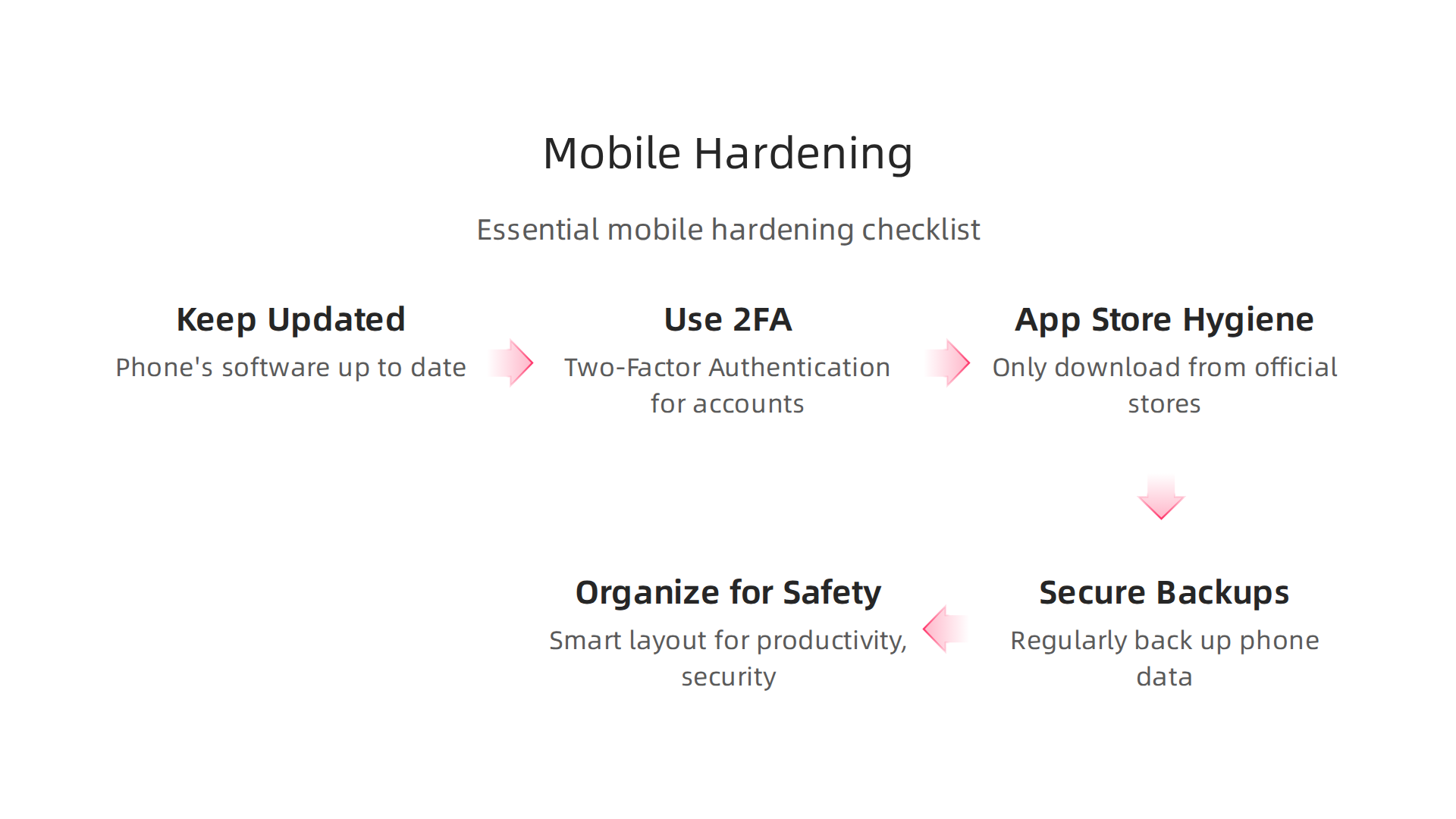
Think of these as a helpful checklist for a safer phone life.
Keep Your Phone Updated
One of the easiest but most important things you can do is keep your phone’s software up to date. These updates aren’t just for new features. They often include important security fixes that protect your phone from new threats.
- How to update: Your phone will usually tell you when an update is ready. For iPhones, go to Settings, then General, then Software Update. For Android phones, look in Settings, then System or About phone, then System update.
- Why it matters: Old software can have "holes" that bad actors can use to get into your phone. Updates patch these holes, making your device much safer. Some newer Android versions, like Android 17, even bring special security features to protect your data What’s New in Android Security & Privacy in 2026.
Use Two-Factor Authentication (2FA)
This is like adding a second lock to your digital doors. When you log into an account, 2FA asks for two things: your password and a second piece of information. This second step makes it much harder for someone to get into your accounts even if they somehow learn your password. Using 2FA can block almost all account takeover attempts Two Factor Authentication Statistics 2026.
Here are common ways 2FA works:
- Codes from an app: An app like Google Authenticator or Microsoft Authenticator gives you a special code that changes every minute.
- Text messages: You get a code sent to your phone number.
- Physical keys: Small USB devices you plug into your phone or computer.
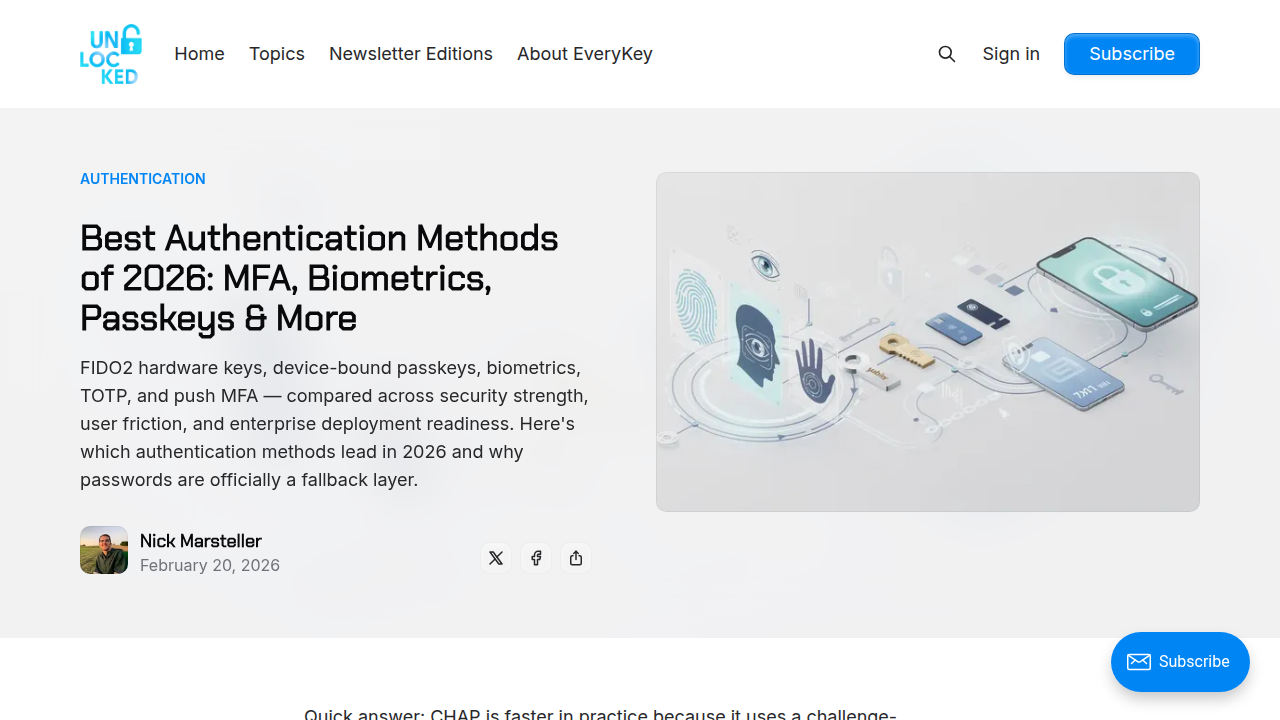
Experts say using authenticator apps, passkeys, or biometric options like your fingerprint are the most secure ways to use 2FA in 2026 Best Authentication Methods 2026: MFA, Passkeys & Biometrics.
Turn on 2FA for your email, social media, banking, and any other important accounts.
Be Smart About Apps and Backups
- App store hygiene: Only download apps from official stores like Google Play or Apple’s App Store. Apps from unofficial places can be risky.
- Secure backups: Regularly back up your phone’s data. This way, if something happens to your phone, your photos, contacts, and other important files are safe. Use secure cloud services or back up to your computer. Learning how to check your phone’s unique identifier, like your Your Samsung IMEI Check Can Save You From A Stolen Phone, can also be a helpful security step if your device ever goes missing.
- Organize for safety: Good organization can also improve security. Thinking about how you Transform Your Samsung Phone: Smart Layout Ideas For Productivity And Security can actually make it safer by making it easier to keep track of what’s on your device.
These small actions add up to big protection. For most people, focusing on keeping software updated, using 2FA, and being careful with apps and backups will give you the most benefit for your time, greatly improving your tech wellness without needing to be a tech expert.
Designing a personal tech-wellness routine for mobile life
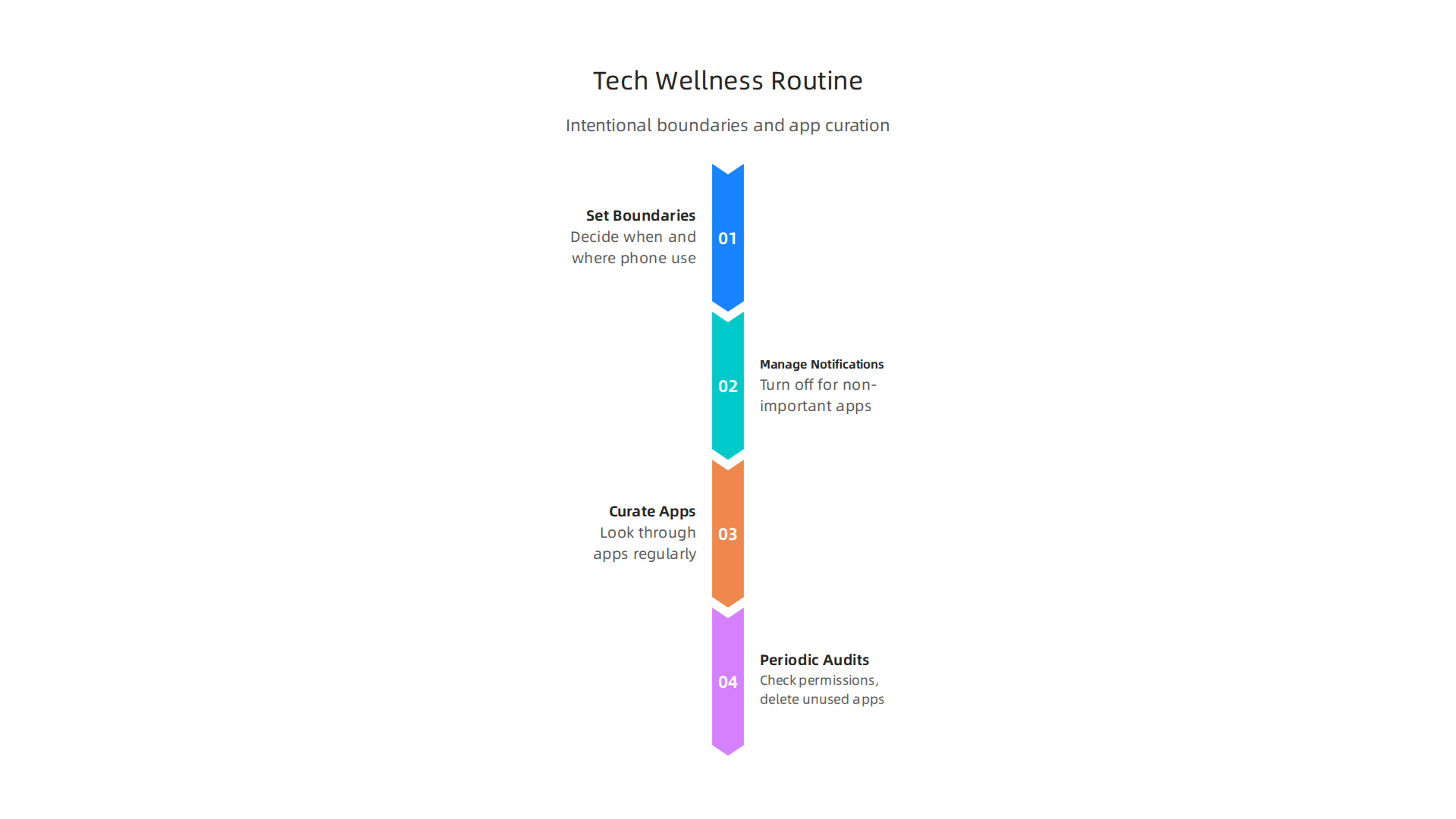
Moving past basic phone security, let’s talk about building a routine that helps you feel good about how you use your phone. This is all about "tech wellness." It means making smart choices about your devices so they help you instead of stress you out. A good tech-wellness routine includes setting clear limits, managing your notifications, and being picky about the apps you keep.
This way, your phone use is on purpose, not just by accident.
Set Intentional Boundaries
One big part of tech wellness is setting boundaries. This means deciding when and where you use your phone. For example, you might decide not to use your phone during meals or after a certain time at night. Many apps and phone settings can help you do this. Both Apple’s Screen Time and Android’s Digital Wellbeing tools let you track how much you use your phone and set daily limits for apps Digital Well-Being: Managing Screen Time and Promoting …. Some studies in 2026 even show that simply planning your viewing times can help reduce screen time Screen Time Nudge Effectiveness: What RCTs Show. Think of it like this: your phone is a tool, not a constant companion.
Manage Your Notifications
Notifications are those little pings, buzzes, and pop-ups that always want your attention. They can break your focus and make it hard to get things done. A simple routine is to turn off notifications for apps that aren’t truly important. Keep them on for calls, important messages, or essential work, but silence social media, games, and news apps. This helps reduce "cognitive load," which is like giving your brain a break from always being ready for something new. You can often find these settings in your phone’s main Settings menu under "Notifications" or directly within each app’s settings.
Curate Apps and Do Periodic Audits
Look through your apps regularly. Do you still use them all? If not, delete them. Unused apps can still take up space, use data in the background, and even collect information. Also, check the permissions for the apps you do keep. Make sure they only have access to what they truly need. For example, a note-taking app like Samsung Notes probably doesn’t need access to your camera or microphone. This step is a small audit of your digital space. It helps you keep your phone tidy and secure, freeing you from unnecessary digital clutter. Learning how to organize apps on your Galaxy phone can also make this process easier and more effective.
By creating these small, mindful habits, you can build a strong personal tech-wellness routine. This routine helps your phone work for you, supports your productivity, and keeps you feeling in control of your digital life.
Staying informed about the latest in technology, including how AI is changing our digital lives, is key to good tech wellness.
The AI Newsletter Worth Reading and get clear daily AI updates from The Deep View Newsletter.
You’re doing great with your tech-wellness routine, and as technology changes, so must our routines. In 2026, many phones now have smart AI helpers. These helpers can do a lot, from making your pictures look better to writing messages for you. But how these AI features work can change how private your information stays. This is a new, important part of balancing your tech wellness.
How Mobile AI Works and What It Means for Your Privacy
When you use an AI helper on your phone, there are usually two ways it gets its "smartness."
- On-Device AI: This means the AI brain is right on your phone. It uses your phone’s own power to do its job. When AI works this way, your personal information, like what you type or what you say, usually stays on your phone. It doesn’t get sent out to other places. This makes it a very private way to use AI On-Device AI Privacy vs Cloud AI: What’s Safer? Visual eNews. Think of it like a secret helper who never leaves your side.
- Cloud AI: This is when your phone sends information to big computers far away in the "cloud." Those powerful computers do the smart thinking and send the answer back to your phone. This lets AI do very complex things, but it also means your data leaves your device. When your information travels, there’s always a chance it could be seen by others or stored on someone else’s servers On-Device AI vs Cloud AI: The Executive Privacy Playbook.
Many modern phones in 2026 use both types of AI, depending on what you’re asking it to do.
Using AI Smartly While Protecting Your Data
To keep your digital life secure while enjoying AI features, here are some easy steps:
- Know Your AI: Try to learn which features on your phone use on-device AI and which send data to the cloud. Phone makers usually share this information. If a feature needs to send data to the cloud, be careful about the very personal things you share.
- Check App Permissions: Just like with any app, always check what permissions your AI apps or features have. Does your AI photo editor really need access to your microphone, for example? This is a key part of your tech wellness routine.
- Be Mindful of Voice Commands: When you talk to your phone’s AI assistant, your voice recording might go to the cloud for processing. If you have sensitive information, it’s better to type it out or avoid sharing it through voice commands.
- Secure Your Phone: Tools like
find my android phonefeatures are super helpful if your phone ever goes missing. They use location data to help you find it. Understanding how such tools use your data helps you balance convenience with privacy. Keeping your phone’s security up to date, like performing a Your Samsung IMEI Check Can Save You From a Stolen Phone, is also a good habit. - Manage Specific App Settings: For apps like
Samsung Notesthat might have AI features for organizing or summarizing, dive into their settings. See if you can choose to keep your notes processed only on your device.
By being aware of how AI works on your mobile devices, you can keep enjoying smart features without giving up your privacy.

It’s all about making informed choices for your digital well-being.
Our phones are amazing tools, but they can also be big distractions. Notifications buzz, pings sound, and our attention gets pulled away over and over again. This constant pull can really hurt our tech wellness. In 2026, many phones offer great features to help you take back control.
Taming the Notification Beast
Think about how many times your phone tries to get your attention each day. Emails, social media, news alerts, game updates, and more. All these little interruptions add up. Research in 2026 shows that simply turning off notifications can help a lot with reducing screen time and even improving mood How to Reduce Screen Time on Social Media 2026: 8 Steps.
Here are some easy ways to manage them:
- Turn Off Most Notifications: Go into your phone’s settings and look for "Notifications." Then, turn off alerts for almost all apps that don’t need your immediate attention. Do you really need to know every time someone likes a post? Probably not. Keep on notifications only for things that are truly urgent, like calls from family or important work messages.
- Batch Your Checks: Instead of looking at social media or emails every time a notification pops up, choose specific times to check them. Maybe once in the morning, once at lunch, and once in the evening. This is called "batching." It helps you focus better during other times.
- Use Focus Modes: Both Android and Apple phones have "Focus Modes" or "Do Not Disturb" features. These let you silence all notifications or only allow certain ones during specific times, like when you’re working, sleeping, or spending time with family. Using these tools helps you take a break from your phone and improve your digital well-being Digital Detox and Mindful Living in 2026: A Science….
Embracing Digital Minimalism
Digital minimalism is about using technology purposefully and thoughtfully. It means asking yourself if an app or service truly adds value to your life. If it doesn’t, maybe it’s time to let it go.
- Declutter Your Home Screen: How many apps do you have on your main phone screen? Too many can feel overwhelming. Try to keep only the most important apps visible. Put others in folders or move them to later screens. This makes your phone feel calmer. If you have a Samsung phone, learning how to better organize your apps can really help how to samsung organize apps on your galaxy phone with one ui 7 and smart switch.
- Delete Unused Apps: We all have apps we downloaded once and never touched again. These apps can still run in the background, use data, and sometimes send notifications. Take some time to go through your apps and delete anything you haven’t used in a month. This simple act can reduce digital clutter and free up space.
- Use Digital Well-Being Tools: Your phone likely has built-in features like "Digital Wellbeing" (on Android) or "Screen Time" (on Apple) that show you how much time you spend on apps. They also let you set limits. These tools are great for understanding your habits and making healthier choices Digital Well-Being: Managing Screen Time and Promoting…. Using these can help you truly reduce your screen time How to actually reduce your screen time: 12 simple, realistic tips.
By being smart about your notifications and practicing digital minimalism, you can create a mobile experience that supports your tech wellness rather than stealing your focus.

Stay informed on the latest advancements and how they impact your digital life.
Get clear daily AI updates from The AI Newsletter Worth Reading.
Even with smart habits for using your phone, bad things can happen. Your phone might get lost, or your online accounts could be hacked. Knowing what to do in these situations is a big part of keeping your tech wellness strong. Being ready helps you bounce back faster if something goes wrong.
Responding to incidents and maintaining long-term resilience
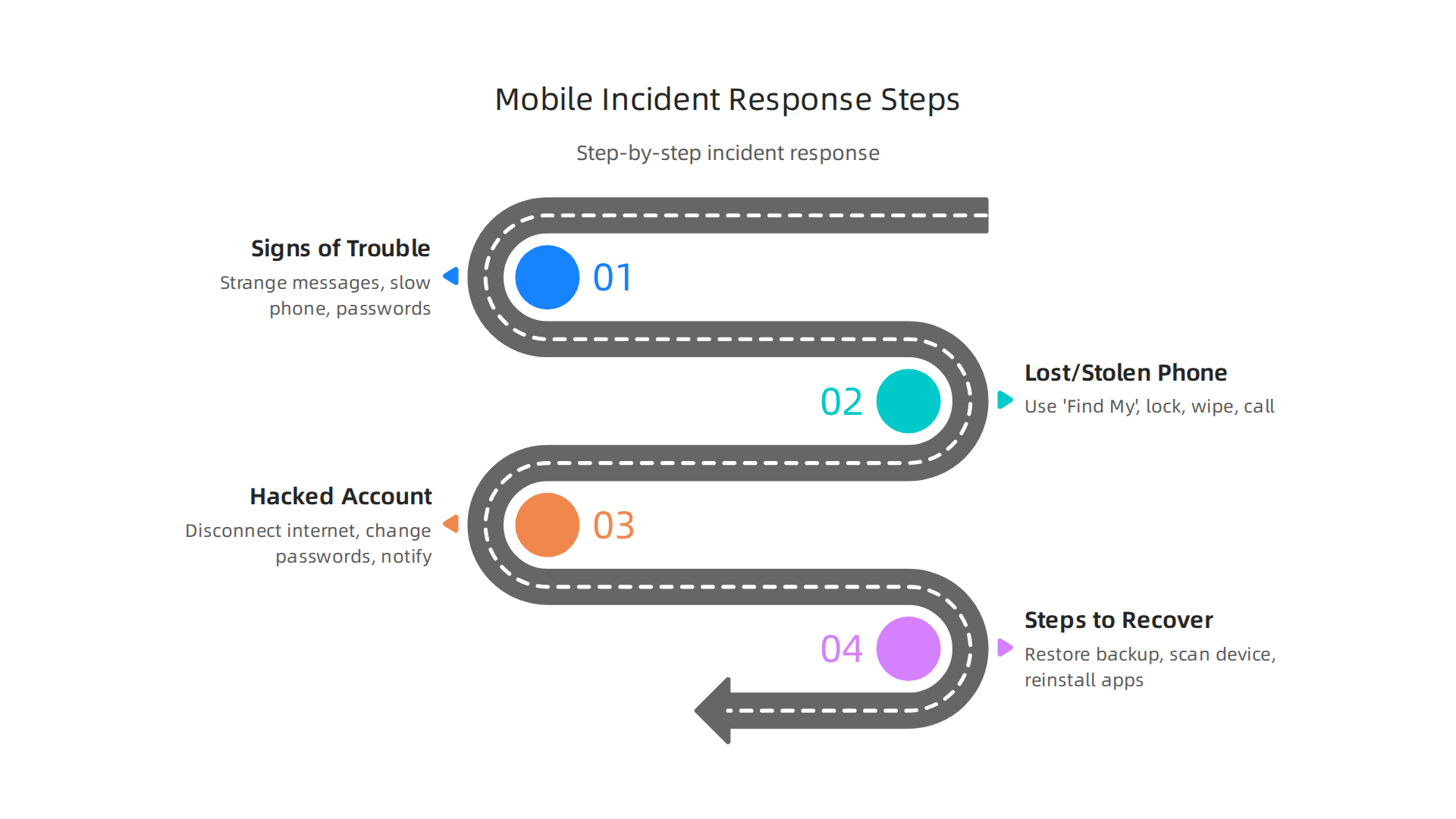
When a tech problem hits, knowing what to do right away can save you a lot of trouble. This is called incident response.
It’s like having a first aid kit for your digital life.
What to do if something goes wrong
Here are some steps for common problems:
- Signs of trouble: Look for strange messages, apps you didn’t install, your phone running really slow, or passwords that suddenly don’t work. These are clues that something is wrong.
- Lost or stolen phone:
- Use a service like
find my android phoneor Apple’s "Find My" app right away. This can help you see where your phone is. - Remotely lock your device so others cannot use it.
- If you can’t get it back, you might need to wipe it clean from afar to protect your private data.
- Call your phone company to turn off your SIM card.
- Checking your Samsung IMEI check can also help. These steps are part of good Mobile Security Breach Response: Best Practices for Planning for 2026.
- Use a service like
- Hacked account or device:
- The first thing to do is disconnect the affected device from the internet. Turn off Wi-Fi or unplug any network cables. This stops the problem from spreading Incident Response Flow Complete Guide 2026: From Detection to Reporting.
- Then, on a different secure device, change your passwords for important accounts, starting with your email.
- Tell the service provider what happened.
Steps to recover:
After the immediate actions, you’ll need to clean things up. This might mean bringing back your data from a backup or scanning your device for bad software. Be careful when reinstalling apps.
Building strong habits for the future
Being ready for problems is one thing, but building strong habits helps prevent them from happening again. This is about long-term resilience for your tech wellness.
- Make backups: Always keep copies of your important files, photos, and notes, like your
samsung notes, in a safe place. If your phone gets lost or broken, you won’t lose everything. - Keep accounts safe:
- Use a different, strong password for every online account.
- Turn on two-factor authentication (2FA) wherever you can. This adds an extra layer of security.
- Check your account activity now and then to spot anything unusual.
- Regular check-ups:
- Take time to look at your privacy settings on apps and websites.
- Remove any old devices you no longer use from your accounts.
- Review the apps on your phone and what permissions they have. You can find ideas to transform your Samsung phone smart layout ideas for productivity and security in 2026.
- Have trusted people: Know who you can call if you run into a tech problem you can’t solve yourself. This might be a friend, family member, or a tech support service.
Summary
This article explains why mobile tech wellness and security are essential in 2026 and gives practical steps you can use right away. It covers the main threat vectors—malicious apps, phishing, and unsafe networks—and shows how your choices (permissions, updates, backups) affect risk. You’ll learn concrete privacy hygiene: checking app permissions, auditing apps, using on-device vs cloud AI wisely, and turning on two-factor authentication. The guide also lays out a tech-wellness routine to limit distractions, manage notifications, and declutter your phone for better focus. Finally, it explains quick incident-response actions for lost or hacked phones and long-term habits to keep your data safer and your phone more useful without stress.