
Introduction
Your Samsung Galaxy phone comes loaded with apps. Some you use daily. Others you downloaded once and forgot about. And a bunch more that Samsung pre-installed before you even opened the box.
Over time, that app drawer gets messy. You swipe through page after page looking for the one app you need. It wastes time and makes your phone feel cluttered.
The good news? Samsung devices offer powerful app management tools if you know where to look. You can sort apps alphabetically, group them into folders, hide unused ones, and even clean up entire pages with a few taps. The official Samsung guide on how to access and organize the apps on your Galaxy phone shows you just how much control you really have.
And if you are upgrading to a new device, maybe a new a26 samsung or the latest Galaxy model, migrating does not have to mean starting from scratch. Smart Switch makes it easy to bring your organized setup with you.
This guide will help you take control of your app ecosystem from day one.

We will cover the built-in sorting tools, folder tricks, hidden customization features, and the best ways to keep everything tidy in 2026. For even more advanced ideas, check out our guide on how to transform your Samsung phone with smart layout ideas for productivity and security.
Staying updated on the latest Samsung tips and broader tech trends is easier when you have a reliable source. That is why we recommend The AI Newsletter Worth Reading for clear daily updates on AI and tech.

Let’s start by looking at what Samsung gives you right out of the box.
Why Samsung App Management Matters for Your Digital Life
You might not think much about where your apps live. But that jumbled grid of icons costs you more than just time. Every extra second you spend hunting for an app adds up.
Over a week, those seconds turn into minutes. Over a year, you lose hours of your life just swiping through screens.
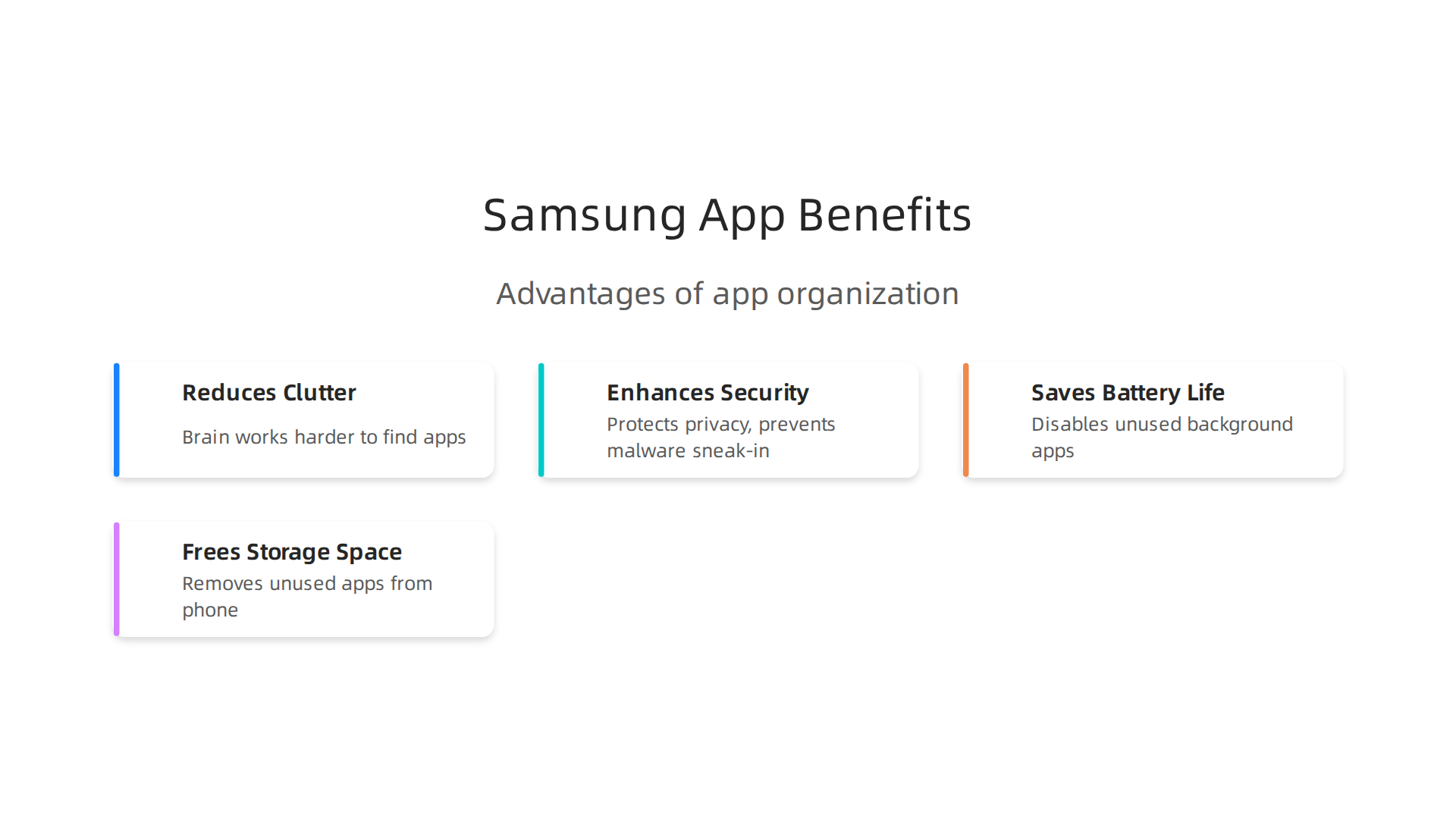
Studies show that clutter in your digital space creates mental drag. When your app drawer is a mess, your brain has to work harder to find what it needs. That extra effort leads to decision fatigue and even mild stress. Organizing your apps flips that. You feel calmer, move faster, and get back to what actually matters.
There is also a real security angle. Samsung recently issued a warning about deleting what they call high risk apps that put your phone and data in danger. Keeping only trusted, updated apps protects your privacy and prevents malware from sneaking in. So cleaning house is not just about looks, it is about safety.
App management also saves battery life and storage space. Apps that run in the background drain power. The ones you never open take up precious storage. Removing or disabling unused apps frees both. On a phone like the new a26 samsung with limited base storage, every gigabyte counts.
The best part? Samsung gives you tools to keep everything tidy. When you upgrade to a new phone, Smart Switch transfers not just your data but your entire organized setup. That means you do not have to start over. You can learn how to adjust individual elements like the app drawer icon through this guide on how to change or hide the Samsung app drawer icon.
Taking control of your apps is one of the easiest ways to improve your daily phone experience. And it only takes a few minutes to start.
Mastering Your Home Screen and App Drawer on Samsung One UI 6/7
Samsung’s One UI gives you real control over how your phone looks and works. The home screen and app drawer are the two places you interact with most. Getting them right changes everything.
If you want to truly samsung organize apps, start with folders. In One UI 7, you can create enlarged folders that let you tap an app directly without opening the folder first. That is a huge time saver. These folders are big enough that icons stay easy to tap. Just drag one app icon on top of another, name the folder, and drop in your most-used tools. You can learn more about this in this overview of new One UI 7 features for your Samsung phone.
The app drawer itself got better too. One UI 6 changed the default grid from 4 by 5 to 4 by 6, so you see more apps at once. And in One UI 7, you can switch from the older horizontal layout to a vertical app drawer. That means you scroll up and down instead of swiping left and right. It feels more natural and faster once you get used to it.
Don’t forget about Edge panels. They give you instant access to your favorite apps from any screen. Just swipe from the edge of the screen and tap. You can customize which apps appear there and even add tool panels for tasks like clipboard or weather. It keeps your home screen cleaner while still giving you one-tap access.
For apps you rarely use but cannot delete, hiding them from the app drawer is a smart move. Samsung lets you do that through the Home screen settings. The apps still work and update, they just stop cluttering your view.
These small changes add up. When you take time to organize your home screen and app drawer, every interaction with your phone gets faster. Your brain thanks you too. For more deep customization ideas, check out this guide on how to transform your Samsung phone with smart layout ideas for productivity and security.
And if you like staying on top of tech tips like these, consider subscribing to The AI Newsletter Worth Reading. It delivers clear daily updates that help you make the most of your devices.
Creating Effective App Folders
Folders only help if you set them up the right way. A messy folder full of random apps is not much better than a messy home screen. When you take the time to samsung organize apps into clear folders, everything gets faster. Here is how to make folders actually work for you.
Start by grouping apps by what they do. Put all your social apps like Instagram, Facebook, and Twitter in one folder. Put work apps like email, calendar, and notes in another. Entertainment apps go in a third. This way your brain knows exactly where to look when you want something.
Naming your folders matters too. Use clear, short names like "Social," "Work," or "Music." Skip cute names that make you stop and think. In One UI 7 you can also give each folder its own color. Picking one color per category makes it even faster to spot the folder you need. These are some of the powerful new One UI 7 features that help you stay organized.
Once your folders are ready, pin the one you use most to your home screen. A good example is a "Productivity" folder with your email, calendar, and task list. To pin it, just long-press the folder in your app drawer and select "Add to Home." Having it right there saves you from digging through the app drawer every time.
If you want even more control, you can also learn how to change or hide the Samsung app drawer icon to keep your setup extra clean.
Customizing the App Drawer Grid
Another way to take control is by customizing the app drawer grid itself. The default grid on many Samsung phones shows 4 columns and 5 rows. But in One UI 6, the default changed to 4 columns and 6 rows, giving you room for two more apps per screen. You can adjust this even further to a 5×6 or other sizes depending on your model. A bigger grid means less scrolling when you open the drawer. It is one of the handiest ways to samsung organize apps without any extra effort.
You can also change how apps are sorted. Open the app drawer, tap the three-dot menu, and pick Sort. Choose Alphabetical order if you like finding apps by name. Or pick Most used to put your frequently opened apps at the top. Both options save time.
Do you have apps you never touch? Bloatware takes up space in your drawer. You can hide those apps entirely. In the same menu, tap Hide apps on Home and Apps screen, then check the ones you want gone. They will still exist on your phone, just out of sight.
These small changes add up to a cleaner, faster phone. For more ways to improve your home screen setup, check out these smart layout ideas for productivity and security. And if you want to stay sharp on the latest tech tips that can save you time, consider getting The AI Newsletter Worth Reading for clear daily updates delivered straight to your inbox.
A Step-by-Step Guide to Using Samsung Smart Switch for Seamless Migration
Once you have your current phone looking clean with a sorted drawer and hidden bloatware, you will want the same setup on your next device.
tting up a new electronic device, symbolizing a smooth and easy transition.](https://consumertechnewstoday.com/wp-content/uploads/2026/07/weblish-inline-68183.jpg)

That is where Smart Switch comes in. It is Samsung’s official free tool that moves your apps, data, settings, and even home screen layouts from your old phone to your new one.
Smart Switch works in two main ways. You can connect your phones with a USB-C cable for the fastest possible transfer. Or you can go wireless if you prefer not to use a cable. Both methods get the job done. The app walks you through everything step by step. As explained in the official Switching to Samsung Galaxy Is Easy guide, you simply launch Smart Switch on both devices, choose what to transfer, and let it run.
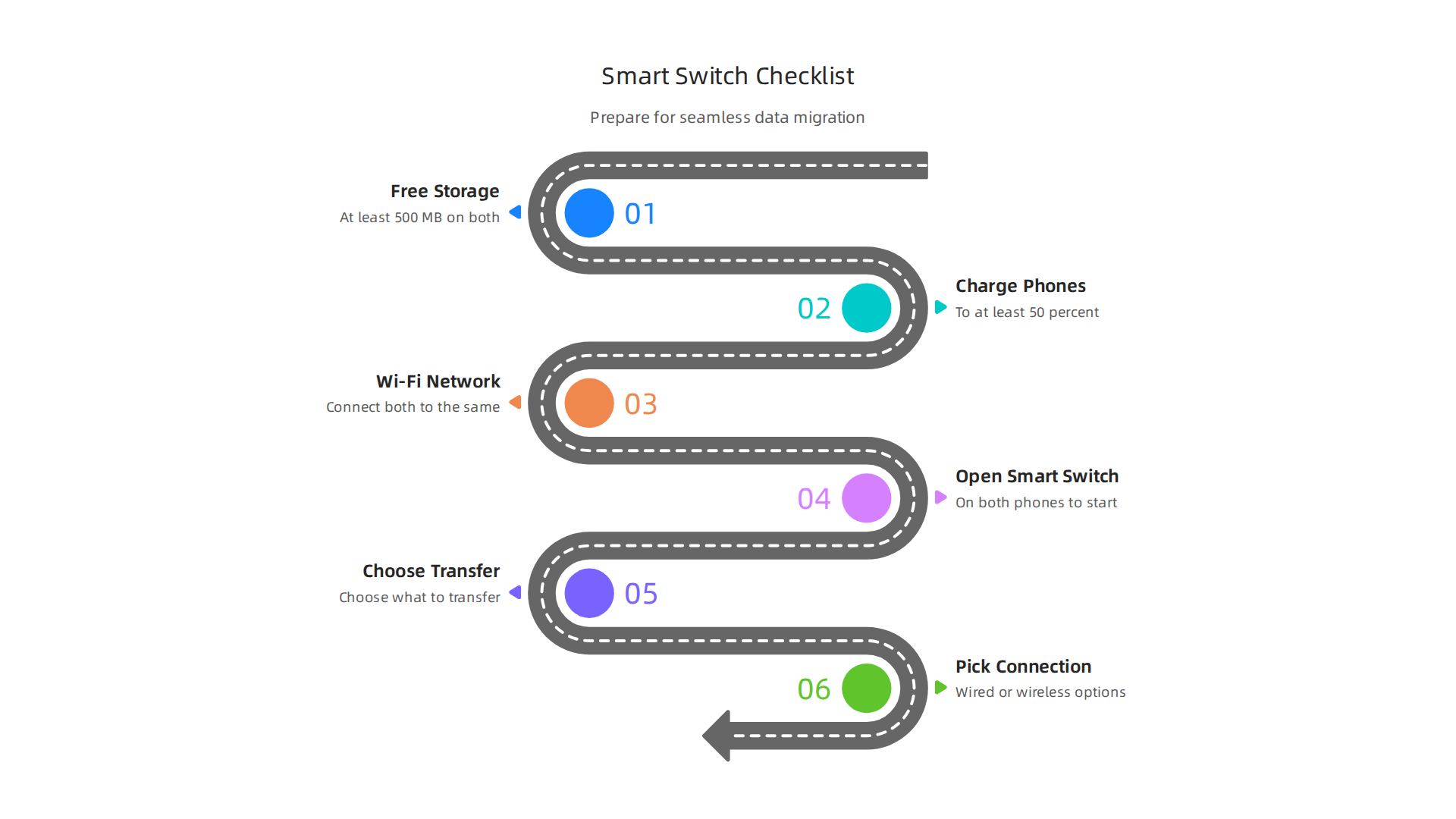
How to prepare for a smooth migration:
- Make sure both phones have at least 500 MB of free internal storage.
- Charge each phone to at least 50 percent so they don’t shut off mid-transfer.
- Connect both devices to the same Wi-Fi network if you plan to go wireless.
- Open Smart Switch on both phones. It comes preloaded on newer Galaxy models. On older ones or a device like the a26 Samsung, you may need to download it from the Galaxy Store or Google Play.
What actually moves over? Almost everything you care about. Contacts, photos, videos, messages, call logs, calendars, alarms, Wi-Fi passwords, and wallpapers all transfer. If both phones are Samsung Galaxy devices, app data and even your secure folder contents come along too.
One extra tip: before you start, back up anything important separately just in case. The app gives you a clear list of what will move so you can uncheck anything you want to leave behind.
After the transfer finishes, your new phone looks and feels just like the old one did. No need to reorganize everything from scratch. And once everything is settled, you can take organization a step further by learning how to change or hide the Samsung app drawer icon for an even cleaner home screen.
Wireless vs Wired Migration
When you open Smart Switch, the app asks how you want to connect. You have two solid choices: wireless or wired. Here is how they compare.
Going wireless is the cable free option. Both phones just connect to the same Wi-Fi network. It is super convenient if you cannot find a cable or just want a quick setup. This method works great for moving contacts, messages, and a few photos. According to the official Samsung Smart Switch for Canada support page, even your home screen settings transfer using this connection.
The wired method uses a USB C to USB C cable. This is the fastest and most reliable way to move data. If you have a lot of large videos or a huge music library, go wired. The cable usually comes right inside your new Galaxy box. It handles huge transfers without dropping the connection.
Both methods move the exact same types of data. Apps, contacts, settings, and Wi-Fi passwords all come along. The only difference is speed and convenience.
Once your transfer finishes, your new phone has all the raw material it needs. Now you can start to truly arrange everything. A great next step is to transform your Samsung phone smart layouts for productivity and security. This is where you begin to fully organize apps, hide clutter, and build a home screen that works for you.
Keeping up with the best tools and updates for your devices takes effort. If you want clear daily insights on AI and tech that actually help, check out The AI Newsletter Worth Reading. It saves you time and keeps you informed.
Post-Migration Checklist
The data transfer is done. Now make sure everything landed correctly. Here is a quick checklist to run through so you can start to properly samsung organize apps and settings right away.
First, verify your apps. Open your app drawer and scroll through. Every app from your old phone should be there. If something is missing, head to the Google Play Store and download it fresh. This is common with banking apps that use special security keys.
Next, sign into your accounts. Some accounts travel through Smart Switch. Others do not. According to the Switch to Galaxy overview from Samsung US, most contacts, photos, and messages move over fine. But apps like Netflix, Spotify, and your email client will ask you to log in again. Take a few minutes to go through them one by one.
Now check for duplicate icons. Smart Switch sometimes copies over shortcuts that already exist. You might see two Calculator or Calendar icons. Just long press the extra one and tap Remove.
Once duplicates are gone, you can arrange things the way you want. For more help, check this guide on how to change or hide the Samsung app drawer icon. This keeps your phone looking clean and showing only what you actually use.
Organizing Apps for Productivity: Folders, Themes, and Edge Panels
Now that your apps are all in one place, let’s actually get them working for you. The real power of how to samsung organize apps is not just about where they sit.

It is about how quickly you can reach the right app at the right time.
Start with folders. They sound basic, but they are your best friend. Group apps by what they do. Put all your social media in one folder. Put all your photo editing tools in another. Name them clearly like "Social" or "Edit." This cuts the time you spend hunting for things.
Themes can help too. You can set a color theme that matches your wallpaper. When apps are color coded by theme, your brain finds them faster. It is a small visual trick that makes a big difference.
Now try the Edge Panel. This is one of the best tools on your phone. Swipe in from the edge of the screen, and a panel slides out with your favorite apps and tools. According to the Samsung One UI 7 on Galaxy phones and tablets support page, you can use the Edge Panel to access AI features like AI Select. Draw around anything on your screen, and Galaxy AI suggests relevant actions. That is a huge time saver when you want to edit a photo or create a GIF without digging through menus.
App Pairs are the next level. If you often use two apps together, like your email and calendar, you can launch both at the same time in split screen. Just open one app, then swipe the Edge Panel and drag the second app into your screen. They launch together every time. This is perfect for multitasking on an a26 samsung or any Galaxy device.
Here is a final tip. You can create a dedicated productivity home screen. Put only your work apps there. No games. No social media. Use a separate home screen for fun stuff. That keeps your focus sharp when you need it. For more ideas on setting up your layout, check this guide on how to transform your Samsung phone smart layout ideas for productivity and security.
The best setup is one that matches how you actually use your phone. Take ten minutes and try a few of these options. Your phone will feel faster and smarter the moment you do.
Stay sharp with the latest AI tools and phone tips. Get clear daily updates from The AI Newsletter Worth Reading.
Setting Up Edge Panels for Quick Access
Getting the Edge panel set up is one of the fastest ways to samsung organize apps so you can reach them without digging through your home screen. Here is how to do it.
First, go to Settings > Display > Edge panels and toggle it on. Once it is active, swipe from the edge of your screen to see the panel. You can add your most-used apps, weather, and tools right there. Just tap the edit icon, then add shortcuts for things like your calendar, notes, or flashlight.
You can also drag and drop to rearrange the order of your panels. Remove any you never use, like the Apps edge if you prefer the clipboard or tools panel instead. For a cleaner look, keep only two or three panels active.
One of the best hidden tricks is using the Edge panel to access Galaxy AI features without jumping between apps. According to this article on 6 hidden One UI 7 features you probably missed, you can swipe the Edge panel while in any app and tap AI Select to get smart suggestions like making a GIF or setting a wallpaper instantly.
If you want even more control over your app layout, check out this guide on customizing your Samsung app drawer for additional ways to keep things organized. With the Edge panel set up the way you like, you will save taps every single day.
Managing App Permissions and Data Privacy on Samsung Devices
So you’ve set up your Edge panel and your apps are flying. But here’s the thing: some of those apps might have more access to your phone than they really need. After you migrate data using a tool like Smart Switch, permissions can carry over or even expand by default. That’s not ideal if an app is peeking at your camera when it just needs to show the weather.
The good news is your Samsung phone has a built-in Privacy Dashboard that shows you exactly what’s been happening. You can find it under Settings > Security and privacy > Privacy. It logs every time an app used your camera, microphone, or location in the last 24 hours. Samsung’s own guide on using security and privacy settings on Galaxy phones walks you through the full setup. Take a quick look and you’ll likely spot a few apps you forgot even had access.
From there, head to the Permission manager to lock things down. You can see every app sorted by permission type: Camera, Location, Microphone, Contacts, and more. Tap any category to see the full list. Samsung’s official guide on how to manage app permissions on your Galaxy device shows you step by step. For apps that don’t need constant access, choose Ask every time or just Deny. This is a big part of learning how to samsung organize apps safely, not just neatly.
Part of keeping your phone clean also means checking the hardware itself. If you bought your phone used or just want peace of mind, consider running a Samsung IMEI check to confirm it’s not stolen or blacklisted.
Staying ahead of privacy risks also means knowing what’s new in tech. For quick, daily updates on AI and digital safety, get The AI Newsletter Worth Reading straight to your inbox. It helps you stay sharp without the clutter.
Essential Permission Tweaks After Migration
Once you are inside the Permission manager, focus on a few key tweaks that make a real difference. Start with background location for apps that do not need it.
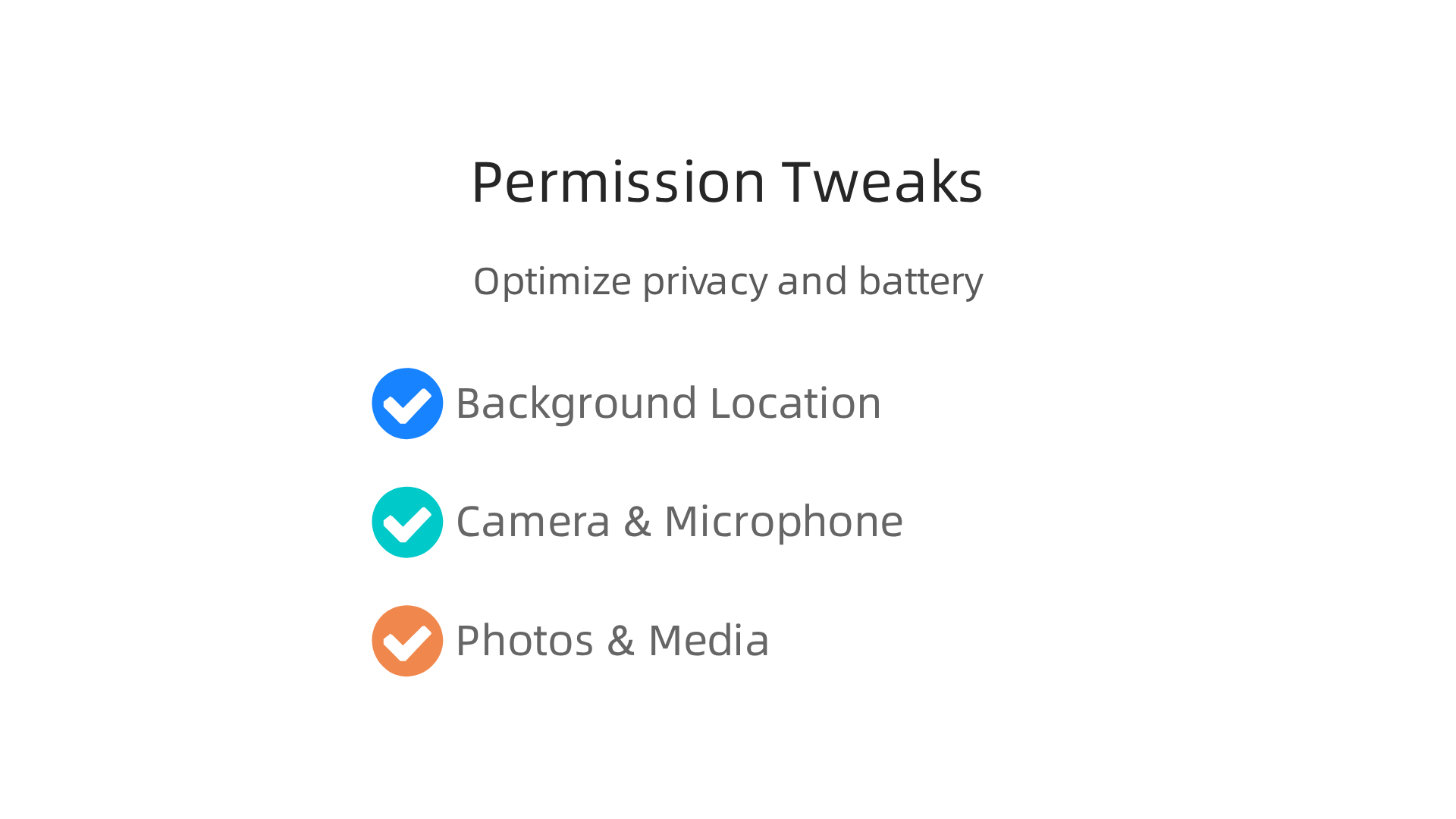
A weather app does not need to know where you are when you are not using it. Tap Location inside the Permission manager and look for apps set to Allow all the time. Change those to Allow only while using the app or Deny. This simple step saves battery and keeps your habits private. The XDA Developers guide on how to disable background location access for apps explains the exact toggle to use.
Next, set your camera and microphone to Ask every time. Go back to the Permission manager and tap Camera. For every app that does not need to take photos or record video, select Ask every time or Deny. Do the same for Microphone. Android’s official guide for controlling sensitive app permissions reminds you that choosing Ask every time gives you control right when an app tries to use your hardware.
Finally, review which apps can see your photos and media. Tap Photos and videos or Music and audio in the Permission manager. A messaging app might need photo access to send pictures, but a simple calculator does not. Deny anything that looks suspicious. For deeper tips on keeping your phone clean, check out our guide on how to transform your Samsung phone with smart layout ideas for both productivity and security. Taking these five minutes to lock down permissions is one of the smartest things you can do when you learn to samsung organize apps safely after a migration.
Troubleshooting Common App Issues After Migration
Even after you lock down permissions, a few app problems often show up right after a Smart Switch transfer. Don’t worry. These hiccups are normal and easy to fix.
Duplicate app icons are the most common headache. Smart Switch brings over your old apps, but your new phone might already have some of them pre-installed. So you end up with two copies of the same app. The quick fix is to uninstall the duplicate. Just long-press the extra icon and tap Uninstall. If you want to clean up the whole app drawer, you can also hide duplicate icons from your app drawer to keep things tidy.
App crashes happen next. Some apps from your old phone do not play well with the new software version. If an app keeps closing or freezing, try clearing its cache first. Go to Settings > Apps, tap the problem app, and choose Clear cache. If that does not help, uninstall it and reinstall from the Google Play Store. Smart Switch transfers the app itself, but not always the data perfectly. The Samsung Smart Switch support page explains that data transfer limitations exist based on connection type, so reinstalling often fixes stability.
Battery drain is the third issue. Background apps from your old phone might conflict with your new phone’s power management. Go to Settings > Battery > Background usage limits and put any apps you do not need constantly running into Deep sleeping apps. This stops them from draining your battery in the background.
Take care of these three things, and your phone will run smooth as butter. Want to stay ahead of app and software issues? Get clear daily AI updates from The Deep View Newsletter to keep your tech knowledge sharp.
Fixing App Duplication
You already know how to remove duplicate app icons after a Smart Switch transfer. But let’s talk about stopping duplicates before they even appear. That will save you time and help you samsung organize apps more cleanly from the start.
First, check both your home screen and app drawer for copies. Sometimes an app shows up in the app drawer but not on your home screen, or vice versa. Open your app drawer by swiping up from the bottom of your screen. If you see two versions of the same app, that is a duplicate. The fix is simple: long-press the extra copy and tap Uninstall.
Smart Switch samsung includes a handy tool called Find duplicates that can spot these copies for you. After the transfer finishes, open the Smart Switch app on your new phone. Look for a button that says Find duplicates or Clean up duplicates. Tap it, and Smart Switch will scan your phone and list all duplicate apps. Then you can remove them all at once.
To prevent duplication in the first place, never restore from multiple sources. For example, if you restore a backup from your old phone using Smart Switch and also sign into your Samsung Cloud account, you might end up with two copies of every app. Stick to one source. The Samsung Smart Switch support page recommends choosing just one method per transfer.
If you are using a newer model like the a26 samsung, the process is the same. The app drawer and Smart Switch work identically across all recent Galaxy phones. Just take a few minutes after the transfer to clean up, and your phone will feel organized right away.
Resolving Battery Drain After Migration
After using smart switch samsung to move everything to your new phone, you might notice a new issue: the battery drains faster than before. This is actually pretty common. Apps you transferred may still be running in the background, chewing through power without you knowing. Here is how to fix it.
First, check battery usage. Open Settings > Battery and device care > Battery. You will see a list of apps sorted by how much power they use. Many users find that smart switch migrating everything includes app data that keeps apps active in the background.
Second, if an app shows excessive drain, uninstall it completely. Then reinstall it fresh from the Galaxy Store or Google Play. A clean install often stops the background activity that drains your battery.
Third, reset your app preferences. Go to Settings > Apps, tap the three dots in the upper right corner, and choose Reset app preferences. This does not delete your data, but it resets defaults like disabled apps and background restrictions. It is a quick way to fix misbehaving apps after a transfer.
If you have an a26 samsung, the same steps apply. Every recent Galaxy phone handles battery settings the same way.
Keeping your phone organized is part of learning how to samsung organize apps correctly. For more tips on managing your devices and staying ahead of tech changes, check out The AI Newsletter Worth Reading. It delivers daily updates on AI and optimization strategies that make your tech life easier.
Future-Proofing Your App Setup: AI-Driven Organization in 2026
Once you fix that battery drain, the next step is making your app setup work for you in the long run. In 2026, Samsung’s One UI 7 brings powerful AI tools that change how you samsung organize apps. Instead of manually dragging icons around, your phone can do the heavy lifting.
One UI 7 learns how you use your phone. It offers AI app suggestions based on what you are doing at the moment. For example, if you open your phone during your morning commute, it might suggest your music app and news reader. If you are at work, it shows your calendar and email. Samsung’s One UI 7 introduction explains how these context-aware suggestions make your phone smarter.
Smart folders are another time saver. The system looks at all your apps and sorts them into folders by type. Games go together. Productivity apps get their own folder. Social apps are grouped. This saves you from having to figure out the best layout yourself.
You can also use voice commands and routines to streamline everything. Just say what you need, or set up a routine that opens certain apps at certain times. For a deeper look at layout strategies, check out this guide on smart layout ideas for productivity and security. It covers sorting apps for safety and speed.
These AI features work on most recent Galaxy phones, including the a26 samsung. The idea is simple: your phone adapts to you, not the other way around.
Summary
This guide shows how to take control of apps on Samsung Galaxy phones using One UI features and Smart Switch so your phone is faster, safer, and easier to use. It explains practical steps for organizing home screens and app drawers, creating effective folders (including the enlarged folders in One UI 7), and adjusting the app-grid and sorting to reduce hunting for apps. You’ll learn how to migrate your setup to a new phone with Smart Switch — wired or wireless — plus a short checklist to confirm everything transferred correctly. The article covers common post-migration problems like duplicate icons, app crashes, and unexpected battery drain and gives clear fixes. It also walks through permission checks with the Privacy Dashboard and Permission Manager to protect your data. Finally, it highlights Edge Panels, productivity layouts, and One UI’s AI features that automate organization going forward so your phone adapts to how you actually use it.