

Introduction: Why Speed Is the Foundation of Your Digital Life
You know that feeling. You click a link and wait. And wait. The page crawls, the video buffers, your video call freezes. Slow internet is more than an annoyance. It costs you time, money, and real productivity.

In 2026, the average home runs over a dozen connected devices. Every slowdown adds up.
That’s where the Cox Speed Test comes in. It’s a free, reliable tool that measures your connection speed. It gives you a clear picture of your internet health. Think of it as a checkup for your digital life. Without a baseline, you’re just guessing. With one, you can spot problems and fix them.
This guide will help you interpret your results. You’ll learn what those numbers mean and how to take action. We’ll cover simple steps to boost your speed and get the most from your connection. For the most accurate reading, experts suggest running tests on a wired connection at different times of day. how to run a speed test the right way
Think of this as part of your overall technology fitness. Just as you check your screen for damage with a screen burn in test, you should regularly check your internet. Knowing your baseline helps you make smart decisions about your home network.
Ready to take control? Let’s start with the Cox Speed Test and what your results really mean. And if you want to stay ahead of the AI trends reshaping your digital world, The AI Newsletter Worth Reading delivers deep insights straight to your inbox.
Why Internet Speed Defines Your Daily Experience in 2026
In 2026, the way you live and work has quietly transformed. You stream 4K movies without a second thought. You jump into video calls with colleagues across time zones. You control your lights, thermostat, and security camera from your phone. Every single one of these actions depends on one thing: fast internet.
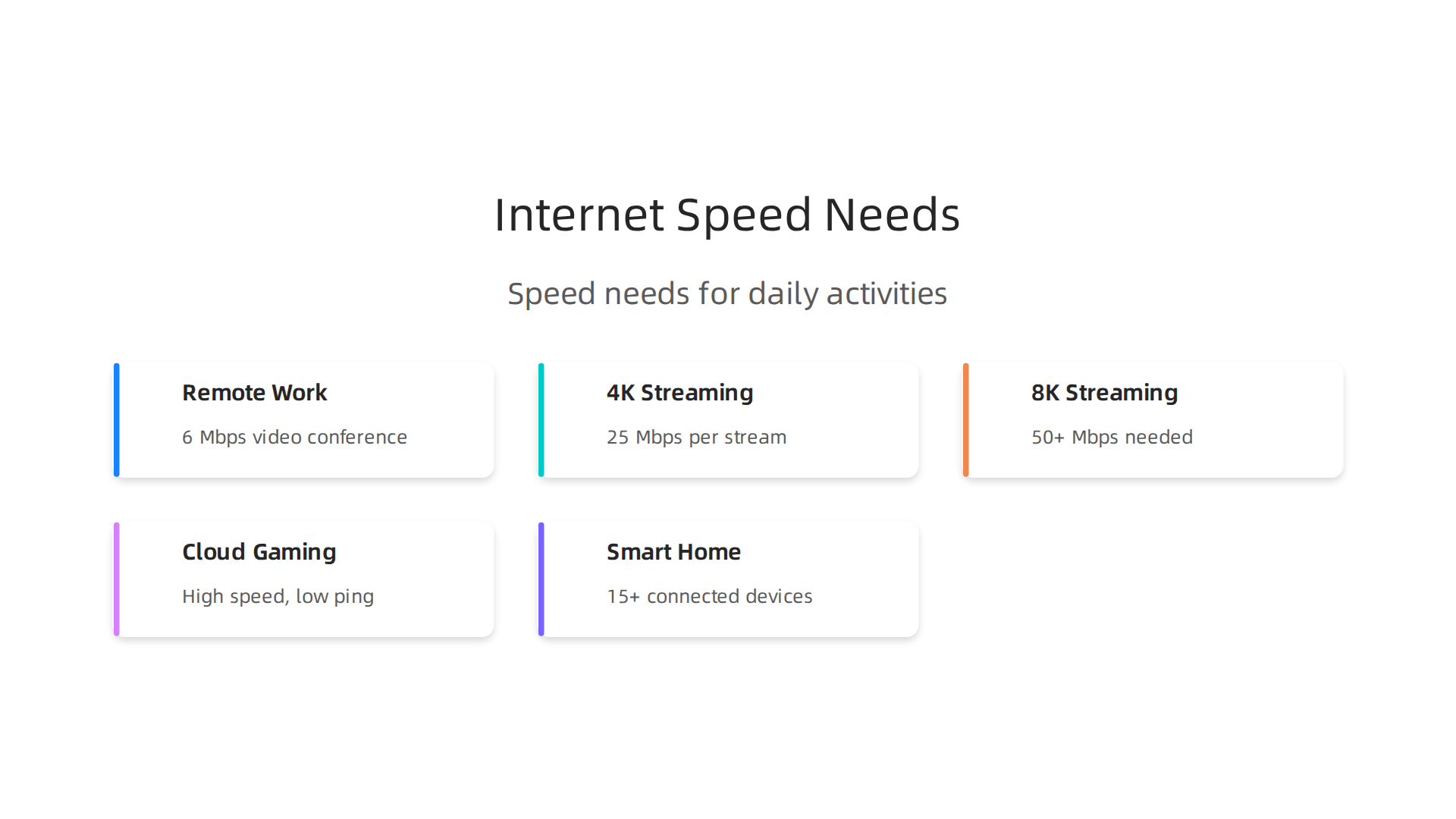
Think about remote work. A single high-quality video conference eats up about 6 Mbps. But when your partner is on a call and your kids are streaming a show, that demand multiplies. Low latency matters just as much. High latency makes your voice delayed and your video choppy. It can make you look less professional. Your internet literally shapes how you show up at work.
Now add entertainment. Streaming 4K video needs around 25 Mbps per stream. 8K can require 50 Mbps or more. Cloud gaming is even hungrier. It demands both high speed and very low ping. Every millisecond counts when you are aiming in a fast-paced game.
Then there is the smart home. The average US household now runs more than 15 connected devices. Smart speakers, thermostats, doorbells, even refrigerators all sip from your bandwidth. Over a day, those small sips add up to a big drain.
The problem is most people only notice their speed when something breaks. That is why running a cox speed test regularly is a smart habit. It gives you a clear baseline. According to data on US median internet speeds in 2026, the median download speed is 308.11 Mbps.
That sounds fast, but your home might need far more depending on how many people and devices share the connection.
Emerging technologies like advanced AI tools are pushing bandwidth needs even higher. As our coverage of Elon Musk AI 2026 explains, the next wave of AI applications will eat up even more data. Keeping your technology fitness in check means understanding your internet needs today so you are ready for tomorrow.
Your connection is the backbone of your daily experience. Know your numbers. Then you can take control.
How to Properly Run a Cox Speed Test for Accurate Results
Getting an accurate reading from a Cox speed test is not as simple as clicking one button. If you want a number you can trust, you need to follow a few simple steps.
A bad reading can make you think you have a problem when you do not. Or it can hide a real problem that needs fixing.
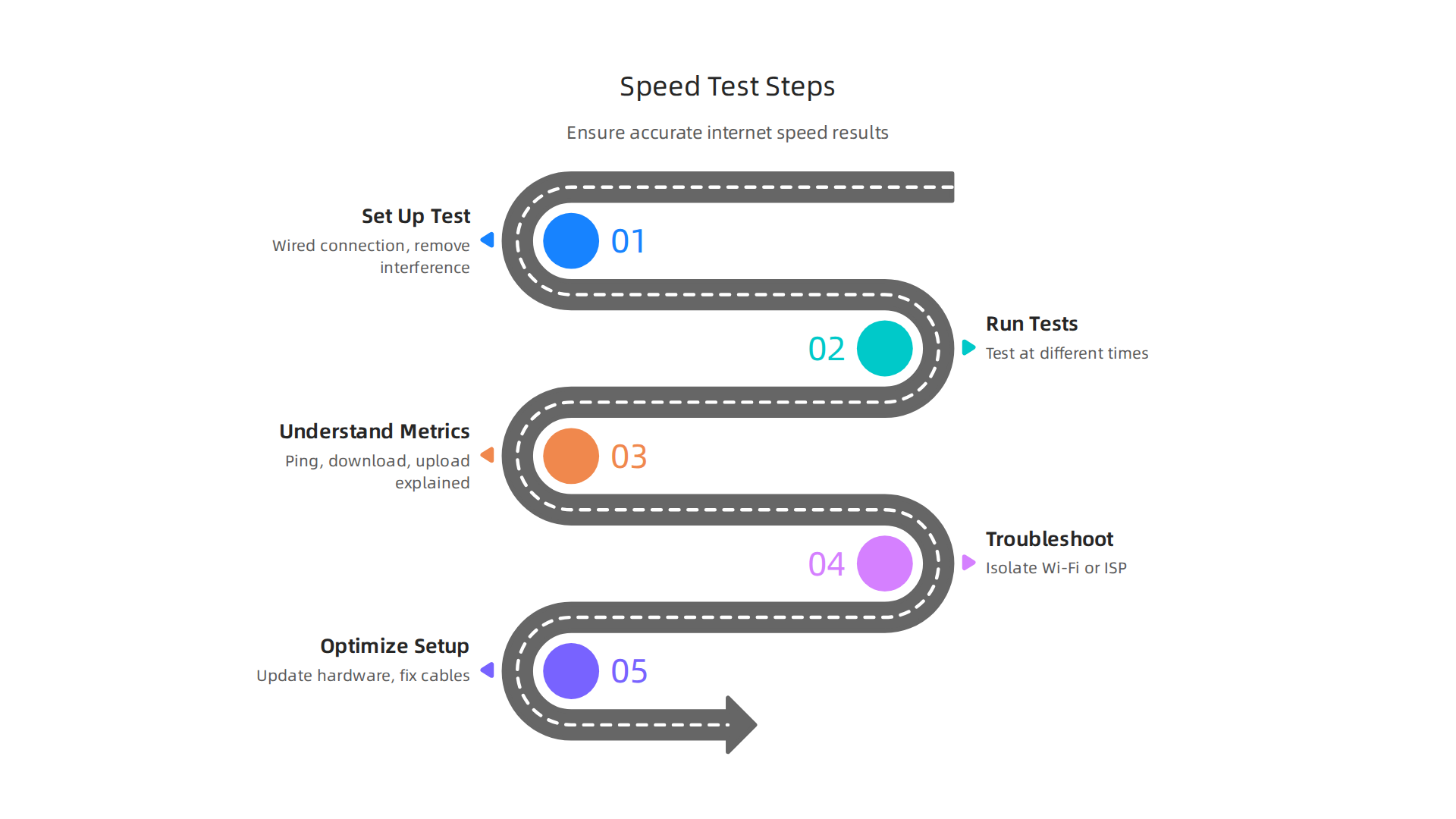
Step 1: Set Up Your Test the Right Way
Before you run the test, you need to remove anything that could mess up the results. First, find an Ethernet cable and plug your computer directly into your router. WiFi is convenient, but it can slow down your speed readout. As the guide on how to run a speed test the right way explains, a wired connection gives you the true speed coming into your home.
Next, close all other apps. Stop your music, turn off your video call, and pause any downloads. You want the test to be the only thing using your connection. It is also a smart idea to restart your modem and router before you start. This clears up any temporary glitches that could throw off your results.
Step 2: Run the Test Multiple Times
Go to the official Cox speed test tool or a trusted third-party option.
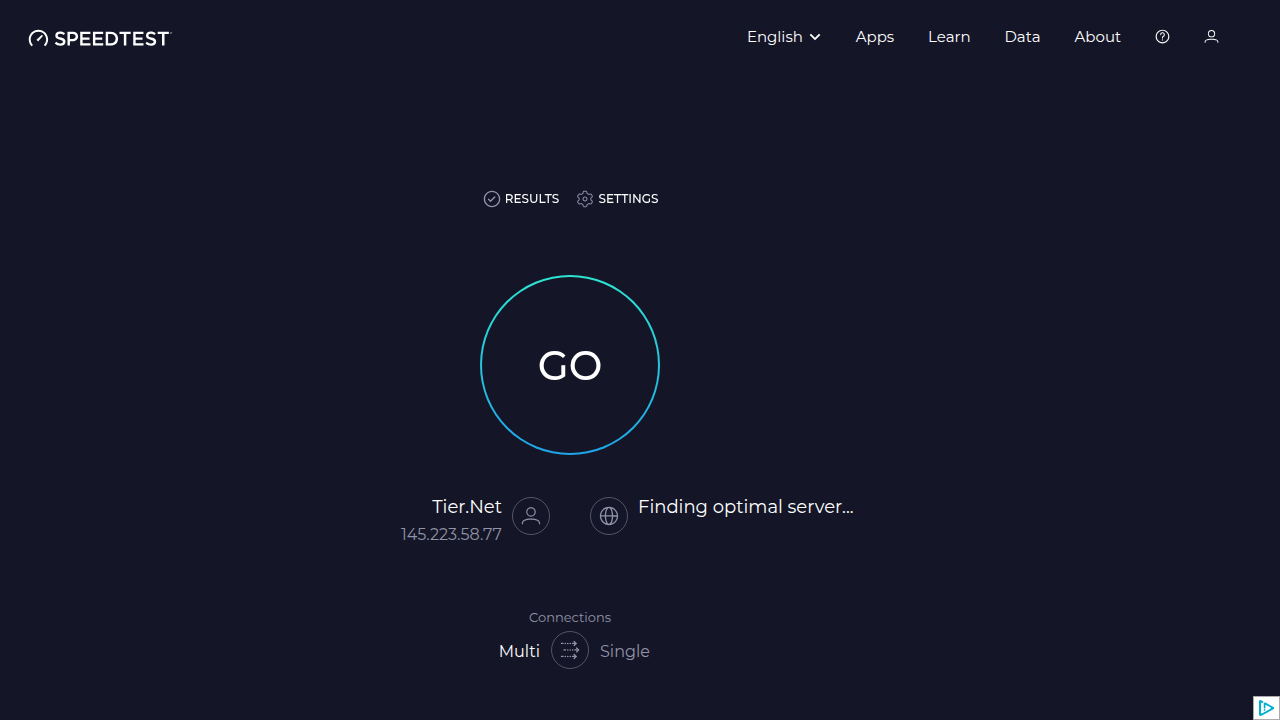
Click start and let it finish. Then do not stop there. Run it again at least two more times. Internet speeds change from moment to moment. According to research on best practices for collecting speed test data, running multiple tests in a row helps you get a more accurate overall picture. Try testing at different times of the day too. Mornings and evenings can give very different results.
Step 3: Understand the Three Key Metrics
The test will give you three numbers. Here is what they mean:
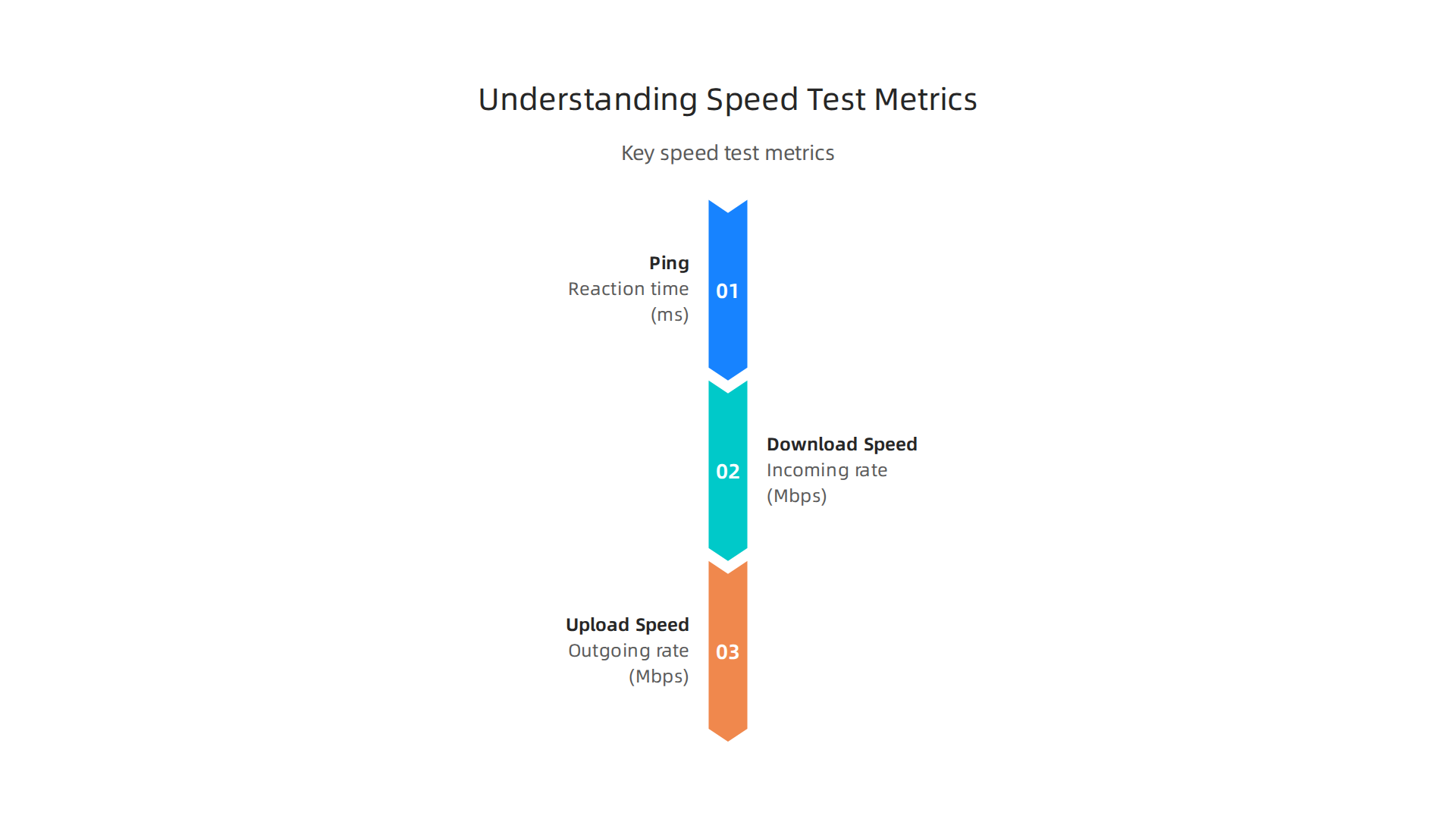
- Ping (Latency): This is your reaction time measured in milliseconds (ms). Lower is better. A ping under 20 ms is excellent for gaming and video calls.
- Download Speed: This is the speed at which your connection pulls data from the internet. It is measured in Mbps. This number matters most for streaming and browsing.
- Upload Speed: This is the speed at which your connection sends data out. It matters for video calls, uploading photos, and cloud backups.
Check these numbers against what your Cox plan promises. If your download speed is consistently below 80 percent of your plan speed while wired, you might have a real issue. The FCC’s Performance Measures Testing guidelines consider this a key benchmark for network reliability.
Understanding these metrics is a key part of your overall technology fitness. Just like pinpointing a slow connection, learning how to run a screen burn in test keeps your other devices running smoothly. A quick check once a month can keep your whole digital life at its best.
Decoding Your Speed Test Results: From Numbers to Action
You have your three numbers from the Cox speed test. Now what? The real value comes from knowing what those numbers actually mean for your day to day life. A number on a screen is just a number until you know how it affects your streaming, gaming, and work.
What Ping and Jitter Mean for You
Ping measures how fast your connection reacts. If your ping is under 20 ms, you will have smooth video calls and responsive gaming. Between 20 and 50 ms is still fine for most people. Above 100 ms, you will feel lag. Your video calls might freeze, and your games will feel sluggish.
Jitter is the variation in that ping over time. Even a low ping can feel bad if jitter is high. Think of it like a car that speeds up then slams on the brakes over and over. You want a steady, consistent connection. High jitter causes crackly audio on calls and stuttery gameplay.
Download and Upload in Real Life
Download speed is what most people focus on. It determines how fast pages load and how sharp your 4K stream looks. For a typical household, 100 Mbps is enough for a few devices streaming and browsing at the same time. But if you have multiple people gaming, streaming, and on video calls, you might need 300 Mbps or more.
Upload speed matters more than most people realize. If your video calls look pixelated or your files take forever to send, your upload speed is probably too low. Cox plans usually offer much less upload than download. Check your upload number against what your plan promises.
How to Tell If the Problem Is You or Your ISP
Here is the most important question to answer after your Cox speed test. Is the problem your WiFi or your internet service provider?

You can figure this out in two steps.
First, compare your wired test result to what Cox advertises for your plan. If your wired speed is close to the advertised speed, your ISP is fine. Your problem is inside your home. Common causes include a weak WiFi signal, too many connected devices, or an old router. As the guide on 11 common causes of slow internet explains, outdated equipment and signal interference are two of the biggest culprits you can fix yourself.
Second, run the same test on WiFi from the room where you use your devices the most. If your wired speed is great but your WiFi speed drops a lot, the bottleneck is your wireless setup. Try moving closer to your router or repositioning it to a central spot away from walls.
When to Call Cox
If your wired speed test consistently shows numbers below 80 percent of your plan speed, and you have already restarted your modem and checked your cables, it is time to contact Cox. Keep a record of your test results with dates and times. This evidence helps support your case when you call support.
Keeping your connection optimized is part of maintaining the rest of your tech too. For example, making sure your portable devices are protected is just as important as a fast internet connection. A well maintained best clear phone case for iPhone 13 can prevent damage that slows down your daily use. When every device in your home works well, your whole experience gets better.
Top 7 Causes of Slow Internet and How to Fix Them
Now that you know how to run a Cox speed test and read your results, the next step is figuring out what is causing the slowdown. Most issues fall into seven common categories.
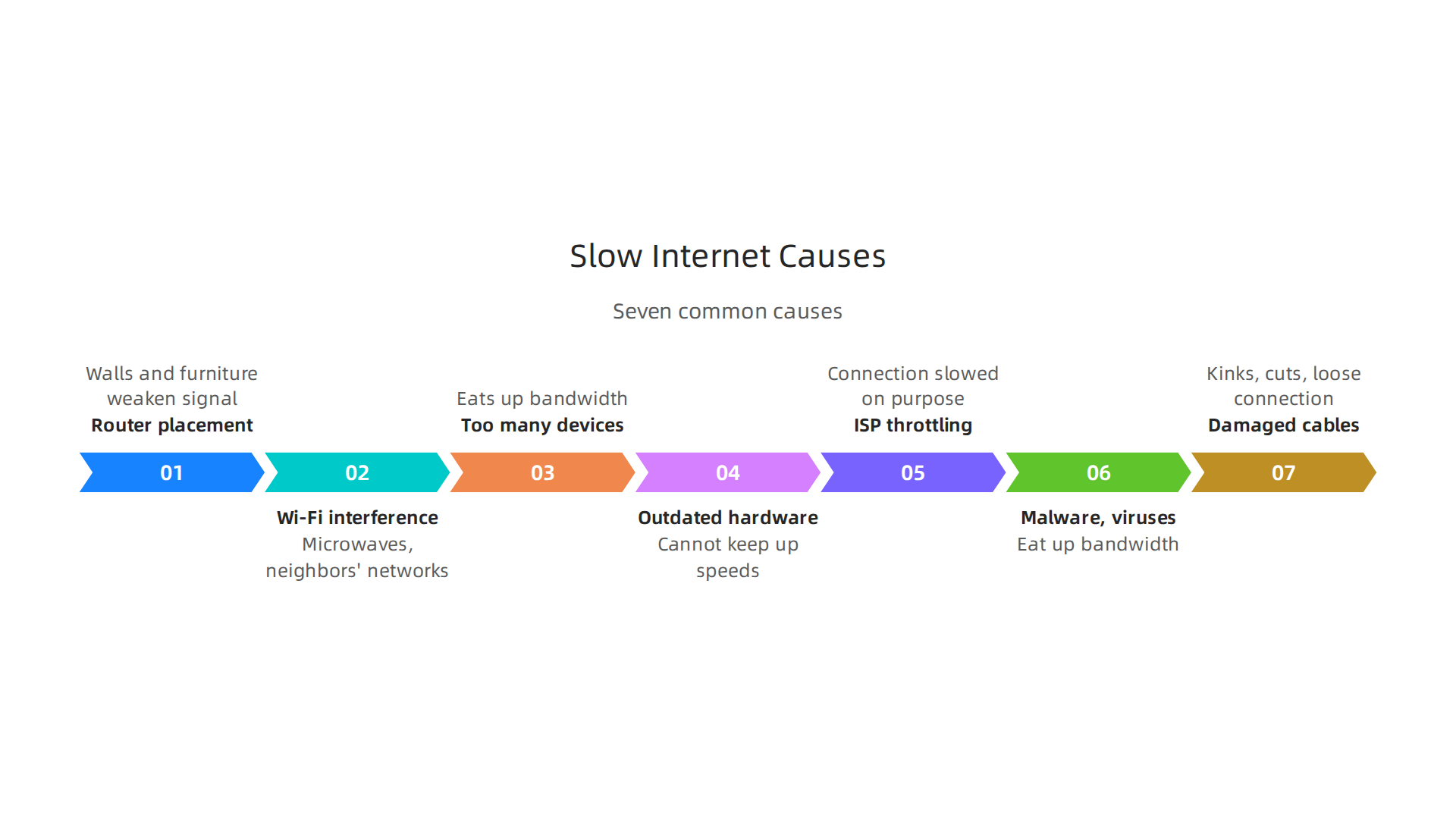
The good news is that you can fix most of them yourself.
1. Router placement and physical obstructions
Where you put your router matters more than you think. If it is tucked in a corner, on the floor, or behind a TV, the signal has to fight through walls and furniture. This weakens your connection. Move your router to a central spot in your home, up high and out in the open. This one change can boost your speed a lot.
2. Wi-Fi interference from neighbors and devices
Your Wi-Fi shares airwaves with everything around you. Microwaves, baby monitors, Bluetooth speakers, and even your neighbor’s network can cause interference. If your connection slows down at certain times, interference might be the cause. Try switching your router to the 5 GHz band instead of the 2.4 GHz band. The 5 GHz band is less crowded and faster for streaming and gaming.
3. Too many devices connected at once
Every phone, tablet, laptop, smart TV, and smart home gadget eats up bandwidth. When too many devices try to talk to your router at the same time, things slow down. As explained in the guide on 8 reasons why your internet is slow, network congestion is one of the most common problems. The fix is simple: disconnect devices you are not using, or upgrade to a faster internet plan.
4. Outdated router or modem
Old equipment cannot keep up with modern speeds. If your router is more than three or four years old, it might be bottlenecking your connection. Check the age of your router and consider upgrading. Many ISP-provided routers are basic models. A newer router with Wi-Fi 6 support can make a big difference.
5. ISP throttling
Sometimes your internet provider slows down your connection on purpose. This is called throttling. It often happens when you use a lot of data or during peak evening hours. If you notice your speed drops at the same time every day, throttling could be the issue. You can test this by running a VPN and comparing speeds. If the speed improves with a VPN, your ISP is likely throttling you. Keep a log of your Cox speed test results to show your provider.
6. Malware, viruses, and background apps
Malware and viruses can eat up your bandwidth without you knowing. They send data in the background and slow everything down. According to Microsoft Support, two of the most common causes of slow internet are spyware and viruses. Run a security scan on all your devices. Also, check your computer for unnecessary background apps. Close any programs you are not using.
7. Damaged or loose cables
Damaged Ethernet or coaxial cables can cause major slowdowns and even drop your connection. Check your cables for kinks, cuts, or chew marks from pets. Make sure the coaxial cable is screwed on hand-tight to your modem. If a cable looks worn out, replace it. A loose or damaged cable is an easy fix that many people overlook.
Putting It All Together
If your Cox speed test shows low numbers, run through this list. Start with the easiest fixes: move your router, disconnect extra devices, and check your cables. Then move to software and hardware updates. You can fix most of these problems in a few minutes without calling your ISP. And if you keep your equipment in good shape and your network organized, your internet will stay fast and reliable.
Wi‑Fi Optimization: Simple Tweaks for Faster Wireless Speed
So you ran a Cox speed test and found slow results. You checked the common causes from the last section like router placement and too many devices. Your hardware is fine, your cables look good. But your Wi-Fi still feels sluggish. What now?
The answer often comes down to how your Wi-Fi is set up. Small settings make a big difference.

And you can change them in minutes.
Choosing the Right Wi-Fi Band and Channel
Your router sends signals on different bands. Most modern routers support 2.4 GHz, 5 GHz, and newer ones support 6 GHz. Each band has strengths.
The 2.4 GHz band travels farther and passes through walls better. But it is crowded. Everything from your microwave to your neighbor’s network shares this band. Use 2.4 GHz for devices far from the router, like smart lights or doorbells.
The 5 GHz band is faster and less crowded. It is great for streaming, gaming, and video calls. The tradeoff is shorter range. Keep your main devices like laptops and smart TVs on 5 GHz.
The 6 GHz band is the newest option. It is the fastest and cleanest because few devices use it yet. As mentioned in a guide on how to improve your Wi-Fi speed, you should try 6 GHz first if your router and devices support it.
You also need to pick the right channel within each band. Too many networks on the same channel cause interference. Log into your router settings and look for the wireless channel option. For 2.4 GHz, stick with channels 1, 6, or 11. For 5 GHz, channels 36, 40, 44, and 48 work well. Using the right channel and band can boost your Cox speed test results without buying anything new.
BSSID and Beamforming Settings
Here is where things get a little geeky but useful. BSSID stands for Basic Service Set Identifier. It is basically a label for your Wi-Fi network. Some routers let you disable band steering, which means your 2.4 GHz and 5 GHz networks get separate names. That way you can choose which band each device connects to manually.
Beamforming is another hidden gem. This feature focuses the Wi-Fi signal directly toward your devices instead of blasting it everywhere. Most modern routers support beamforming. Check your router’s advanced settings and make sure beamforming is turned on. It helps devices that are far from the router get a stronger signal.
Mesh Systems vs Range Extenders
If your home has dead zones, you need to decide between a mesh system and a range extender.
Range extenders are cheaper and easier to set up. They grab your Wi-Fi signal and rebroadcast it. The downside is that they cut your speed in half. Place one about halfway between your router and the dead zone.
Mesh systems are better for whole-home coverage. They use two or more units that talk to each other. The signal stays strong across every room. As explained in a helpful home Wi-Fi optimization guide for 2026, mesh systems are ideal for larger homes or homes with thick walls.
If you keep seeing slow speeds on your Cox speed test even after these tweaks, consider upgrading to a mesh system. It costs more upfront but gives you consistent speed everywhere.
One Extra Tip for Power Users
If you are a gamer or streamer, you can fine-tune your Wi-Fi adapter settings too. Open your device’s network adapter properties and set the preferred band to 5 GHz or 6 GHz. Disable power saving mode on the adapter. Enable U-APSD support if available. These small adjustments reduce lag and improve stability.
Think of Wi-Fi optimization as part of your overall technology fitness routine. Just like you update apps and run a scroll wheel test to check your mouse, you should tune your network settings every few months. It keeps everything running smoothly.
Hardware That Delivers: Best Routers, Modems, and Mesh Systems for 2026
You have optimized your Wi-Fi settings. You moved the router. You changed channels. But your Cox speed test still shows disappointing numbers. The problem might be your hardware itself.
Old equipment cannot keep up with modern internet speeds. Your modem and router are the foundation of your home network. If they are outdated, no amount of tweaking will fix it. The good news is that upgrading in 2026 gives you real options.
Choosing a Cable Modem: DOCSIS 3.1 vs 4.0
Your modem talks to your internet service provider. For Cox and most cable ISPs, you want a DOCSIS 3.1 modem. It handles speeds up to 10 Gbps download and supports the multi-gig plans many providers offer now. It is also more efficient and uses less power than older modems.
DOCSIS 4.0 is the newest standard. It promises up to 10 Gbps upload speeds too. But it is not widely available from Cox yet, and compatible modems are expensive. For most people in 2026, a DOCSIS 3.1 modem is enough. It will give you great results on your Cox speed test for years.
When buying, look for models that support at least 32 downstream channels and 8 upstream channels. This ensures you get full speed even during peak hours.
Top Routers for Speed and Reliability
A good router turns your modem signal into fast Wi-Fi. In 2026, Wi-Fi 6 is the standard. Wi-Fi 6E adds the 6 GHz band for even less interference. Wi-Fi 7 is just starting to appear but is still pricey.
For a reliable mid-range option, look for routers with gigabit ports, OFDMA support, and good beamforming. If you are a gamer, the guide on optimizing WiFi connectivity and reducing latency explains how to fine-tune settings for lower ping. But having a router that supports Wi-Fi 6 is step one.
Mesh Wi-Fi Systems for Whole-Home Coverage
If your home has dead zones that range extenders cannot fix, a mesh system is the answer. Mesh systems use multiple units that work together. You get one network name and seamless movement between rooms.
The best mesh systems in 2026 support Wi-Fi 6E and have dedicated backhaul channels. That means the units talk to each other without slowing down your device speeds. Look for tri-band or quad-band systems for the best performance.
A mesh system is especially helpful for homes over 2,000 square feet or with thick walls. It eliminates buffering and ensures your Cox speed test reflects your plan speed in every room.
Think of hardware upgrades as part of your technology fitness. Just like you test your device health with a screen burn-in test, checking your modem and router every two years keeps your network in shape. Spending a little now saves you from slow speeds later.
Software and Configuration Tweaks to Boost Your Connection
You upgraded your modem and router. Yet your Cox speed test still shows numbers that do not match your plan. Before you blame your internet provider, look at the software side. A few configuration changes can make a big difference.
Change Your DNS for Faster Page Loads
Your internet service provider gives you a default DNS server. But it is often slow. Your computer asks this server to translate website names into IP addresses every time you load a page. A slow DNS server adds time to every request.
You can switch to a faster public DNS. Cloudflare (1.1.1.1) is known for speed and privacy. Google DNS (8.8.8.8) is also reliable. Quad9 (9.9.9.9) adds security by blocking dangerous sites. Changing to one of these can speed up your browsing noticeably. It takes only a few minutes in your router settings.
This simple change often boosts your Cox speed test results because your connection spends less time waiting for DNS responses. You can check which DNS server is fastest for your location using an online tool like DNS Speed Test.
Enable Quality of Service (QoS)
Quality of Service is a feature in most modern routers. It lets you tell your network which apps matter most. For example, you can give video calls and gaming higher priority than file downloads. When you are on a Zoom meeting or playing a game, QoS makes sure your connection stays smooth even if someone else is streaming Netflix.
To set it up, log into your router settings and find the QoS section. Turn it on and choose the apps or devices you want to prioritize. This cuts down on lag and helps your Cox speed test show consistent results during busy times.
Manage Background Updates and Device Data Usage
Your computer, phone, and smart TV are always downloading updates. Windows updates, app updates, and cloud backups run in the background. They eat up your bandwidth without you noticing.
Check each device and schedule updates for late at night. On your phone, go into app settings and turn off automatic updates over cellular data. On your computer, set updates to download only when you are not using the internet. This frees up bandwidth for the things you actually care about.
Keeping your network lean is part of good technology fitness. Pair these software tweaks with the hardware upgrades from the previous section, and your connection will run at its best.
For ongoing tips to keep your digital life optimized, subscribe to The AI Newsletter Worth Reading. It delivers practical advice to improve your workflows and internet performance.
Future-Proofing Your Home Network: What’s Next for Internet Speed
The upgrades and tweaks you just made will help today. But internet technology does not sit still. In 2026, speeds are climbing fast. Test results from around the world show a 17% jump in global median download speeds in just one year. The United States now sits at a median of 308 Mbps, according to the latest data from Internet Speeds: USA vs. The Rest of the World 2026. To stay ahead, you need to know what is coming next.

Wi-Fi 7 Is Here and It Changes Everything
Wi-Fi 7 routers are now hitting the market. Unlike Wi-Fi 6, Wi-Fi 7 supports speeds over 40 Gbps. That is more than enough for 8K streaming without buffering. It also cuts latency for gaming and virtual reality. If you do heavy gaming or VR work, your Cox speed test will finally match what your hardware can handle.
LEO Satellite Internet Offers a Low-Latency Alternative
Starlink and similar low-earth orbit satellite networks now provide real competition to cable. Their latency sits around 20 to 40 milliseconds, far better than old satellite internet. For rural users, this is a game changer. You get speeds that can rival urban broadband.
Prepare Your Network for 8K, VR, and AI Workloads
By 2027, 8K TVs will be common. AI tools that run locally will need fast connections to download models and updates. VR headsets like the next Meta Quest will demand low latency and high bandwidth. If you upgrade your router and modem now, you will be ready for these workloads. Also keep an eye on how how Elon Musk AI technologies converge because AI data consumption will only grow.
Staying ahead of these trends is part of good technology fitness. Run a Cox speed test today to see where you stand. Then plan your next upgrade around Wi-Fi 7 and low-latency internet options. Your future self will thank you.
Conclusion: Your Roadmap to a Faster, More Reliable Digital Life
You now have a clear plan. It comes down to four steps: test, diagnose, fix, and future-proof. Each one builds on the last.
Start by making the Cox speed test a regular habit. Running it once a week gives you a baseline. When your internet feels slow, you will know for sure. Consistent speed testing is a core part of good technology fitness. The same goes for your other devices. Whether you check your Wi-Fi or run a scroll wheel test on your mouse, catching small problems early saves you big headaches later.
After testing, move to diagnosis. Look for patterns. Is the slowdown at certain times? Are wired devices better than wireless? Then apply fixes like upgrading your router, switching to a wired connection, or changing to one of the best DNS servers for speed in 2026. That small change can boost everyday browsing without spending a dime.
Finally, keep an eye on the future. Technology evolves fast. Understanding how technology trends converge in 2026 helps you plan your next upgrade. For daily insights that keep you ahead of the curve, consider subscribing to The AI Newsletter Worth Reading.
Your digital life deserves a reliable foundation. Start with a Cox speed test today, and build from there.
Summary
This guide explains how to use the Cox speed test to diagnose and improve your home internet performance. It shows how to run accurate tests (preferably wired and repeated at different times), what the three key metrics—ping, download, and upload—actually mean, and how those numbers affect streaming, gaming, and video calls. The article walks through seven common causes of slow internet and practical fixes you can do yourself, plus detailed Wi‑Fi optimization tips (bands, channels, mesh vs extenders) and software tweaks like changing DNS and enabling QoS. If hardware is the bottleneck, it covers modem and router choices for 2026 and when to upgrade. Finally, it explains how to tell if the problem is inside your home or with Cox, when to contact support, and how to plan for future needs like Wi‑Fi 7 and AI workloads.