
Why Layouts and Customization Matter on Samsung Devices
Think about your phone or tablet. It’s probably one of the most used tools in your day, right? Because we use these devices so much, how they look and feel is super important. This is where good Samsung layout ideas come into play. The way you set up your home screen, the widgets you use, and how you arrange your apps can truly change how you use your device every single day.
A well-planned layout can make you faster and more efficient.
When your apps are easy to find and your widgets show you important info at a glance, you save time. This kind of thoughtful organization doesn’t just make things neat, it also helps your device battery last longer. When you don’t have to scroll through endless screens or search for apps, your phone works less, which is better for its battery life.
However, many people face common problems. Maybe your home screen feels cluttered with too many apps. It’s hard to find what you need quickly, which can be frustrating. Sometimes, widgets are used in ways that aren’t helpful, or they might even show too much personal information. For example, some app shortcuts or widgets could unintentionally expose private details. Samsung devices have special features, like the Secure Folder, that help keep your private stuff safe and separate from your regular apps, offering extra protection for your data using a special passcode Use the Secure Folder on your Galaxy phone or tablet.
This secure area makes sure only you can see what you want to keep hidden.
Learning how to customize your Samsung device can help you avoid these headaches. It’s about making your phone work for you, not against you. Whether it’s organizing your app drawer or simply deciding how to change or hide the Samsung app drawer icon on your Galaxy, every little tweak can improve your daily experience.
Staying updated on technology, especially how AI impacts daily tools and personal productivity, can further enhance your digital life.
Get clear daily AI updates from The AI Newsletter Worth Reading.
After understanding why customizing your Samsung device is helpful, let’s look at the basic rules for good samsung layout ideas.
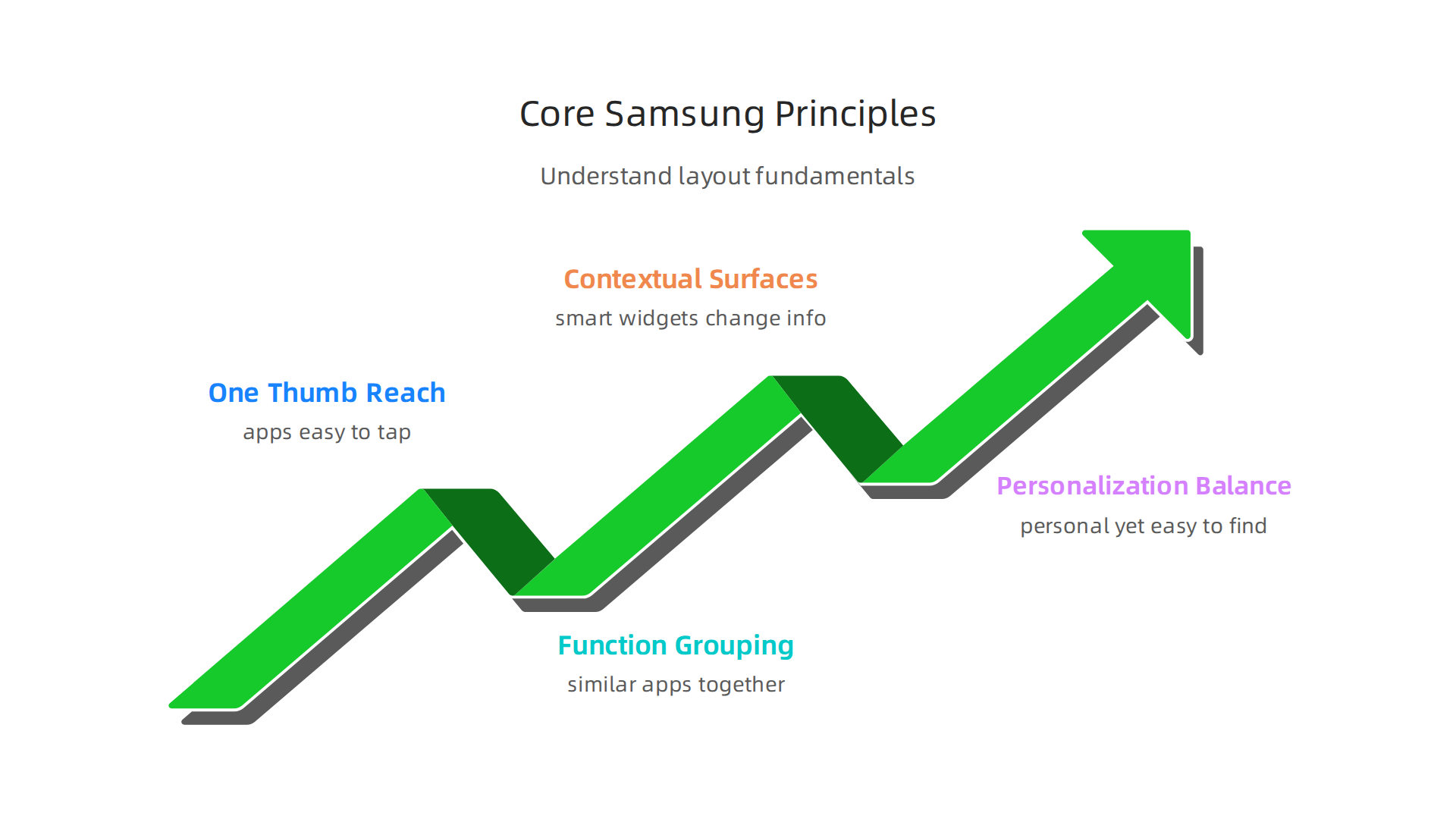
These principles help you make smart choices for your phone’s screen, ensuring it works best for you.
One-Thumb Reach
One main idea is "one-thumb reach." This means putting the apps you use most often in places you can easily tap with your thumb. Think about how you hold your phone. The bottom part of the screen is usually the easiest to reach. So, your most important apps should go there. This makes your phone much easier and faster to use with just one hand. Studies on how people interact with devices, called visual ergonomics, often highlight the need for easy-to-reach elements to prevent eye strain and improve how well people use their devices 7 Android launchers for enhanced efficiency.
Function-First Grouping
Another good rule is "function-first grouping." This just means putting apps that do similar things together. For example, all your messaging apps like texts, WhatsApp, and social media apps can go into one folder. All your money apps can go into another. This keeps your screen tidy and helps you find what you need without lots of searching. For tools like samsung data migration apps, keeping them in a dedicated utility folder makes them easy to find when you need to transfer files.
Contextual Surfaces for Smart Widgets
Next, think about "contextual surfaces" for smart widgets. Widgets are those mini-apps on your home screen that show you information without opening the full app. A smart widget changes what it shows based on what you’re doing or the time of day. For instance, in the morning, it might show your calendar. Later, it might show music controls. Using these smart widgets wisely makes your screen useful without being crowded.
Balancing Personalization with Discoverability
Finally, it’s important to balance making your phone personal with making it easy to find things. You want your phone to feel like yours, with colors and backgrounds you like. But you also need to make sure you or anyone else can still find apps and settings quickly. Sometimes, making things too personal or hidden can make them hard to find later. This is where using folders for similar apps helps. You get a clean look, but the apps are still easy to discover inside their groups. Learning how to organize your app drawer or even figuring out how to change or hide the Samsung app drawer icon on your Galaxy can make a big difference in this balance.
For important security actions, like a samsung account password reset, you might want to place a shortcut to your settings or a specific security app in an easy-to-access but still secure folder. While you’re thinking about layouts, remember that some technical settings, like oem lock samsung, are usually kept deep within your phone’s settings. These are not things you’d put on your home screen for quick access, as they are for very specific, advanced needs and are often locked for security reasons.
Now, let’s look at some ready-to-use samsung layout ideas that can help you get started. These are like templates for your phone’s home screen, designed to make your daily tasks easier.
Quick-Start Productivity Layouts (Home Screen Templates)
Having a good starting point can make setting up your phone less tricky. Here are three ideas for different kinds of users.
1. Work-Focused Layout
This layout is for when your phone is mostly for work.
- Top half: Important work widgets like your calendar for meetings, or a to-do list to keep track of tasks.
- Middle: Folders for different work areas. You might have one for "Emails & Chat" with apps like Outlook or Teams. Another could be "Project Files" with your document apps. If you often move files, a folder with tools for samsung data migration would fit well here.
- Bottom dock: Your most used work apps, such as your main email app, a note-taking app, and a work communication app. This makes them easy to reach with one thumb.
2. Balanced Everyday Layout
This layout is for most people who use their phone for both work and fun.
- Top half: Widgets for quick info like weather, news, or a smart widget that changes to show your next appointment or music controls.
- Middle: A mix of folders. You might have "Work Stuff" next to "Social Fun" (for apps like Instagram or TikTok) and "Entertainment" (for streaming apps). Keep common tools like your camera and gallery easily visible outside folders. For more tips on Samsung devices, you might want to explore the best Samsung tablet 2026 to see how tablets fit into a productive setup.
- Bottom dock: Your most used daily apps. This could be your phone app, messaging, web browser, and maybe one favorite social app.
3. One-Hand Minimal Layout
If you like a clean look and often use your phone with just one hand, this layout is for you.
- Top half: Mostly empty, or just one simple, small widget like a digital clock. The goal is to keep it clear.
- Middle: Very few apps or small folders for less common apps. This keeps the screen tidy.
- Bottom dock and lower screen: All your essential apps are here. Think about what you tap most often: phone, text, camera, and a few key apps. They should all be within easy thumb reach.
How to Set Up Your Layout
Once you choose a template, here are the steps to make it real on your Samsung phone:
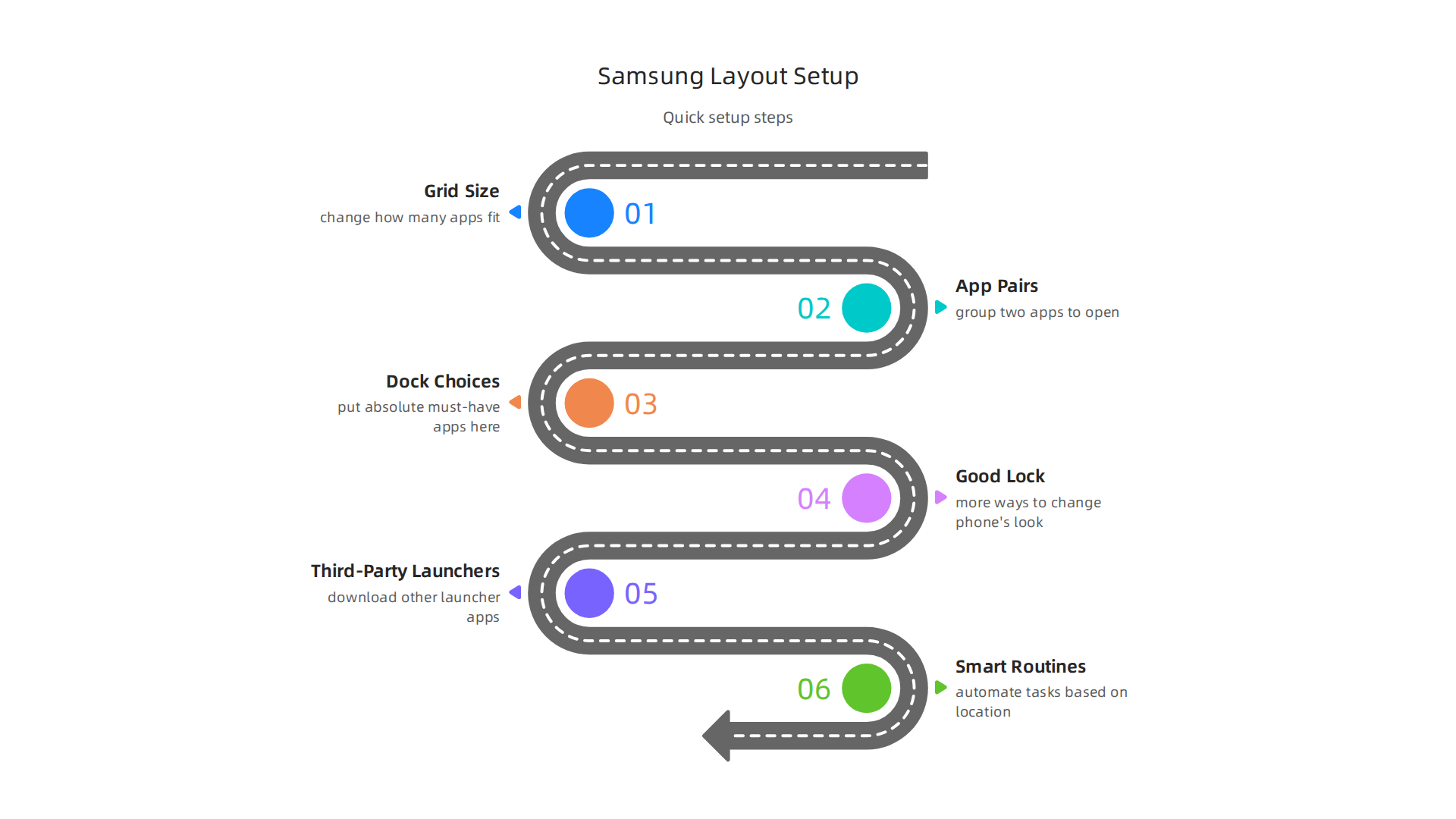
- Grid Size: This changes how many apps fit on your screen. To adjust it, press and hold an empty spot on your home screen, then tap "Settings" or "Home screen settings." You can pick a grid like 4×5, 5×5, or 5×6. More numbers mean smaller icons and more space.
- App Pairs: Samsung phones let you group two apps to open together in a split screen. This is super handy for work, like opening your email and a document side-by-side. You can often find this feature in the Edge Panels or by making a custom shortcut.
- Dock Choices: The row of apps at the bottom of your screen is called the dock. You can usually change these apps by dragging them in and out. Put your absolute must-have apps here.
- Samsung’s Good Lock: For even more ways to change your phone’s look and feel, check out Samsung’s Good Lock app. It has many small tools, called modules, that let you change things like your lock screen, notification panel, and how you multitask.
- Third-Party Launchers: If you want a completely different look, you can download other launcher apps from the app store. These apps change your entire home screen experience.
- Smart Routines: You can also use Samsung’s Bixby Routines to automate tasks based on where you are or what time it is. For example, your phone can switch to your ‘Work-Focused’ layout when you arrive at the office. Learning how to set up and use the Bixby Routines feature on your Galaxy can save you time.
While setting up your daily layout, remember that special security actions, like a samsung account password reset, are best kept in your phone’s deep settings. Things like oem lock samsung are also advanced settings that you won’t need to put on your home screen. Your home screen is for daily speed and ease.
Want to stay on top of the latest tech trends, including new ways to boost your phone’s productivity? The AI Newsletter Worth Reading offers clear daily AI updates to keep you informed.
Setting up your phone with different samsung layout ideas is not just about placing apps. It’s also about using smart tools like widgets and smart stacks. These features help you see important information at a glance, right on your home screen.
They are super helpful for keeping your home connected and organized without needing to open lots of apps.
Widgets & Smart Stacks: Layouts for a Connected Home
Widgets are like mini-apps that live on your home screen. They show you useful bits of information without you having to tap into the full app. Think of them as tiny windows into your apps. Samsung Galaxy phones let you add, customize, and use widgets easily to get quick shortcuts to your favorite apps and info, like your camera or Spotify music controls, right from your home screen Add, customize, and use widgets on Galaxy phones.
What Are Helpful Widgets for Your Home?
For a connected home, certain widgets can really make a difference:
- Weather Widgets: Always know if you need an umbrella or sunglasses. These show current weather and forecasts.
- Calendar Widgets: See your next meeting or important dates without opening your calendar app. This helps you stay on schedule.
- Home Automation Widgets: If you have smart lights or a smart thermostat, you can get widgets to turn them on or off. Imagine changing the house temperature right from your home screen. This saves you from hunting for the smart home app.
- App-Linked Widgets: Many apps offer widgets. For example, a music widget lets you play or skip songs. A notes widget might show your latest shopping list. Using these reduces how much you switch between apps.
Place these widgets where they are easy to see, usually in the top or middle part of your screen. This helps you get information quickly without clutter.
Smart Stacks and Adaptive Widgets
Samsung phones also have a cool feature called "Smart Stacks." These are like several widgets piled on top of each other. You can swipe through them, or even better, they can change by themselves to show you the most important information at that moment. For instance, in the morning, a smart stack might show your calendar. Later, it might show music controls when you’re working out. Samsung’s "Smart suggestions" widget can even guess what you need before you do, showing apps to use or people to call How to set up One UI 5 home screen on Samsung Galaxy phones.
Using Smart Stacks helps you keep your home screen clean. You get lots of information in one spot without adding too many separate widgets. This makes your phone both powerful and easy to look at. Actually, building a productive home screen with widget stacks is a great way to improve focus, even with lots of features available in One UI 7 I built a productive One UI 7 home using its most chaotic feature.
Tips for Using Widgets and Smart Stacks
- Choose Wisely: Only add widgets for things you check often.
- Right Size: Pick widget sizes that fit your needs. A large calendar widget is great if you live by your schedule, but a small weather widget might be enough for others.
- Keep It Clean: Don’t fill your whole screen with widgets. A few well-placed ones are more helpful than too many.
- Consider Smart Stacks: If you have several widgets for related things, try putting them in a Smart Stack to save space and reduce clutter.
By using widgets and smart stacks in your samsung layout ideas, you can make your phone a helpful hub for your daily life and connected home, all while keeping it organized and easy to use. If you sometimes wonder where important app icons go after an update, learning to Find the Samsung Gallery icon on Android after a software update can also help you keep your digital life smooth and frustration-free.
By using widgets and smart stacks, you can make your phone well-organized. But did you know that some samsung layout ideas can also help save your phone’s battery and make it feel faster? A minimalist layout focuses on what’s most important, which can lead to a smoother experience and longer battery life.
Save Battery and Speed Up Your Phone
When we talk about saving battery, every little bit helps. Here’s how your layout choices play a role:
- Fewer Widgets: While widgets are useful, having many on your home screen uses more power. Each widget needs to update itself, drawing power from your battery. Keeping only a few important widgets, or using Smart Stacks, helps reduce this.
- Dark Mode: Turning on dark mode makes your phone screen darker. On Samsung phones with AMOLED screens, this means the black pixels are actually turned off, saving a lot of battery. It’s also easier on your eyes, especially in low light.
- Reduced Animations: Your phone has many cool animations when you open apps or switch screens. While they look nice, they use processing power and battery. You can often find settings to reduce or turn off these animations in your phone’s accessibility or developer options. Less animation means your phone has to work less, which can make it feel faster and save power. Some devices, especially consumer-grade ones, are known to have limited battery life, so any small saving helps.
Create a Clutter-Free Home Screen
A minimalist home screen is all about simplicity. It means only having the apps you use most often right on your main screen. Everything else goes into your app drawer or into folders.
Here’s how to set one up:
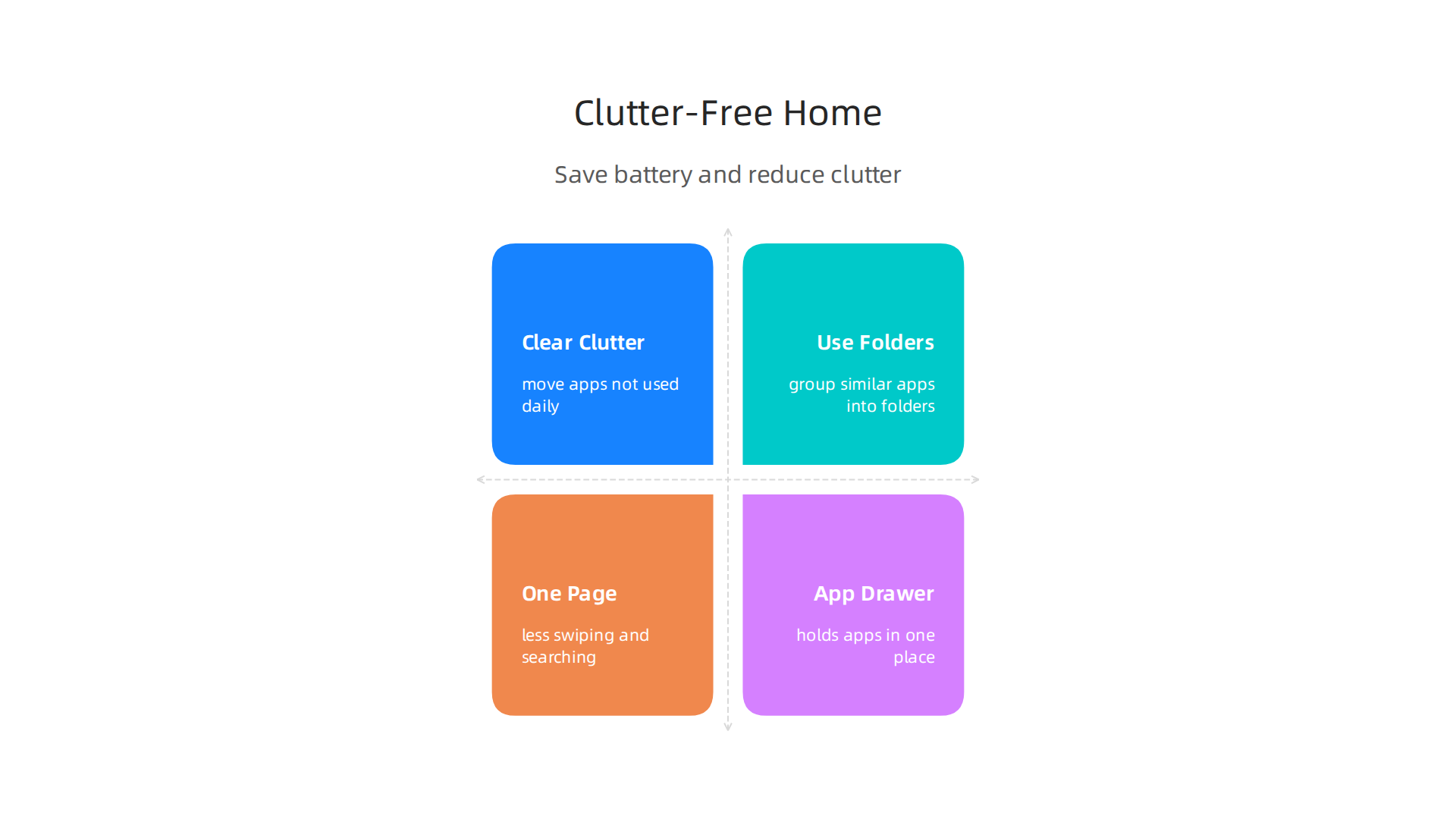
- Clear the Clutter: Look at your home screen. Do you really need every app icon there? Move apps you don’t use daily into the app drawer.
- Use Folders Wisely: For apps you use sometimes, group them into smart folders. For example, a "Social" folder for social media apps or a "Tools" folder for utility apps. This keeps your home screen tidy while still making apps easy to find.
- One Page is Best: Try to keep your main home screen to just one page. This means less swiping and searching, helping you focus.
- Embrace the App Drawer: Remember, your app drawer is there for a reason! It holds all your apps in one place, keeping your home screen clean. You can even change or hide the Samsung app drawer icon to make your screen even cleaner.
By using these minimalist samsung layout ideas, you’ll not only have a more organized phone but also one that potentially lasts longer on a single charge and feels snappier in 2026.
A smart phone layout isn’t just about making things look nice or saving battery. It’s also super important for keeping your private information safe.

When you organize your Samsung phone, think about security and privacy too. These samsung layout ideas can help protect your personal data from prying eyes.
Secure Folder for Your Secrets
One of the best security tools on a Samsung phone is the Secure Folder. Think of it like a secret vault on your phone. You can put apps, photos, and files inside it, and they’ll be hidden behind a special lock. Only you can open it with a fingerprint, PIN, or password. This way, if someone else picks up your phone, they can’t see what’s in your Secure Folder.
Samsung’s Secure Folder uses strong security to keep your personal things private. It creates a special, safe space on your phone for things you don’t want others to see. You can learn more about how to use this feature by checking out what is the Secure Folder and how do I use it?
When planning your samsung layout ideas, consider where you put the Secure Folder icon. You might want to hide it in a folder with other utility apps or even remove its shortcut from the home screen entirely. This makes it less obvious that you have a secret vault.
Be Smart About Widgets and Notifications
Widgets are helpful, but some can show too much information right on your home screen. For example, a widget for your banking app might show your account balance. Or a calendar widget could show all your appointments. To keep things private:
- Choose Widgets Carefully: Don’t put widgets on your home screen that show sensitive info. If a widget shows personal data, keep it off your main screen.
- Manage Notifications: Check your phone’s notification settings. You can often choose to hide the content of notifications on your lock screen. This means if you get a text with private info, it won’t show up for everyone to see. Also, be careful with "quick reply" options for messages, as they can sometimes expose your messages too easily.
Biometric Shortcuts and Lock Screen Choices
Using things like your fingerprint or face scan to unlock your phone are called biometric shortcuts. They make getting into your phone super fast and also very secure. Make sure you set these up for quick, safe access.
Your lock screen is the first thing people see. While lock screen widgets can be handy, they might also show information you want to keep private. Think about what widgets you allow on your lock screen and what information they display. A simple lock screen with just the time and date is usually the most private.
For example, when setting up new devices or doing a best samsung tablet 2026 s11 fe you always want to consider these security steps. If you ever have to do a samsung account password reset, having a good layout with hidden sensitive apps can help protect your data even more.
By keeping these security and privacy tips in mind when choosing your samsung layout ideas, you can make your phone a safe place for your personal information in 2026. Staying informed about the latest tech trends and security features is always a good idea. Get clear daily AI updates from The AI Newsletter Worth Reading.
Making your phone safe is a great first step, but what if you want your Samsung phone to look and feel completely different? You might start thinking about using a different launcher. A launcher is like the main program that runs your home screen, how you open apps, and how everything looks on your phone. Samsung phones come with One UI, which is their own special launcher. But you can choose to use another one if you want.
When to Replace vs. Tweak One UI
Samsung’s One UI offers many ways to customize your phone already. You can change how your home screen looks, add useful widgets, and even adjust the colors to match your style. For example, setting up your One UI home screen lets you decide where apps go and how widgets are placed to make your phone personal and easy to use How to set up One UI 5 home screen on Samsung Galaxy phones. Many people find that One UI gives them enough options to make their samsung layout ideas come to life. You can pick new wallpapers, change grid sizes, and organize apps into folders. You can also customize your app drawer icon if you want to make it less noticeable or just different by learning How to Change or Hide the Samsung App Drawer Icon on Your Galaxy.
However, some people want even more control. This is where third-party launchers come in. These are apps you can download that completely change your phone’s interface.
Why use a third-party launcher?
- More Features: They often have unique features that One UI doesn’t, like advanced gesture controls or special ways to organize apps.
- Deep Customization: You can change almost every part of your phone’s look, from icon shapes to animations. Many apps offer a look at cool new features, like this OneUI 8.5 Icons & Glass Widgets Review.
- Performance: Sometimes, a different launcher might feel faster or smoother, especially on older phones, because it uses less of your phone’s power. There are many great options out there, some experts even review The best Android launchers for your phone each year in 2026.
Why stick with One UI?
- Simplicity: One UI is designed to work perfectly with Samsung phones, so it’s usually very stable and easy to use.
- Integration: Samsung’s special features, like the Secure Folder or Edge Panels, work best with One UI.
- Security: Replacing your launcher means giving another app a lot of control over your phone. While most popular launchers are safe, a bad one could be a security risk.
Icon Packs and Theming
Whether you stick with One UI or try a new launcher, you can still use icon packs and themes to change how your apps look.
- Icon Packs: These change the pictures for all your apps. You can find packs with cartoon icons, minimalist icons, or icons that look like old computer graphics.
- Theming: This goes beyond icons to change colors, fonts, and other design elements across your phone. Samsung’s One UI offers a "Color Palette" feature that picks colors from your wallpaper to apply to your system menus and apps, making everything look neat and consistent.
- Adaptive Icons: These are special icons that can change their shape (like a circle or a square) to match your chosen theme, helping to keep your samsung layout ideas looking tidy.
Choosing between tweaking One UI or using a new launcher depends on how much you want to change your phone. If you want a simple, reliable phone with good customization, One UI is great. But if you love to dive deep and change everything, a third-party launcher might be for you. Just remember to pick launchers and icon packs from trusted sources to keep your phone safe.
Making your phone your own doesn’t stop at just changing icons or launchers. You can also make your phone smart enough to change itself based on what you’re doing or where you are. This is where automations and routines come in handy. They help bring your samsung layout ideas to life by making your phone adapt without you having to touch a button.
Advanced Tips: Automations, Routines, and Adaptive Layouts
Samsung phones have a really powerful feature called Bixby Routines. Think of Bixby Routines as tiny programs that make your phone do certain things when other things happen. For example, "If I plug in headphones, then open Spotify." Or "If it’s night time, then turn on dark mode." These smart rules can change many parts of your phone, including how your screen looks and acts. Samsung introduced this automation suite to help users save hours each week by automating common tasks Samsung Introduces Automation Suite to Save Hours Weekly.
To set up Bixby Routines, you can find them in your phone’s settings under "Advanced features." You’ll see ready-made routines you can use, or you can create your very own. You simply choose an "If" condition and a "Then" action. This lets you customize your phone to react to your location, the time of day, what you’re doing, or even connected devices like your Samsung Galaxy Watch 7. Many people love Bixby Routines because they give you so much control over how your phone works without needing to do things manually How to set up and use the Bixby Routines feature on your Galaxy phone.
Here are some ways you can use Bixby Routines to improve your samsung layout ideas:
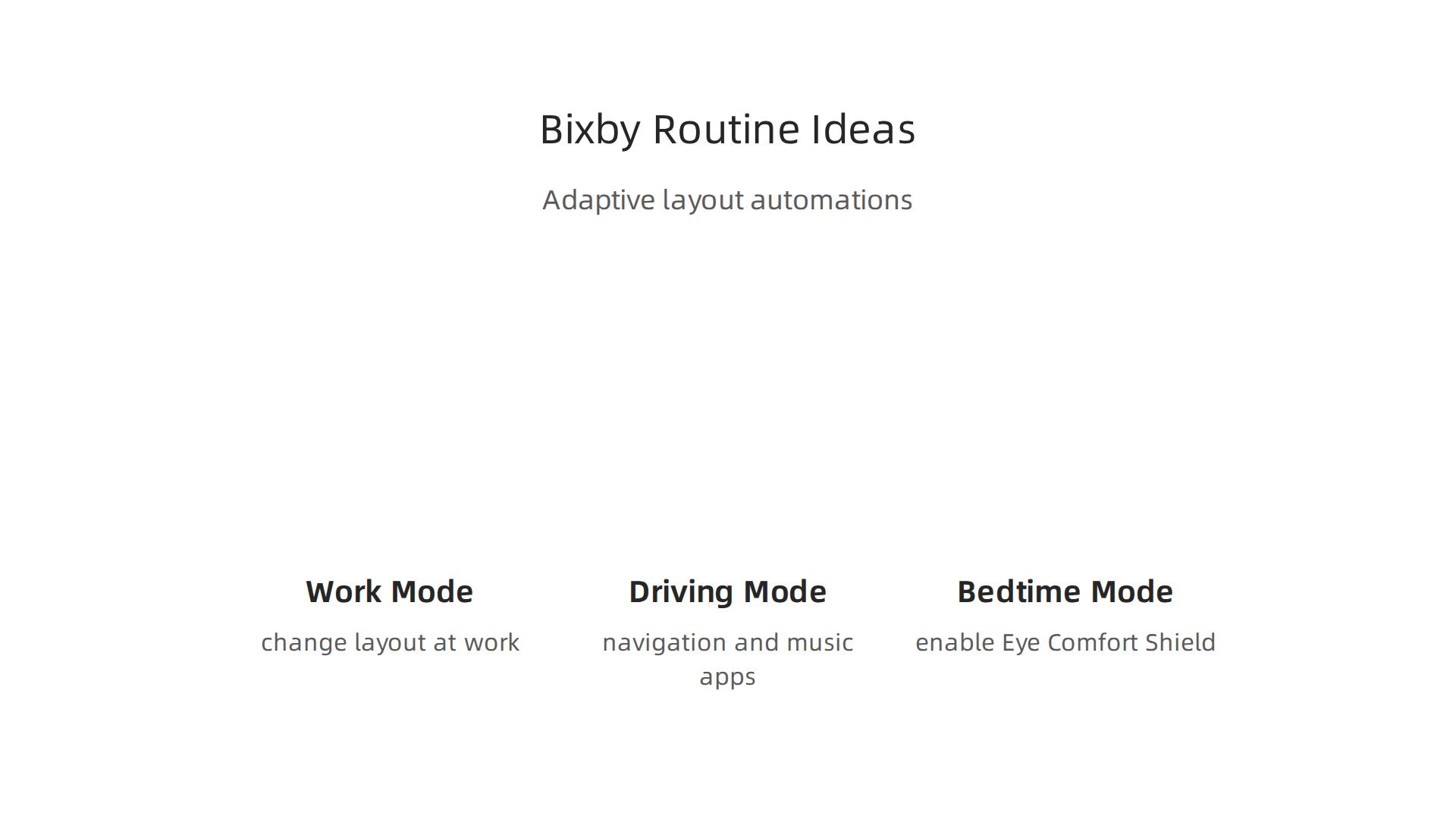
- Work Mode: When you arrive at work (using location as the "If"), your phone can automatically change your home screen layout to show work apps, turn off sounds, and dim the screen brightness.
- Driving Mode: When your phone connects to your car’s Bluetooth ("If"), it can open a special driving layout with navigation and music apps, and keep notifications silent.
- Bedtime Mode: At a certain time each night ("If"), your phone can turn on Eye Comfort Shield, switch to a simple home screen, and stop all notifications until morning.
You can also use adaptive widgets with these routines. These widgets can show different information or look different based on the routine that’s active. This means your phone doesn’t just change settings, but its entire visual setup can also adapt to your needs throughout the day. For more ideas, you can explore many suggestions for useful automations to try out Bixby: How to customize your phone with Bixby Routines.
Sometimes, routines might not work exactly as you expect. If your phone isn’t doing what you want, here are a few tips:
- Check Conditions: Make sure the "If" part of your routine is clear and easy for the phone to detect. For instance, if using location, ensure your phone’s location services are on.
- Order Matters: If you have many routines, sometimes one might cancel another. Try to make sure your routines don’t clash.
- Test and Adjust: Try out your routines and see if they behave correctly. If not, go back and change the "If" or "Then" parts until they work perfectly.
- Software Updates: Keep your phone updated. New versions of One UI often fix small issues and improve how Bixby Routines work.
Summary
This article explains why thoughtful layouts and customization matter on Samsung phones and tablets, and gives practical, ready-to-use ideas to make your device faster, safer, and more personal. It covers core design rules like one‑thumb reach and function‑first grouping, three home screen templates (work, balanced, and one‑hand minimal), and how to use widgets and Smart Stacks to surface useful information without clutter. You’ll learn setup steps such as changing grid size, using the dock and app pairs, and choosing between One UI tweaks or third‑party launchers. The guide also shows how simple layout choices can save battery, protect privacy with Secure Folder and notification settings, and automate context‑aware layouts using Bixby Routines. After reading, you’ll be able to choose a template, place widgets and shortcuts wisely, secure sensitive items, and build routines that adapt your phone to your day.