
Today, many people are super busy. They have jobs, family, and lots of things to remember. Keeping track of all these tasks, meetings, and plans on your phone can feel like a big puzzle. It’s easy to get mixed up or forget important things. This is especially true for people who use their phones for almost everything, from work to home life.
Picking the right calendar app for your phone is a really important choice in 2026. A good calendar can help you feel more organized and less stressed.
It can make sure you don’t miss a beat. For many, the built-in apps on their devices work best. This is where the Samsung Calendar app comes in, especially if you use Samsung phones or tablets. It’s a key tool for staying on top of your day.
The Samsung Calendar isn’t just a simple date checker. It’s designed to work smoothly with all your other Samsung products. This means it can talk to your Samsung phone, tablet, and even your Samsung account. When everything works together, it helps stop that messy feeling of having information spread across different apps. For example, you can set up events easily by tapping or double tapping a date in the app itself A Complete Guide to Samsung Calendar. This connection makes your life simpler and helps you manage your time better.
In this article, we will show you how to use your Samsung Calendar like a pro. We will talk about how to set it up just right for you, keep your information private, and share smart ways to plan your busy days. You’ll learn how to add and manage events with ease How to add and manage events using the Calendar app on your Samsung Galaxy phone. We’ll give you clear steps and tips that busy, tech-smart people like you can use right away. You might even want to learn how to transform your Samsung phone even further for top-notch productivity.
Staying updated on all the new tech that can help your productivity, including smart AI tools, is also key.
The AI Newsletter Worth Reading
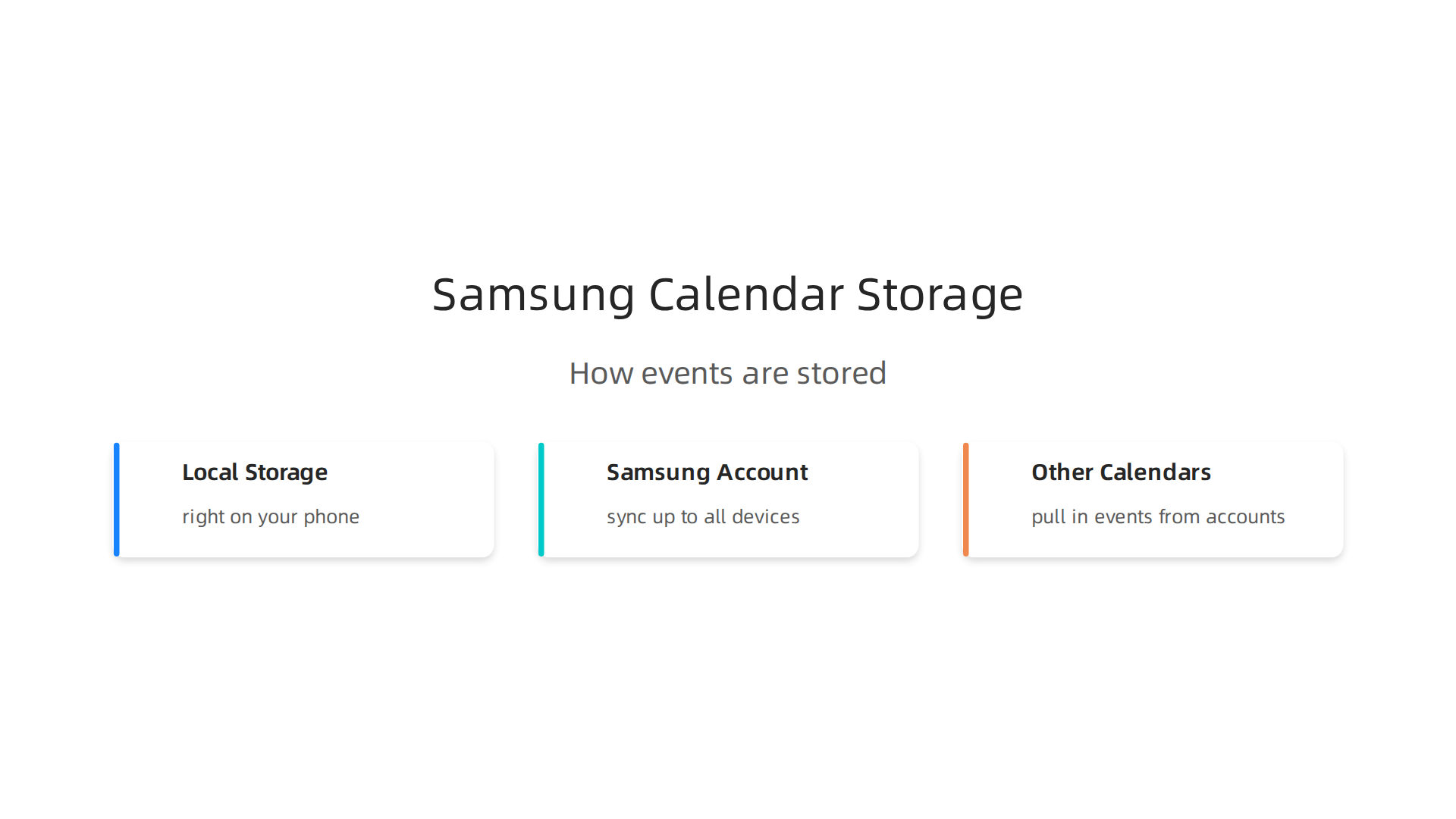
The Samsung Calendar app works by bringing together your plans from different places. It’s like a central hub for all your important dates and reminders. This clever app can store your events in a few key ways.
How Your Calendar Events Are Stored
First, when you add something to your Samsung Calendar, it can save that event right on your phone. This is called local storage. It means the information is just on that one device. But for most people, the magic happens when you use your Samsung Account.
When you sign into your Samsung account on all your samsung products, like your phone and tablet, your calendar events can sync up. This means if you add a meeting on your phone, it will show up on your tablet too. It keeps everything neat and tidy, so you don’t have different schedules on different devices. This is very helpful for busy people who use many Samsung devices. If you want to dive deeper into managing your devices, you can learn how to Samsung organize apps on your Galaxy phone for even more productivity.
Connecting to Other Calendars
What if you use other calendar apps, like Google Calendar or Outlook? The Samsung Calendar can often work with those too. It can pull in events from these other accounts so you see everything in one spot.
For example, to link your Google Calendar, you usually go to your phone’s main Settings app. Then you look for "Accounts and backup" or "Manage accounts." From there, you pick your Google account and make sure "Calendar" sync is turned on. This lets your Samsung device talk to your Google Calendar and show its events How to sync your Google Calendar on your Samsung Galaxy device.
It’s a similar process for Outlook calendars. You need to make sure your Microsoft account is set to sync with your phone’s calendar. You don’t usually install a separate Outlook Calendar app on your Samsung phone to do this. Instead, you link your Microsoft account through your phone’s settings to let the Samsung Calendar handle it Stop Trying to ‘Get’ Outlook Calendar on Samsung.
Finding Your Calendar Settings
All these important settings for your Samsung Calendar are easy to find. You can open the Calendar app itself and look for a "Menu" icon (often three lines) or a "Settings" gear icon. Inside these menus, you’ll find options to manage your calendars, turn sync on or off, and change how your calendar looks How to Use Samsung Calendar. Exploring these settings helps you make the calendar work just right for your daily life. You can also explore master your Samsung notification and tracking settings for other ways to personalize your device.
Getting your Samsung Calendar all set up is simple, whether you’re using your phone, tablet, or even looking to make it work with your Samsung computer.
The goal is to have all your plans in one easy-to-see spot, no matter which of your devices you are using.
Setting Up Samsung Calendar on Phones and Tablets
The first step for any of your Samsung phones or tablets is to link your Samsung account. This is super important because it makes sure your calendar events can travel between all your samsung products. If your phone and tablet both use the same Samsung account, they will share calendar events.
Here’s how to link other calendars you might use:
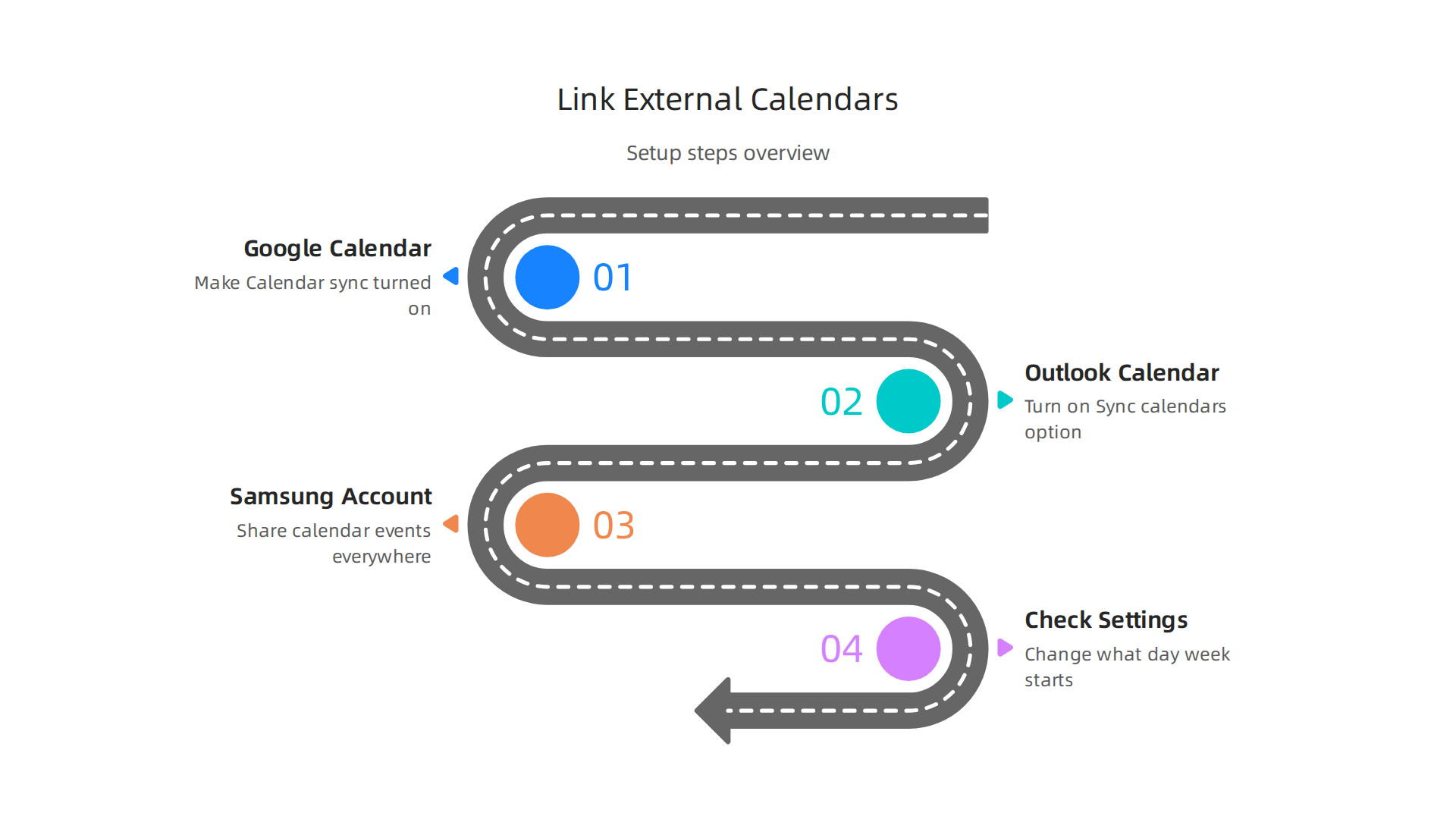
- For Google Calendar: Go to your phone’s main Settings. Tap on "Accounts and backup," then "Manage accounts." Find your Google account and make sure the "Calendar" sync is turned on. This lets your Samsung Calendar show events from Google. You can find detailed steps in the Samsung user guide for syncing events.
- For Outlook Calendar: You’ll usually open the Outlook app on your phone first. Go to its Settings (the gear icon), pick your Outlook account, and turn on "Sync calendars" How to Sync Outlook Calendar with Samsung Calendar. This sends your Outlook plans to your phone’s main calendar.
Once you have your accounts linked, you can set how your Samsung Calendar looks. For example, you can change what day the week starts on or turn on week numbers. Just open the Calendar app, tap the three lines for the menu, and then the gear icon for settings How to add and manage events using the Calendar app. It’s a good idea to move any events you saved "on device" to your Samsung account so they sync everywhere Syncing tablet calendar to phone.
Samsung Calendar on PCs
You might be wondering about using the Samsung Calendar app on your home computer. Here’s a helpful fact: the Samsung Calendar app isn’t made for Windows computers Samsung Calendar App for Windows 10. Most Samsung computers run Windows. This means you would use other calendar programs like Outlook or Google Calendar directly on your PC instead.
If you have a Samsung phone or tablet, you can use a feature called Samsung DeX to show your phone’s screen on a monitor, which lets you use the Samsung Calendar app on a bigger display. This is a neat way to use your phone’s apps in a more computer-like way.
Avoiding Setup Mistakes
Sometimes, setting things up can be a little tricky. Here are a few common problems and how to fix them:
- Events not showing up: Always double-check that "Calendar" sync is turned on for all your accounts in your phone’s settings.
- Events only on one device: Make sure new events are saved to your Samsung account or linked cloud account (like Google), not just "My Calendar" which means local storage on that one device.
By following these steps, your Samsung Calendar will be a powerful tool to keep your life organized across all your devices. If you ever misplace a device, you might even use a service like google find my device app to help you locate it, similar to how you use calendar sync to keep track of your schedule.
Beyond just keeping track of your schedule, the Samsung Calendar has grown into an even smarter helper in 2026. It now offers advanced features that help you manage your time better and stay on top of your tasks.
Advanced Productivity Features: Time Blocking, Tasks, and AI Suggestions
Your Samsung Calendar is not just for marking special days anymore. It now helps you with daily tasks, reminders, and even smart ways to plan your day.
Time Blocking and Tasks
Many people use "time blocking" to set aside certain hours for specific work or tasks. While Samsung Calendar lets you add events with locations and alerts, it also has a strong focus on tasks and reminders. You can add simple reminders and check them off when done. This helps you break down big projects into smaller, manageable chunks, making your day feel less crazy. Users have even asked for better ways to link their to-do lists right into the calendar for even smoother planning.
You can also make use of separate apps from the Galaxy Store, like an AI Daily Planner, to help you block time more smartly. These tools can look at your to-do list and find the best times for each task, fitting them around your existing plans.
Smart AI Suggestions
In 2026, Samsung Calendar got a big boost with new AI features. For example, the countdown widget can now use AI to create fun backgrounds that match your event titles Samsung Calendar App Receives a Major AI Update. This makes your calendar look more lively and personal.
But the AI help goes deeper:
- Now Nudge: This smart feature looks at what’s on your screen and your schedule to offer helpful suggestions. If you’re texting a friend about dinner plans, for instance, Galaxy AI can spot the date and quickly show you if you already have something else planned Everyday Moments, Made Easier with Galaxy AI.
- Now Brief: This gives you a quick morning overview. It covers your weather, your schedule, and even your energy levels for the day. It can also find details like reservations in your messages and add them to your calendar automatically, even if you never put them there yourself Galaxy Unpacked 2026: All the AI Features Samsung Announced.
- Conflict Warnings: The latest Galaxy S26 phones can even scan your messages on apps like WhatsApp or texts to warn you if you’re about to make plans that clash with your existing samsung calendar events Galaxy S26 Series Could Debut a Powerful New AI Feature. This helps you avoid double-booking yourself.
For anyone who wants to stay ahead in the fast-paced world of technology, understanding these AI advancements is key. If you’re curious about how AI is changing our daily tools, you might find more in-depth insights by subscribing to The AI Newsletter Worth Reading.
Using These Features for Your Day
Combining these features can really boost your productivity. Imagine you’re a professional. You can use time blocking to set aside focus time for important tasks, then let Samsung Calendar’s AI check for conflicts as you make new plans. Your morning "Now Brief" can give you a head start, and reminders keep you on track. To further streamline your digital workspace, learning how to organize apps on Samsung can help you quickly access these powerful planning tools. This turns your Samsung Calendar into a smart personal assistant, helping you manage your busy life with less stress.
Your Samsung Calendar is a powerful tool, but many people also use calendars from other services like Google Calendar or Microsoft Outlook for work or personal reasons. Getting all these calendars to play nice on one device can sometimes be a bit tricky. The goal is to see all your plans in one place without duplicate entries or missing events.

Syncing Your Calendars
When you have a Samsung phone, tablet, or other samsung products, it has its own calendar app, the Samsung Calendar. This app can often connect to other calendar accounts you’ve added to your device.
-
Google Calendar Sync: To make sure your Google Calendar events show up in your Samsung Calendar, you usually need to check a few settings. First, open your Samsung Calendar app. Then, tap the menu (three lines) and look for "Manage calendars." Make sure your Google account is turned on for syncing there. You might also need to go into your phone’s main "Settings," then "Accounts and backup," "Manage accounts," choose your Google account, and ensure "Calendar" is set to sync. You can find detailed steps on how to sync your Google Calendar on your Samsung Galaxy device.
-
Microsoft Outlook Calendar Sync: If you use Outlook, syncing it with your Samsung Calendar also needs a few checks. Sometimes, you need to open the Outlook app on your phone, go to its settings, pick your Outlook account, and turn on the "Sync calendars" option. This helps Outlook push its events to your phone’s main calendar apps, including the Samsung one. For specific guidance, you can follow steps on how to sync Outlook calendar to your Samsung calendar.
Dealing with Duplicates and Missing Events
A common problem when syncing multiple calendars is seeing the same event twice or, even worse, having events not show up at all. This often happens if an event is saved to both your Google and Samsung calendars, or if sync settings are not quite right.
If you see duplicates:
- Check which calendar an event belongs to. When you add a new event, always make sure you save it to the correct account (Google, Samsung, Outlook).
- In the Samsung Calendar app, go to "Manage calendars" and make sure you only have the calendars you want to see turned on. Sometimes, turning off a calendar and turning it back on can help refresh things.
- Be aware that some calendar apps don’t directly "talk" to each other. For example, some older setups might not allow a direct two-way sync between Outlook 365 and Google Calendar in a simple way.
Simple Checklist for Account Management
To keep your Samsung Calendar organized and ensure all your important dates are visible:
- Add Accounts Carefully: Only add calendar accounts that you actively use to your Samsung device.
- Check Sync Settings: For each account (Google, Microsoft), go into your phone’s settings and its specific app settings to confirm calendar syncing is turned on.
- Pick a Default: When adding a new event, choose which calendar you want to save it to. Making a habit of saving to one main account can reduce confusion.
- Review Regularly: Every now and then, open your Samsung Calendar‘s "Manage calendars" menu to check for any unwanted calendars or to make sure your important ones are still active.
Managing your different accounts well means your Samsung Calendar stays neat and helpful. If you want to customize your device even further to make finding these settings easier, learning to transform your Samsung phone with smart layouts can be a great next step. This way, your powerful phone becomes a truly tailored personal assistant.
When you use your Samsung Calendar, it’s natural to think about your privacy and how your personal information is handled. Your calendar doesn’t just hold dates; it holds details about your life.
Privacy, Security & Data Controls in Samsung Calendar
Your Samsung Calendar keeps track of different types of information. This includes details about your events like names, dates, times, and where they take place. If you add notes or attach files, those are saved too. Samsung has privacy policies that explain what information they collect and how they use it. They say they try to collect only what’s needed to give you their services, like your name and contact details, and that your personal data is stored safely. You can read more about what Samsung collects in their Samsung Privacy Policy.
How You Can Control Your Data
You have power over your calendar data. Here’s how:
- Sharing: You choose who sees your calendar events. Within the Samsung Calendar app, you can share specific calendars with others or keep them totally private.
- Permissions: Your phone’s main settings let you decide what your Samsung Calendar app can access. For example, it might ask for permission to use your location or contacts. You can change these permissions anytime.
- Account Settings: If you use a Samsung account, you can often see, download, or even delete the personal data that Samsung has collected from you. This is a good way to manage your information directly through your Samsung Privacy dashboard. Samsung’s general privacy policy also states that you can ask them to limit how they process or share your personal information.
- Backups: Making regular backups of your phone helps protect your calendar data. If something happens to your device, your important dates will still be safe.
Top Security Tips for Important Events
For those who handle sensitive meetings or private plans, it’s extra important to be careful.
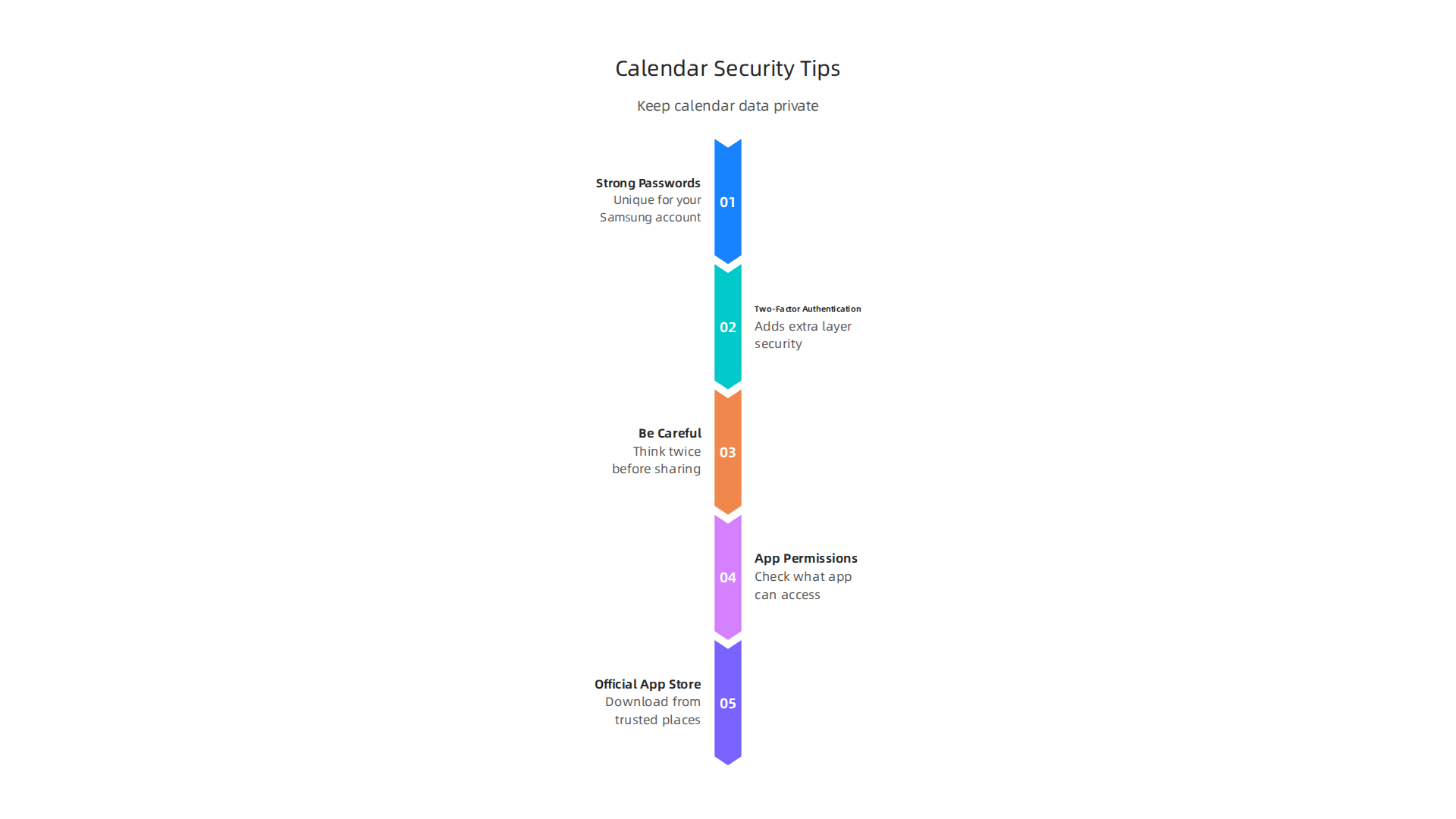
- Strong Passwords: Always use a strong, unique password for your Samsung account and any other accounts linked to your calendar.
- Two-Factor Authentication: Turn on 2FA (also called two-step verification) for your Samsung account. This adds an extra layer of security, making it much harder for someone to get into your account even if they know your password.
- Be Careful What You Share: Think twice before sharing events or entire calendars with people you don’t fully trust. Also, when adding new events, be mindful of what information you include in the notes or title, especially if your device is often visible to others.
- App Permissions: Regularly check the permissions for your Samsung Calendar app in your phone’s settings. Make sure it only has access to what it truly needs.
- Official App Store: Always download apps from trusted places like the Google Play Store. The Samsung Calendar app listing there notes that no data is shared with third parties, which is good for your privacy.
By keeping these tips in mind, you can ensure your Samsung Calendar remains a secure and private tool for all your planning needs on your various samsung products. If you want to dive deeper into protecting your device, you might find it helpful to learn how to master your samsung notification and tracking settings for even better privacy control.
Sometimes, even with all the right privacy settings, your calendar might act a little funny. Maybe events are not showing up, or alarms aren’t ringing. When your Samsung Calendar isn’t working as it should, it can be really frustrating for busy users. Don’t worry, there are easy steps you can take to fix common problems and keep your calendar running smoothly.
Troubleshooting & Performance Tips for Busy Users
If your Samsung Calendar is having trouble, especially with syncing or notifications, here’s a simple checklist to follow:
- Check Your Internet Connection: For your calendar to sync properly and get updates, your phone needs a good internet connection. Make sure your Wi-Fi or mobile data is turned on and working well. A bad connection is a common reason for events not syncing across devices Calendar issue – Samsung Members Community.
- Verify Account Sync Settings: Your Samsung Calendar often links to your Samsung account or Google account. Go to your phone’s Settings, then "Accounts and backup," and then "Manage accounts." Tap on the account you use for your calendar and make sure "Sync Calendar" is turned on Unable to see an event in the Samsung Calendar app. If it’s already on, try turning it off and then back on.
- Update the Calendar App: Always check if your Samsung Calendar app needs an update. Newer versions often fix bugs and make the app work better. You can find updates in the Galaxy Store or Google Play Store.
- Review App Notifications: If you’re not getting reminders, check the notification settings for the Samsung Calendar app. Go to your phone’s Settings, then "Apps," find "Calendar," and make sure notifications are allowed and set up how you like them. Sometimes, system settings can even block notifications for essential apps like the calendar Calendar sync problem.
- Background Activity and Battery Use: Samsung phones are very smart about saving battery. But sometimes, they might limit apps from working in the background, which can stop your calendar from syncing or sending alerts. Check your app settings under "Battery" or "App power management" to ensure the calendar app isn’t being restricted too much Sync Error on Google Calendar APP.
Boosting Your Calendar’s Performance
To make sure your samsung calendar always runs smoothly, especially if you have many events, consider these tips:
- Clear Cache: Over time, apps store temporary files called "cache." Sometimes, old cache can cause problems. You can clear the cache for your Samsung Calendar app by going to Settings > Apps > Calendar > Storage, and then tapping "Clear cache." This won’t delete your events.
- Remove Unused Accounts: If you have old calendar accounts linked to your phone that you don’t use anymore, remove them. This can free up resources and prevent sync conflicts.
- Manage Event Details: While adding lots of details is great, try not to overload single events with huge notes or many attachments if you notice slowdowns.
If issues still remain after these steps, you might need to take a bigger action:
- Reinstall the App: Uninstalling and then reinstalling the Samsung Calendar app can often fix deep-seated issues. Just make sure your events are backed up or synced to an account before doing this.
- Re-sync Your Account: If all else fails, you can try removing the main account (Samsung or Google) that syncs your calendar from your phone and then adding it back again. This forces a fresh sync of all your calendar data. You can find detailed steps on how to recover your schedule if events go missing in our guide on how to restore Samsung Calendar events.
By following these simple troubleshooting and performance tips, your Samsung Calendar will be a reliable helper for all your important plans, ensuring your important dates and reminders are always there when you need them.
Best Practices & Workflow Examples for Professionals
After making sure your Samsung Calendar works smoothly, let’s look at how to use it like a pro. For busy people, the samsung calendar is more than just a place to note dates; it’s a powerful tool for planning your whole workday.

By using its smart features, you can get more done and stay on top of your schedule in 2026.
Here are some ways professionals can use their Samsung Calendar more effectively:
Smart Planning for Your Workday
- Client Meetings: When you set up a meeting, don’t just add a time. Use the samsung calendar to add the meeting location, link to video calls, and set detailed alerts. You can even attach important files right to the event. This makes sure all the details are in one place, ready when you need them. The latest Galaxy AI features can even suggest actions, like checking your calendar for conflicts when you’re texting about plans Everyday Moments, Made Easier with Galaxy AI.
- Content Planning: If you create content, use your calendar to map out your tasks. Block out specific times for writing, editing, or brainstorming. With recent updates, your samsung calendar can even generate cool AI backgrounds for your countdown widgets based on your event titles, making your planning more fun and visual Samsung Calendar App Receives a Major AI Update.
- Deep Work Blocks: To focus without being disturbed, block out "deep work" times in your calendar. This tells others you’re busy and helps you stick to important tasks. Samsung Calendar now works with smart tools like AI Auto-Scheduler, which can help you find the best times for tasks and avoid conflicts AI Daily Planner – Galaxy Store.
Combining Calendar Events with Other Tools
Your samsung calendar doesn’t work alone. It links up with other helpful tools on your Samsung devices.
- Tasks and Notes: Use the Reminder app to list tasks and link them to specific calendar events. For example, if you have a big presentation, you can create a to-do list in Notes and make a reminder in your calendar for "finish presentation draft." Many Samsung products now use powerful AI agents like Perplexity that connect directly to apps like Notes, Clock, and Calendar, making this process even smoother Samsung Pre-Installs Perplexity AI Agent On Galaxy S26.
- Device Routines: Set up custom routines on your phone. For example, when a "Deep Work" event starts, your phone could automatically turn on "Do Not Disturb" mode. This helps you focus better.
- Smart Briefings: Samsung’s Galaxy AI offers "Now Brief," which gives you a personalized morning overview of your weather, schedule, and important reminders based on your daily plans Samsung Advances Galaxy AI and Its Connected Ecosystem at MWC 2026. This helps you start your day prepared.
To keep your digital life organized, learn how to create smart layouts for productivity on your Samsung phone.
Rules for a Clean and Efficient Calendar
- Keep it Tidy: Your calendar should be easy to look at. Hide past schedules to keep things clutter-free. The Samsung Calendar app often adds features like this to help you manage your view One UI 8.5 Adds Practical Upgrades to Samsung Calendar.
- Use Clear Titles: Always use clear, short names for your events so you know what they are at a glance.
- Be Mindful of Sharing: If you share your calendar with others, be careful about what personal details you include. Make sure sensitive information is kept private.
- Regular Review: Take a few minutes each week to look at your upcoming schedule. This helps you catch any mistakes, move things around if needed, and prepare for the week ahead.
By using these best practices, your samsung calendar will become an even more powerful tool, helping you manage client meetings, plan projects, and make sure your work time is used wisely. The advanced AI features in many new samsung products mean your calendar can do more for you than ever before.
To stay updated on the latest AI applications and how they impact productivity tools like your calendar, consider subscribing to The AI Newsletter Worth Reading.
Summary
This article explains how to use the Samsung Calendar as a central, reliable planner for busy 2026 users who rely on multiple devices. It covers where events are stored (local device vs. Samsung account), how to connect Google and Outlook calendars, and how to set up syncing across phones, tablets and DeX. You’ll learn which settings to check, how to avoid duplicates, and simple fixes for common sync or notification problems. The piece also describes new AI-driven features—like smart suggestions, Now Brief, and conflict warnings—that help with time blocking and task planning. It outlines privacy and security controls you can use, such as permissions, 2FA, and sharing limits, and gives performance tips like clearing cache or reinstalling the app. After reading, you’ll be able to configure Samsung Calendar for cross-device sync, protect sensitive data, and use AI and routines to run your day more efficiently.