
We all use our phones for so many things every day. It’s like a mini-computer in our pocket! But sometimes, our phone screen can get very messy with too many apps. It’s easy for our samsung android home screen to become cluttered, making it hard to find what we need quickly. This is where learning how to organize apps on Samsung becomes super important.
Why does organizing your apps really matter? Well, there are a few big reasons:
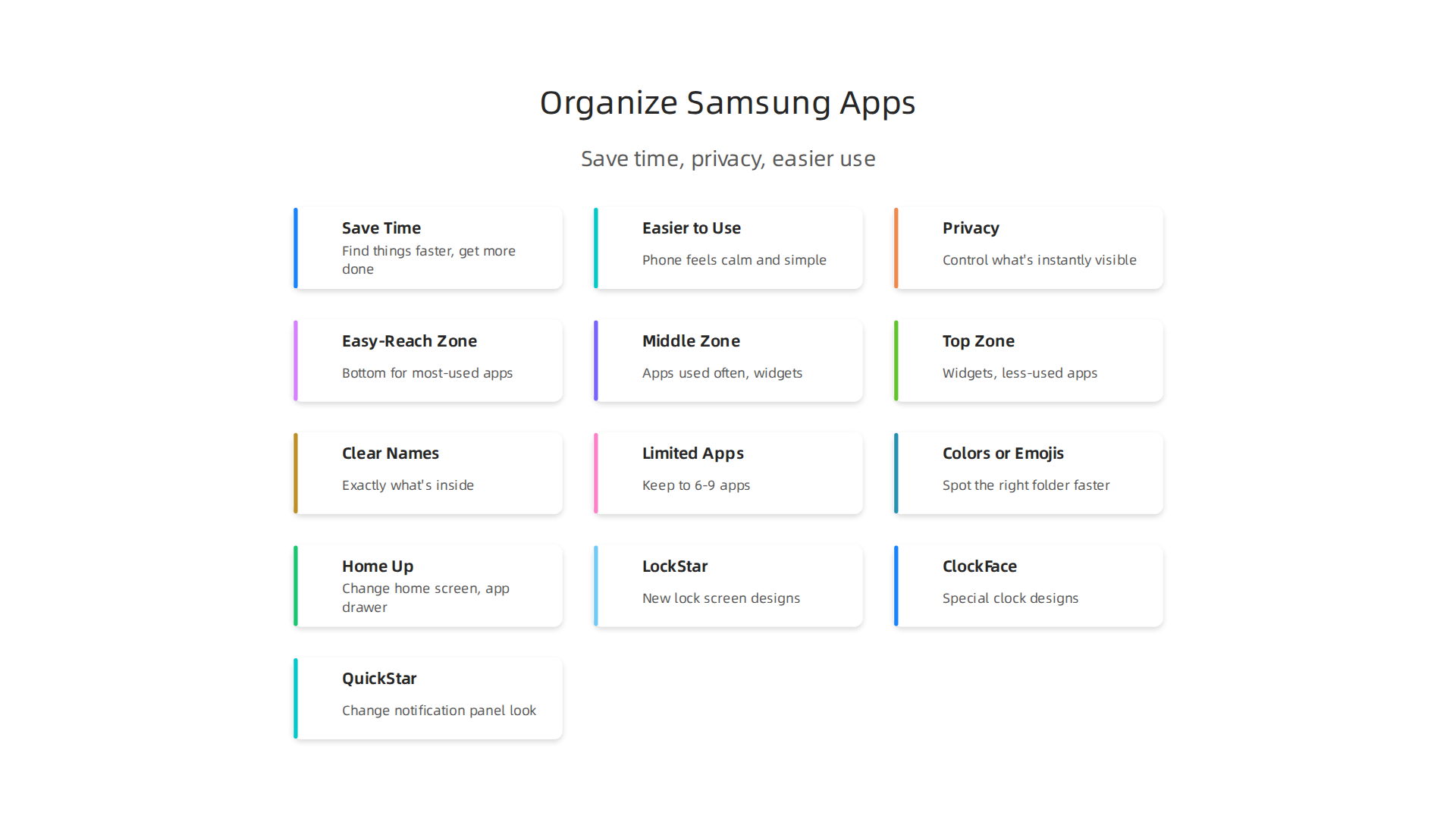
- You’ll save time. Imagine needing to send a quick message but spending a minute just looking for your samsung messages app. A tidy screen means you find things faster and get more done. It helps with your daily productivity!

- Your phone will feel easier to use. When everything has its place, your phone feels calm and simple. An organized screen makes your phone more enjoyable to pick up and use, whether you’re checking your samsung wearable notifications or playing a game. Experts even say that a simpler home screen, with only the apps you truly need, can make your phone feel better to use and help you stay focused. A helpful trick is to only keep apps on your main screen that you would "consciously choose to open" How to Make Your Phone Minimalist in 2026.
- It can help with your privacy. If your phone is easy to see and navigate, you can quickly find and open certain apps. But it also means that sensitive apps might be quickly found by others too. An organized layout can give you more control over what’s instantly visible.
This guide will show you simple, step-by-step ways to organize apps on Samsung phones in 2026. We will focus on Samsung’s special design called One UI. You’ll learn easy tips that work for many Samsung models. We’ll help you make your phone screen work better for you, so it’s clean, smart, and easy to use.
Staying updated on all the latest tech and how it can make your life easier is key.
Get clear daily AI updates from The AI Newsletter Worth Reading.
To truly master how to organize apps on Samsung, it’s important to know how your phone works. Samsung phones use something called One UI, which changes how your home screen and apps look and feel. Let’s break down the main parts of your Samsung phone’s layout.
Home Screen Pages vs. App Drawer
Think of your phone like a house with different rooms.
- Home Screen Pages: These are like the living room or kitchen of your phone. They are the first screens you see when you unlock your phone. You can have many home screen pages that you swipe left or right to see. On these pages, you usually keep the apps you use most often. You can put individual app icons or app folders here for quick access. This is your main control panel for your samsung android home screen.
- App Drawer: This is like the big closet or pantry where all your apps live. To get to it, you usually swipe up from the bottom of your home screen. Inside the app drawer, you’ll find every single app installed on your phone. It’s often organized in alphabetical order, making it easier to find an app if you know its name. You can also make folders inside the app drawer to keep things extra tidy. For example, you might put all your gaming apps in one folder or all your social media apps in another. This can even help with creating large folders for many apps.
App Shortcuts
When you see an app on your home screen, it’s usually an "app shortcut." This means it’s a quick link to the app that lives in your app drawer. You can remove a shortcut from your home screen without deleting the actual app from your phone. The app will still be safe in your app drawer. This is key to keeping your home screen clean without losing any apps.
Basic Layout Options for One UI
Samsung’s One UI lets you change how many apps show up on your screen and how they look.
- Grid Sizes: You can choose how many apps fit on one screen. For instance, a "4×5" grid means you see 4 apps across and 5 apps down. A "5×6" grid means more apps fit on the screen, but they will look a little smaller. Changing this can make your phone feel more spacious or let you see more apps at once.
- Icon Packs: If you don’t like how your app icons look, you can download "icon packs" from the Galaxy Store. These are like new clothes for your apps, changing their pictures to a style you like better. It’s a fun way to make your phone feel more like you.
- Other Layout Settings: You can also change things like how your app drawer icon looks or even hide it. This is part of learning how to change or hide the Samsung app drawer icon on your Galaxy. These small changes can make a big difference in how clean and easy to use your phone feels every day.
By understanding these basic parts of your Samsung phone, you’re already on your way to a super organized and efficient mobile experience in 2026!
Now that you know the basic parts of your Samsung phone’s layout, it’s time to make a plan. Planning your home screen is like designing your own special workspace. You want it to be easy to use and helpful for what you do every day in 2026.

This is key to figuring out how to organize apps on Samsung phones for real success.
Plan Your Home Screen Layout: Goals, Zones and One-Page vs Multi-Page Strategies
When you set up your Samsung home screen, think about your main goals. What do you want your phone to do for you?
- Quick Access: Do you need to open certain apps super fast, like your Samsung messages or a favorite news app?
- Minimalism: Maybe you want a very clean look with few apps, so you don’t get distracted. A minimalist approach helps you focus on what’s important, as it suggests removing apps you don’t "consciously choose to open" from the home screen itself.
- Task-Oriented Pages: Or maybe you want different pages for different parts of your life, like one for "work" apps and another for "fun" apps.
Thinking about these goals will guide you. It’s like how experts organize physical files: they keep names short but clear, and group similar things together in a useful order. This idea also works for your digital files and apps on your phone.
Setting Up Home Screen Zones
Imagine your phone screen divided into areas or "zones."
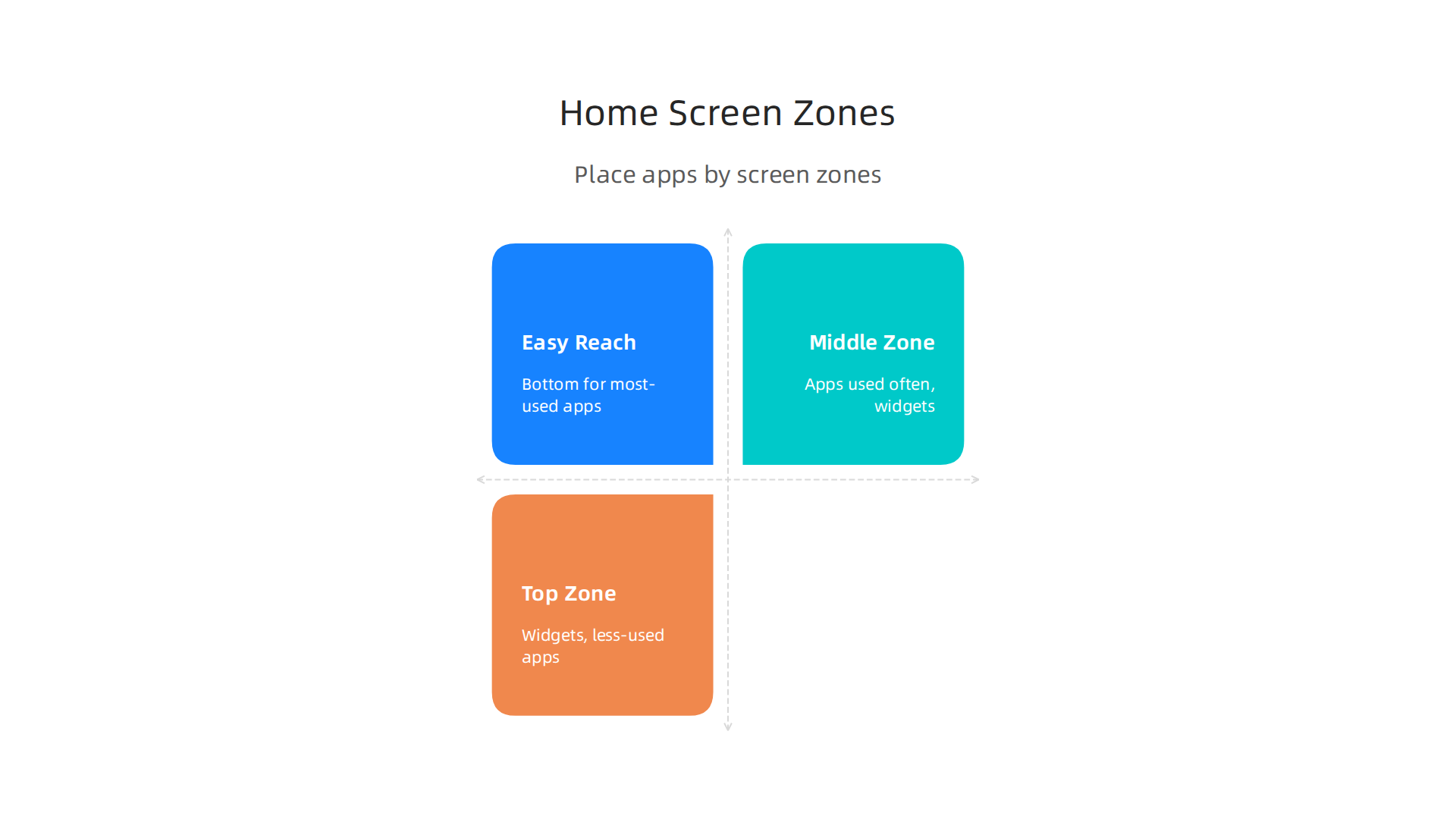
- Easy-Reach Zone: This is the bottom part of your screen where your thumb naturally goes. Put your most-used apps and folders here. These are the ones you use many times a day.
- Middle Zone: This area is good for apps you use often but don’t need instantly, or for useful widgets.
- Top Zone: This space is usually harder to reach. It’s great for widgets like a clock, weather, or a calendar. You can also put apps here that you use less often or that show information at a glance.
One-Page vs. Multi-Page Home Screen Strategies
There are two main ways to think about your Samsung home screen.
One-Page Strategy
This means you try to fit everything important onto just one home screen page.
- Pros: It’s super fast! You don’t have to swipe to find what you need. It can also help you be more mindful of what apps you actually keep around. For some people, a single-layered home screen can lead to higher satisfaction, especially if they are used to it.
- Cons: This can get crowded fast if you have many apps you use often. You might end up with too many small folders, which can be hard to see. If you want a truly minimalist look, you’ll need to be very strict about what stays on this page, often using the app drawer for less critical apps. Some helpful guides suggest limiting your screen to just 4-8 essential apps to maintain a clean and focused design.
Multi-Page Strategy
This means you have a few different home screen pages, each with its own purpose.
- Pros: It keeps each page clean and tidy. You can make pages for different parts of your life, like:
- Work Page: Email, calendar, work chat apps.
- Personal Page: Social media, photos, Samsung Health for fitness.
- Entertainment Page: Streaming apps, games.
This can make your samsung android home screen feel less overwhelming. Many users feel that organizing digital spaces reduces mental clutter.
- Cons: You have to swipe between pages, which can take a tiny bit more time. It’s important to keep the number of pages reasonable so you don’t get lost. Generally, having a clear hierarchy and not too many levels can make mobile navigation easier.
Remember, the goal is to make your phone work for you. Don’t be afraid to try different layouts until you find what feels best. Experimenting with how you organize apps on Samsung can really help you navigate digital technology and avoid feeling overwhelmed.
Do you want to stay updated on the latest tech trends, including AI applications and mobile platforms that can enhance your daily life and productivity?
The AI Newsletter Worth Reading
After you have thought about your home screen plan, the next step is to put that plan into action. This often means using folders, labels, and smart categories to keep things tidy and easy to find. This is how you really start to organize apps on your Samsung phone in a way that makes sense for you in 2026.
Making Smart Folders
Folders are like little boxes where you can put groups of apps together. This keeps your home screen from getting too crowded. But there’s a trick to making them useful:
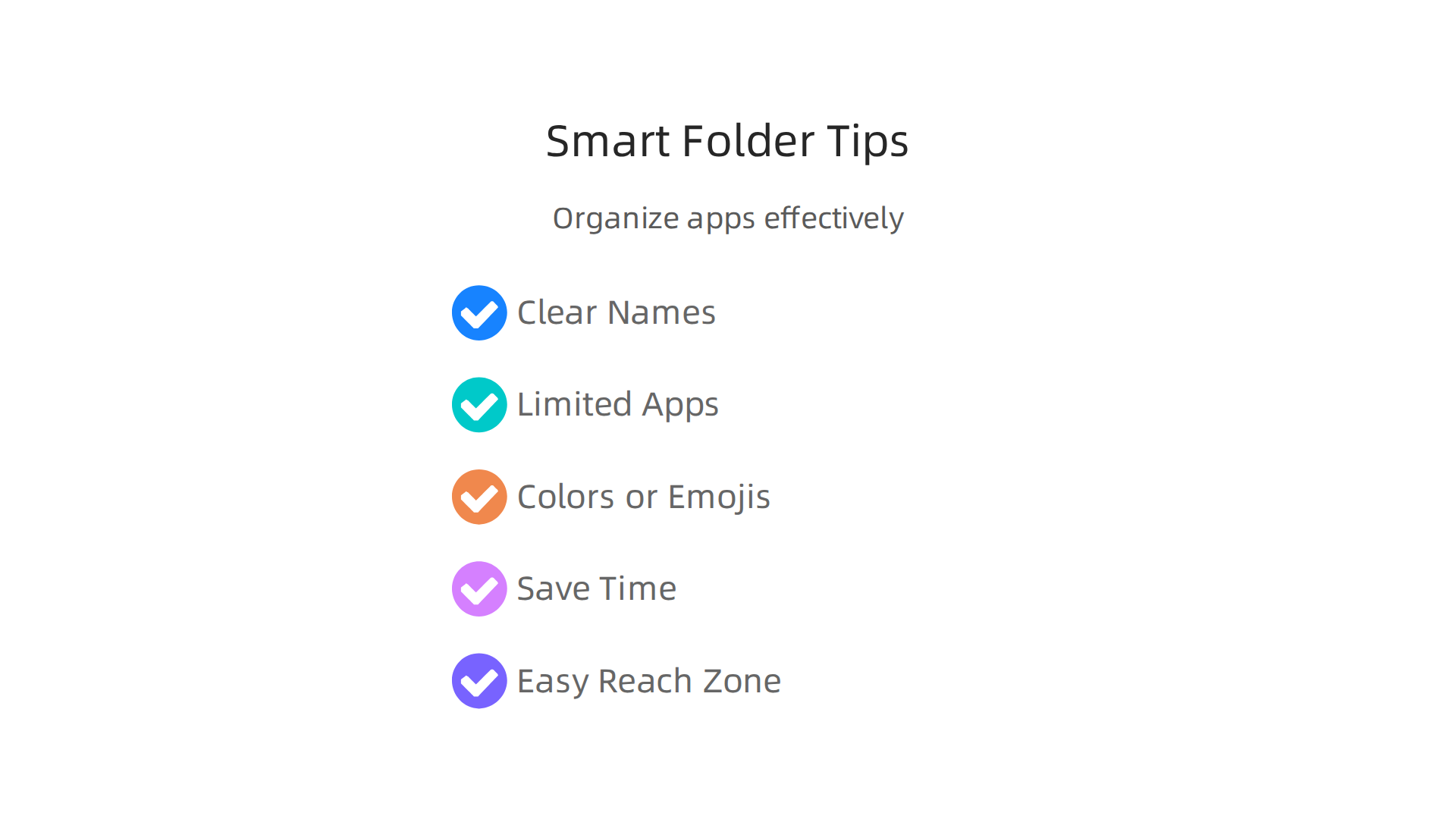
- Give them clear names: Don’t just call a folder "Apps" or "Misc." Give it a name that tells you exactly what’s inside, like "Social Media," "Work Tools," or "Shopping." Think about how you would name important papers so you can find them later; the same idea works for your phone.

Experts suggest keeping names short but very descriptive, making it easy to search and sort later on, much like how you would handle digital files on a computer Data management good practices: File naming and folder organization.
- Don’t put too much in one folder: If a folder has too many apps, it can be hard to find what you need quickly. Try to keep it to 6-9 apps per folder, if possible.
- Use colors or emojis: Some Samsung phones let you change the color of folders or add a little emoji to the name. This can help you spot the right folder faster just by looking at the color or picture. For example, a red folder for games or a blue one for news.
Categories and Color-Coding for Quick Finds
Beyond just naming, thinking about categories helps a lot. You can group apps by:
- Type of use: All your communication apps together, all your health and fitness apps together, and so on. This is like having a "wellness" category that might include your health tracker and meditation apps.
- Frequency of use: Your most used apps might not even go into a folder, but slightly less used ones can be grouped.
- Color-coding: While not every app icon can be changed, using folder colors or even sorting apps by icon color can create a pleasant and easy-to-scan look.
Making sure your apps are grouped by similar information or purpose can help you find things faster and feel less stressed when using your phone. This approach helps reduce "mental clutter" and makes your samsung android home screen a more peaceful place.
Frequently Used vs. Backup Apps
Think about your apps in two groups:
- Frequently Used Apps: These are the apps you open many times a day. These should be very easy to get to. Put them in your Easy-Reach Zone, directly on your home screen, or in a folder in your dock (the row of apps at the very bottom that stays the same on every home screen page).
- Backup Apps (or Less Used Apps): These are apps you need sometimes, but not every day. These are perfect for putting into folders on a second or third home screen page, or even just leaving them in your App Drawer. The App Drawer is where all your apps live, and you can usually get to it by swiping up from the home screen. It’s a great place for apps you don’t "consciously choose to open" all the time, keeping your main screens clean.
By using these folder tips and ways to sort your apps, you’ll make your Samsung phone much easier to use every day. If you ever want to change how your app drawer looks or hide its icon, you can always explore settings for that too. To learn more about personalizing your device, you might be interested in how to change or hide the Samsung app drawer icon. This step-by-step approach helps you master how to organize apps on Samsung phones for real everyday benefits.
After getting your apps sorted into smart folders, let’s look at another powerful tool for keeping your samsung android home screen neat and making your daily tasks faster: widgets. Using widgets effectively is a key part of how to organize apps on Samsung phones for real everyday benefits. They are like quick windows into your apps, letting you see important information or do quick actions without opening the full app.
Use Widgets and Stacks Effectively (the shortcut to faster routines)
Widgets are super helpful for those quick checks and actions that make up your day. Think of them as small, live pieces of an app right on your home screen. They can show you things at a glance, like the weather, your next calendar event, or even quick controls for music. This means fewer taps and less time spent searching.
Choosing and Placing Useful Widgets
When picking widgets, think about what info you check often or what actions you do many times a day.
- Calendar Widgets: A calendar widget can show you your next meeting or upcoming tasks without even unlocking your phone. You can see your schedule in a small square or a long strip.
- Weather Widgets: Get an instant peek at the day’s weather, so you know if you need a jacket or umbrella.
- Music Control Widgets: If you listen to music a lot, a music widget lets you play, pause, or skip songs without opening the music app.
- Battery Widgets: These are great for keeping an eye on your phone’s battery life, and they can also show you the battery levels of connected devices, like your [samsung wearable] headphones or smartwatch. For example, a Samsung Galaxy Watch 7 review often highlights how helpful it is to see its battery life right on your phone’s screen.
- [Samsung Messages] Widgets: Some messaging apps offer widgets that show your latest messages or give you quick reply options.
To place a widget, just long-press on an empty spot on your home screen, then tap "Widgets." You can then choose one, and change its size by dragging its edges. Place them where they make the most sense for you, perhaps near related app folders or in your easy-reach zones.
Combining Widgets with Stacks and Shortcuts
Samsung phones have a clever feature called widget stacks. This lets you put several widgets on top of each other in the same space. You just swipe through them to see different information. For example, you could have a weather widget, a calendar widget, and a news widget all in one stack. This saves space on your home screen and keeps things tidy.
You can also combine widgets with your organized folders and shortcuts to make your routines even smoother. Imagine a folder for "Work" apps, right next to a widget stack that shows your upcoming work meetings and emails. This setup streamlines your workflow and reduces the number of times you have to open an app. It’s all about making your phone work for you, not the other way around.
For even more control over your phone’s look and feel, Samsung offers a powerful app called Good Lock. It has many extra tools, called modules, that let you change nearly every part of your phone. One popular module is Routines+, which helps you create advanced automatic tasks for your phone, like turning off Wi-Fi when you leave home or starting music when you plug in headphones. Many users find it a great way to customize their experience even further, making their phone truly personal TOP 10 Good Lock Modules – Routines+. To explore more about Good Lock and its many features, you can check out this guide to Samsung Good Lock.
Staying on top of new tech, like advanced customization tools and AI features, is a big part of making the most of your devices.
Get clear daily AI updates from The AI Newsletter Worth Reading.
Staying on top of new tech, like advanced customization tools and AI features, is a big part of making the most of your devices. Actually, Samsung offers many built-in tools that can greatly change how you organize apps on Samsung phones and use your samsung android home screen. These advanced features go beyond simple folders and widgets to truly make your phone smarter and work better for you.
Advanced Samsung Tools: Good Lock, Edge Panels, Bixby Routines and Third-Party Launchers
We already talked about Good Lock’s Routines+ module. But Good Lock is a whole set of tools, or "modules," that let you deeply customize your Samsung Galaxy phone. Think of it as a special toolbox for power users.
Deeper Customization with Good Lock Modules
Good Lock lets you change things like your lock screen, quick settings panel, and even how your recent apps look. It’s a great way to make your phone feel truly unique and fit your style. For example, some popular modules include:
- Home Up: This module helps you change your home screen grid, app drawer settings, and even folders, giving you more space and control over how your apps are laid out.
- LockStar: With LockStar, you can create new lock screen designs and customize what appears on your Always On Display (AOD), making it both stylish and functional.
- ClockFace: If you want a special clock design for your lock screen or AOD, ClockFace has many styles to pick from.
- QuickStar: This lets you change the look of your notification panel and status bar. You can even hide icons you don’t need, making your samsung android home screen cleaner.
Many users love Good Lock because it adds features that are not normally found in the regular phone settings. You can download Good Lock and its modules from the Galaxy Store to start customizing your phone today. It’s a core part of how to organize apps on Samsung phones for many people who like to fine-tune their experience Good Lock – Apps on Google Play. To learn more about all the ways you can transform your Samsung Galaxy smartphone, you can check out this helpful video: TRANSFORM Your Samsung Galaxy Smartphone In Minutes!.
Edge Panels: Quick Access for Apps and Information
Edge Panels are another super handy feature on many Samsung phones. These are small panels that slide out from the side of your screen. You can fill them with shortcuts to your most used apps, contacts, tools, or even samsung messages. This means you can get to what you need quickly, no matter what app you are using.
You can customize what appears on your Edge Panels. For example, you might have:
- An "Apps" panel with your favorite apps.
- A "People" panel for quick calls or texts to important contacts.
- A "Smart select" panel for taking screenshots or extracting text.
- A "Tools" panel with a compass, ruler, or flashlight.
Edge Panels are a smart way to keep your main home screens clean while still having fast access to many things. It’s like having a hidden tray of your most important items always ready.
Bixby Routines: Automate Your Phone’s Behavior
Bixby Routines let your phone do things automatically based on certain triggers. This can save you a lot of time and taps throughout the day. For example, you can set up a routine to:
- Turn off Wi-Fi and turn on mobile data when you leave home.
- Put your phone on silent when you get to work.
- Open your music app and start playing when you plug in your headphones.
- Turn on "Do Not Disturb" mode when you go to bed.
These routines make your phone react to your daily life, creating a more seamless experience without you having to remember to change settings all the time. This helps you manage your phone’s behavior and reduces digital distractions, allowing you to navigate digital technology more effectively. If you want to dive deeper into creating advanced routines, there are modules like Routines+ in Good Lock that give you even more power to customize these actions Samsung Galaxy Routines + Good Lock Full Walkthrough.
When to Use a Third-Party Launcher
While Samsung’s One UI is very good, some people like even more control over their samsung android home screen. This is where third-party launchers come in. A launcher is an app that changes the whole look and feel of your home screen, app drawer, and even how you open apps.
Some popular third-party launchers like Nova Launcher or Lawnchair offer:
- More choices for icon packs and themes.
- Advanced gesture controls (like swiping up to open an app).
- Even more detailed customization for app labels, grid sizes, and animations.
How to migrate layouts safely: If you decide to try a third-party launcher, you can often back up your current home screen layout first. Most launchers also have a feature to import layouts from other launchers, making the switch pretty smooth. When you install a new launcher, your phone will ask which one you want to use as default. You can always switch back to Samsung’s One UI if you don’t like it. For more tips on how to organize apps on your Samsung phone, including options for different One UI versions, you can read about how to Samsung organize apps on your Galaxy phone.
A custom phone setup is great, but just like a garden, it needs regular care to stay tidy and useful. Having a good plan for how to organize apps on Samsung phones means not just setting them up, but also keeping them neat and knowing how to save your hard work. This helps your samsung android home screen stay helpful and not get messy over time.
Practical Maintenance for Your App Layouts
Even with the best initial setup, things can get cluttered. Here are some simple routines to keep your Samsung phone organized:
- Weekly Declutter: Take five minutes each week to look at your home screen. Do you still use all the apps on your main screen? Are there any apps you downloaded for a quick task but no longer need? Remove shortcuts you don’t use often, or group them into a "Rarely Used" folder. This small habit makes a big difference.
- Quarterly Review: Every three months, do a deeper clean. Go through your app drawer. Uninstall apps you truly haven’t used in a long time. For apps you might need later but not often, consider archiving them. Archiving frees up space and removes the app from your view without completely deleting its data. You can always bring it back if needed. This also helps you maintain overall digital balance and secure your phone and find digital balance for mobile tech wellness.
- Archive Rarely Used Apps: Samsung phones, especially with newer One UI versions, might suggest archiving apps you haven’t touched in a while. This is a smart way to keep your phone running smoothly without constantly uninstalling and reinstalling. If you’re wondering how to manage your app drawer more effectively, you might also be interested in how to change or hide the Samsung app drawer icon on your Galaxy.
How to Backup Your Home Screen Layout Safely
Imagine spending hours getting your home screen just right, only to lose it all after a phone reset or when getting a new device. Scary, right? Luckily, you can easily back up your Samsung home screen layout. This includes your app and widget setups, wallpapers, and more.
There are a few main ways to save your layout:
-
Samsung Cloud: This is a built-in service for Samsung users. You can set it to automatically back up your phone data, including your home screen settings, to the cloud.
- Go to Settings, then tap on your Samsung account name at the top.
- Choose Samsung Cloud, and then select "Back up data".
- Make sure "Home screen" is selected in the list of items to back up. Then tap "Back up now" Back up and restore data on your Galaxy phone. It’s a simple way to keep your layouts safe and sound Samsung Cloud | Apps & Services.
-
Smart Switch: This app is great for moving everything from an old phone to a new one, or for creating a full backup to a computer or external storage. Smart Switch can back up your home screen layout along with other files and settings Back up and restore data or files on your Galaxy phone or …. Connect your phone to your computer or another storage device, open Smart Switch, and follow the steps to back up your data Samsung Smart Switch | Samsung Support CA.
-
Third-Party Launchers (if used): If you use a custom launcher like Nova Launcher, they usually have their own backup and restore features. This lets you save your specific launcher setup separately, which is handy if you switch between launchers often.
How to Restore Your Home Screen Layout
Once you have a backup, bringing your old layout back is easy.
- From Samsung Cloud:
- Go to Settings > Samsung account > Samsung Cloud.
- Tap "Restore data" and choose the backup you want.
- Select "Home screen" and any other items you wish to restore, then tap "Restore" How do I backup and restore data on my Galaxy device?.
- Using Smart Switch:
- Connect your new phone or reset phone to the backup source (computer or external storage).
- Open Smart Switch and choose "Restore" to bring back your saved data, including your home screen layout.
Taking these few steps to maintain and back up your layout will make sure your custom setup always serves you best.

Staying updated on the latest tech trends, especially in AI, can help you make the most of your smart devices and stay productive. For daily insights into these fast-moving areas, consider subscribing to The AI Newsletter Worth Reading.
Summary
This guide shows simple, practical ways to organize apps on Samsung phones running One UI so your device feels faster, calmer and easier to use. It explains the difference between home screen pages and the app drawer, how app shortcuts work, and basic layout options like grid sizes and icon packs. You’ll learn how to plan one‑page or multi‑page setups, create useful folders with clear names, and place apps in thumb‑friendly zones. The article also covers widgets and widget stacks for quicker routines, advanced tools like Good Lock, Edge Panels and Bixby Routines, and when a third‑party launcher makes sense. Finally, it walks through maintenance habits and safe backup/restore options (Samsung Cloud and Smart Switch) so your layout stays tidy and recoverable.